Source: https://www.kortex-notebooklm.com/
# Kortex for NotebookLM and Gemini Notebook: Import, Organize, Export
> Kortex is the free Chrome extension for Gemini Notebook (formerly NotebookLM): import from anywhere, organize every notebook, automate the busywork, and export anything.
https://www.kortex-notebooklm.com/
[Acquired by  **FschoolAI**](https://fschoolai.com)
# Get everything into Gemini Notebook. And everything out.
Kortex is the free Chrome extension for Gemini Notebook (formerly NotebookLM). Import from anywhere in one click, keep every notebook organized, and export anything to PDF or Markdown.
[Add to Chrome](https://chromewebstore.google.com/detail/kortex/hdapplggdhndkblofffknpmnnnnbncbn) [Explore features](/features)
Loved by 130,000+ people. Free plan, no card needed.
Animated product demo. Four sources, a ChatGPT chat, an X thread, a YouTube video and a highlighted web page, are each sent into a Gemini Notebook with one click. Kortex then tags the notebook and files it into a Research collection, an automation creates a study guide and an audio overview, and the notebook is exported as Markdown, PDF and a ZIP file.
Everything in green is what Kortex adds to Gemini Notebook
NewSchedules with Kortex MCP
## Put your notebooks on a schedule.
Tell your AI assistant once. Every hour, day or week, Kortex asks your notebooks the question, saves the answer and turns it into an Audio Overview, so the brief is waiting when you sit down.
- **Hourly, daily or weekly,** on your own clock and time zone
- **Ask and save, generate audio or study material,** or run any workflow you have saved
- **Runs from your browser** while Chrome is open, with your own Google sign-in
[See how schedules work](/docs/mcp-workflows) Pro, private beta
**Your AI assistant** Kortex connected
Every Monday at 8, ask my Competitors notebook what changed this week. Save the answer and make it an Audio Overview I can listen to.
`kortex.create_automation weekly · Mon 8:00` saved
Done. Your Competitors brief runs every Monday at 8:00 and lands as a source plus an Audio Overview.
Competitors brief every Monday
1. **Monday, 8:00** 2 pricing changes and a new integrations page Brief Audio
2. **Monday, 8:00** Nothing new this week, so a one-line note Brief Audio
3. **Monday, 8:00** 3 new blog posts and a hiring push in sales Brief Audio
## You love Gemini Notebook. You just spend half your time babysitting it.
It reads your sources brilliantly. Everything around that, getting research in, keeping it findable and getting it back out, is still done by hand.
### Copy, paste, repeat.
Your research lives in ChatGPT, Claude, threads and forty open tabs. It reaches a notebook one paste at a time, and the formatting rarely survives.
### Forty-seven notebooks. No folders.
Every notebook is a tile on one long page. No collections, no tags, and half of them are called Untitled notebook.
### Nothing comes back out.
Want your sources, chats or notes as files? There is no download for that, so it leaves the way it came in: one selection at a time.
### The same prompt, typed again.
Your best prompts live in a note somewhere else. Every session starts by finding them and retyping them.
## Kortex fixes all four, inside the tab you already use.
47 notebooks, all in one pile 4 collections, 18 tags, one search box
**Research** _12_
- Sleep and memory #neuro
- Urban heat islands #thesis
- Gut microbiome review #lit-review
- Climate policy papers #policy
- LLM evaluation methods #ai
- Coral reef survey #fieldwork
**Coursework** _9_
- Organic chemistry 201 #finals
- Macroeconomics #exam-prep
- Constitutional law #week-6
- Statistics problem sets #exam-prep
- History of Rome #essay
- Spanish B2 prep #daily
**Work** _14_
- Customer interviews Q3 #research
- Competitor pricing #strategy
- Onboarding docs #team
- Board meeting prep #monthly
- Hiring plan 2026 #people
- Launch retro notes #product
**Reading list** _31_
- Philosophy of mind #books
- Podcast transcripts #listen
- Longform essays #weekend
- Sci-fi book club #club
- Newsletter clippings #inbox
- Recipes to try #home
## Send it from wherever you found it.
Stop copying and pasting. Kortex adds a button where your research already happens, and puts it in the notebook you choose.
From your AI chats
A Send to Notebook button inside ChatGPT, Claude, Gemini, Perplexity and more. Prompts and replies arrive cleanly labelled.
From any page
Highlight a passage and right-click, or send the whole page. It lands as a source with its link.
In bulk Pro
Every open tab, a CSV of links, an RSS feed, or a crawler that follows a site’s links for you.
From Google Docs Pro
A Doc can change after you add it. One click re-syncs every Google Doc in a notebook.
-  ChatGPT
-  Claude
-  Gemini
-  Perplexity
-  X
-  Reddit
-  LinkedIn
- YouTube
- Google Docs
- Grok
- Kimi
- Genspark
- OpenEvidence
- Any web page
## A library, not a pile.
The Kortex Workspace gives every notebook a place. Sort them into collections, tag them, star them, and find anything in a second.
Kortex Workspace
- Collections with subfolders and colours
- Tags for notebooks and for single sources
- Merge or compare notebooks side by side
- A prompt library you never retype
## Set the rule once. It runs every time.
Rules connect something you already do, like adding a tag, to the steps that should follow. Kortex runs them in the background while you keep reading.
When
A notebook is tagged **#work**
1. 1 Move it to the Work collection
When
A notebook is tagged **#to-summarize**
1. 1 Generate a briefing doc
2. 2 Generate flashcards
When
A notebook is tagged **#paper**
1. 1 Add #to-summarize
2. 2 Add #cite
When
A source comes from **arxiv.org**
1. 1 Add it to the Papers notebook
When
A notebook enters **CS224N**
1. 1 Create a Lecture summary note
2. 2 Create a Key terms note
3. 3 Create an Exam questions note
When
A notebook is tagged **#listenlater**
1. 1 Generate its audio overview
2. 2 Add it to the My Playlist feed
When
An episode **finishes playing**
1. 1 Remove it from the feed
8 triggers and 11 actions to combine, or start from 9 ready-made rules. Included with Pro.
## Your notebooks, in any format and any app.
Download sources, notes, chats and Studio artifacts as real files. Or turn Audio Overviews into a private podcast you can play on your commute.
### Export anything
One notebook or a hundred. Whole notebooks, single sources, chats with or without your own messages.
- _PDF_ **sleep-and-memory.pdf** Formatted, ready to print
- _MD_ **sleep-and-memory.md** Headings kept, for Obsidian or Notion
- _TXT_ **sleep-and-memory.txt** Plain text, for anything
- _ZIP_ **sleep-and-memory.zip** Every source, note and chat at once
### Listen anywhere
Kortex publishes your Audio Overviews to a private podcast feed. Subscribe once in Apple Podcasts, Spotify or Pocket Casts and new episodes just appear.
1,000 audio minutes included with Pro
Private betaKortex MCP
## Now your AI assistant can work inside your notebooks.
Connect Claude, ChatGPT, Cursor, VS Code or any MCP client to your Gemini Notebooks. Ask across your whole library, fill notebooks straight from a chat, and reorganize hundreds of them with one sentence.
- **145+ notebook tools** your assistant can call
- **One config** pasted into your AI client, or sign in with OAuth
- **Your Google login stays in your browser.** Kortex never stores your password or cookies.
[Read the MCP docs](/docs/mcp-server)
**Your AI assistant** Kortex connected
Go through my inbox for every email from my landlord this year and put them in one notebook. Then tell me which repairs are still open.
1. `kortex.create_notebook "Landlord 2026"` created
2. `kortex.add_text_source 14 emails` 14 added
3. `kortex.ask_question "Which repairs are still open?"` answered
Two repairs are still open: the bathroom extractor fan, reported on 3 March, and the back door lock, reported on 19 August. Everything else was marked fixed in a later email. 12
## Loved by 130,000+ people who live in their notebooks.
200,000+ exports and 105,000+ imports so far. Here is what people wrote, in their own words.
> The source downloader feature is stupidly good. Exporting entire notebooks into Markdown in one zip? That alone makes this extension worth it. I wish I had this months ago.
**Saloni** [Chrome Web Store review](https://chromewebstore.google.com/reviews/9deac464-b4ab-40c8-b53d-a1e0b6b1c873)
> Kortex turns NotebookLM into an actual knowledge base instead of a fancy note dump. Highlighting text from any webpage and sending it straight in feels borderline magical.
**Suhani** [Chrome Web Store review](https://chromewebstore.google.com/reviews/75dc6eaf-f296-4002-9b41-af0bc4d24823)
> Easy to use and works well! Just click on the NotebookLM button in a chat, and you will be prompted to add the chat to a new project or existing one. The newly created source is formatted very cleanly, with prompts and responses indicated clearly (no extra random characters, etc.)
**Steve Lang** [Chrome Web Store review](https://chromewebstore.google.com/reviews/f2cbf1b6-ba39-477c-bfb1-2a4d2294e31f)
> Brilliant! Is going to save me hours. I can make all sorts of enquiries in Gemini and then Kortex consolidates them into a single notebook where I can review what I have found and make sense of it all. Thank you.
**Powys House** [Chrome Web Store review](https://chromewebstore.google.com/reviews/0587024b-b05a-489c-9a1b-c27ebdc0ff6d)
> I am not very tech-savvy, but the Kortex extension is easy to use. I save recipes and cooking notes from different websites, and everything stays in one place. Earlier, I used to forget where I saw a recipe; now it's easy to find. Saves time and effort.
**Archana** [Chrome Web Store review](https://chromewebstore.google.com/reviews/6f715272-33d8-494e-afdf-f93b023bab73)
> Oh man, happen to know this extension from XDR. I should give 6 stars! Just one click and all chats imported to NBLM.
**Jeff Liou** [Chrome Web Store review](https://chromewebstore.google.com/reviews/83679954-5d81-4022-a795-c64bc1e149e8)
> Excellent extension for NotebookLM. Import various ai conversations over to ai seamlessly. Adds a convenient button to Gemini
**FireCracker** [Chrome Web Store review](https://chromewebstore.google.com/reviews/c2a219d1-1aae-48b3-9f5a-517c4090263e)
> Kortex solves such a practical problem. NotebookLM is powerful, but managing sources across multiple projects can get messy fast. Having a centralized way to organize, import, and export those sources with a click is exactly the kind of workflow improvement that saves hours over time.
**Product Hunt commenter** [Product Hunt review](https://www.producthunt.com/products/kortex-2?comment=5044625)
> Really awesome. Works. Does what it says.
**Utkarsh Patel** [Chrome Web Store review](https://chromewebstore.google.com/reviews/8c041990-27a8-49ea-851f-df8c5bf5fce8)
> Excellent Extension. Saves time and efforts. Worth giving it a try.
**smit d** [Chrome Web Store review](https://chromewebstore.google.com/reviews/0c2b86e4-8fa4-4247-9b02-de66440fdb0b)
- [**XDA Developers** Hands-on review of the extension](https://www.xda-developers.com/kortex-notebooklm-chrome-extension/)
- [**Product Hunt** Top post of the day at launch](https://www.producthunt.com/products/kortex-2/launches/kortex-3)
[Read every review on the Chrome Web Store](https://chromewebstore.google.com/detail/kortex/hdapplggdhndkblofffknpmnnnnbncbn/reviews)
Infiltrating the world's best institutions
- OpenAI
- Harvard
- Anthropic
- Tsinghua
- Google
- Yale
- Meta
- Peking University
- Microsoft
- Princeton
- Amazon
- Fudan
- Apple
- Columbia
- Tesla
- Shanghai Jiao Tong
- NVIDIA
- Penn
- Adobe
- Zhejiang
- Salesforce
- Cornell
- IBM
- Nanjing
- Oracle
- Brown
- Netflix
- Dartmouth
- Spotify
- OpenAI
- Harvard
- Anthropic
- Tsinghua
- Google
- Yale
- Meta
- Peking University
- Microsoft
- Princeton
- Amazon
- Fudan
- Apple
- Columbia
- Tesla
- Shanghai Jiao Tong
- NVIDIA
- Penn
- Adobe
- Zhejiang
- Salesforce
- Cornell
- IBM
- Nanjing
- Oracle
- Brown
- Netflix
- Dartmouth
- Spotify
## Free to start. Pro when your library grows.
Billing period Monthly Yearly 50% off 3 years 64% off
### Free
Everything you need to get your research into Gemini Notebook.
**$0**forever
[Add to Chrome](https://chromewebstore.google.com/detail/kortex/hdapplggdhndkblofffknpmnnnnbncbn)
No card needed. Upgrade anytime.
- 10 imports a day from 15 sites, including ChatGPT, Claude, Gemini, X, Reddit and YouTube
- 10 exports a day to PDF, Markdown and text
- Highlight text on any page and send it to a notebook
- Search across every notebook and source
- Copy any chat, as often as you like
- 10 saved prompts, 5 source views and 5 folders
- Not included: Sync across devices
- Not included: Automations
- Not included: Podcast feed
- Not included: Kortex MCP
- Not included: Google Docs sync
- Not included: Bulk import
### Pro
Most popular
Import from anywhere, with any AI New
Kortex MCP lets Claude, ChatGPT, Cursor and the AI tools you already use add sources, ask your notebooks and build new ones for you. Now in private beta. [See how it works](/docs/mcp-server)
No daily limits, automations that run on their own, and your podcast feed.
~Was $9.99~ **$4.92**per monthbilled annually
That's 16¢ a day.
[Upgrade to Pro](#pricing)
Join 130,000+ people using Kortex. Cancel anytime.
#### No daily limits
- **Unlimited** imports, exports, prompts, source views and folders
- **Sync** your library across all your devices
- **Bulk import** from open tabs, CSV files, RSS feeds and whole websites
#### Works while you don't
- **Automations** with 8 triggers, 11 actions and 9 ready-made rules
- **Study guides, flashcards and briefings** made the moment you file a notebook
- **Google Docs sync** for every Doc in one click
#### Takes your notebooks further
- **Podcast feed** in Spotify and Apple Podcasts, with 1,000 minutes that never expire
- **Generate all, then preview and edit** artifacts before you download
- **Merge, move and compare** notebooks and sources
> “Exporting entire notebooks into Markdown in one zip? That alone makes this extension worth it.”
[Saloni, Chrome Web Store](https://chromewebstore.google.com/reviews/9deac464-b4ab-40c8-b53d-a1e0b6b1c873)
Use the email you sign in to Kortex with.
### Teams
For labs, classes and small teams who share notebooks.
**$12**per seat, per month
Billed yearly, 3 seats minimum. From $432 a year.
Everything in Pro, plus
- Shared prompt libraries
- Team notebooks
- Admin dashboard for seats and usage
- Priority support
### Enterprise
Security and control for large organizations.
**Custom**
Volume discounts available.
Everything in Pro, plus
- SSO and provisioning with Okta, Google Workspace or Azure AD
- Centralized billing by invoice
- Zero-retention security agreements
- A dedicated success manager and SLA
## Questions people ask before installing
More answers on the [support page](/support), or [write to us](#contact).
What is Kortex?
Kortex is a browser extension that enhances Gemini Notebook by adding export functionality, prompt management, and source viewing features. You can export notebook sources in multiple formats (PDF, Markdown, Text, ZIP), save and organize prompts, and create custom source views.
Is Kortex free?
Yes. The free Basic tier includes 10 exports per day, 10 imports per day, 5 source views per day, and 10 saved prompts in total. For unlimited everything plus Google Docs Sync, source deletion, and all automations, we offer Pro ($9.99/month, $59/year, or $129 every 3 years).
What exactly are the free tier limits?
On the free Basic tier: 10 exports per day, 10 imports per day, 5 source views per day, and 10 saved prompts in total. Exports, imports, and source views reset every day. Saved prompts are a total cap rather than a daily one, so you can delete old prompts to free up slots. Pro removes all of these limits.
Which browsers are supported?
Kortex currently supports Google Chrome, Microsoft Edge (Chromium-based), Brave Browser, and other Chromium-based browsers. Firefox support is coming soon.
What formats can I export to?
You can export to PDF (formatted documents), Markdown (intelligently formatted with hierarchy detection), Text (plain text), and ZIP (compressed archives).
Do podcast minutes renew each month?
No, the 1,000 podcast audio minutes included with Pro are a one-time allocation rather than a monthly refresh. They are tied to the audio you currently host, so removing a podcast from the feed returns its minutes to your balance. If you need more, extra minutes cost $10 per 500 LIFETIME minutes.
Is my data secure?
Yes! Kortex uses Google OAuth for authentication, Firebase for secure backend services, and Firestore for cloud storage. Any data Kortex collects is only used to improve product experience; you may choose to opt out at any time.
## Give your notebooks a home.
Install Kortex in under a minute. It works inside the Gemini Notebook you already use, free forever for the basics.
[Add to Chrome](https://chromewebstore.google.com/detail/kortex/hdapplggdhndkblofffknpmnnnnbncbn) [Read the docs](/docs)
Join 130,000+ people. Works in Chrome, Edge, Brave and other Chromium browsers.

---
Source: https://www.kortex-notebooklm.com/features
# Features
> Every Kortex feature for Gemini Notebook (formerly NotebookLM): import from AI chats and any page, organize notebooks and sources, automation rules, exports, a podcast feed and MCP.
https://www.kortex-notebooklm.com/features
# Everything Kortex adds to Gemini Notebook.
More than 80 features for getting research into Gemini Notebook, keeping it organized and getting it back out. Free to start; anything that needs Pro is marked.
[Add to Chrome](https://chromewebstore.google.com/detail/kortex/hdapplggdhndkblofffknpmnnnnbncbn) [See pricing](/#pricing)
- [Import](#import)
- [Workspace](#workspace)
- [Organize](#organize)
- [Notebooks](#notebooks)
- [Sources](#sources)
- [Merge](#compare)
- [Templates](#templates)
- [Automation](#automation)
- [Artifacts](#artifacts)
- [Audio](#audio)
- [Podcasts](#podcasts)
- [Export](#export)
- [Analytics](#analytics)
- [MCP](#mcp)
## Get anything into a notebook.
Stop copying and pasting. Kortex adds a send button to your AI chats, to social posts and to your right-click menu.
AI chats
A button inside ChatGPT, Claude, Gemini, Perplexity and more sends the chat to a notebook, with prompts and replies labelled.
Resync
Send the same chat again later and Kortex updates its source instead of adding a copy.
Highlight and send
Select text on any page and right-click. It becomes a source with the page link and the date.
Social posts
X threads, Reddit posts with their top comments, and LinkedIn posts with the author.
Google Docs
Send a Doc to a notebook from inside Google Docs.
Bulk import Included with Pro
Paste a list of links, pick from your open tabs, upload a CSV or follow an RSS feed.
Web crawler Included with Pro
Start from one address, choose how many links deep to go, and import the pages it finds.
Domain Router Included with Pro
Route links to notebooks by URL, like arxiv.org to Papers and youtube.com to Watch Later.
The free plan includes 10 imports a day and 5 social imports from X, Reddit and YouTube. Pro has no daily limit.
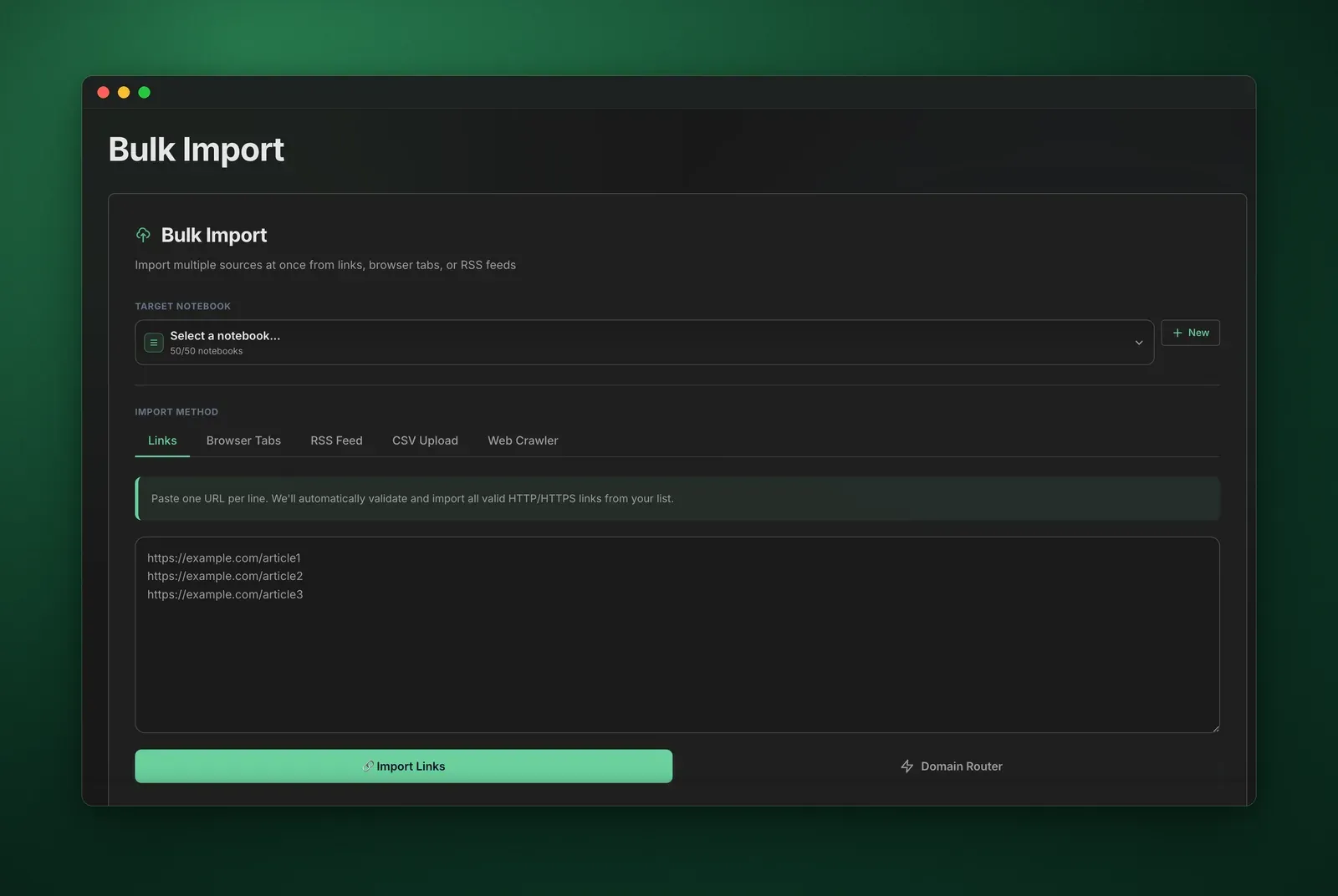
Bulk Import in the Workspace. Choose a notebook, then paste links, pick tabs, add a CSV or a feed, or crawl a site. Included with Pro
### Supported platforms
-  ChatGPT
-  Claude
-  Gemini
-  Perplexity
-  X
-  Reddit
-  LinkedIn
- YouTube
- Google Docs
- Grok
- Kimi
- Genspark
- OpenEvidence
- Any web page
## One tab for all your notebooks.
The Kortex Workspace lists every notebook you own with its sources, tags and collections. Open any of them in one click.
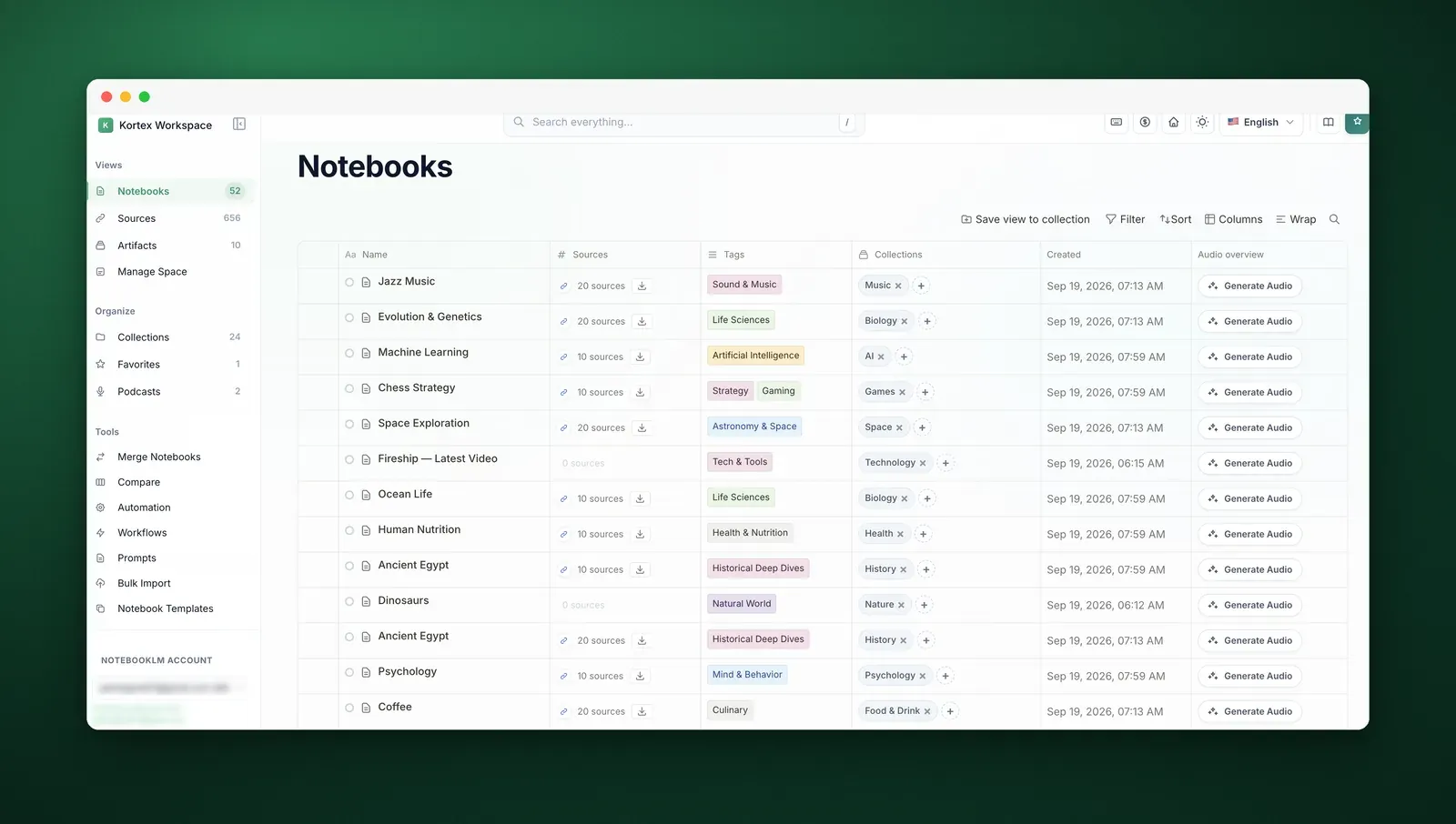
The Notebooks view: source counts, tags and collections for every notebook, and a Generate Audio button on each row.
The Workspace
A full dashboard for your notebooks, sources and artifacts, outside Gemini Notebook.
Search everything
One box looks through notebooks, sources, notes, artifacts, collections and tags. Press / to open it.
Filter and sort
Narrow by name, tag or highlight, and sort by name, date added or source count.
Your columns
Choose which columns show, drag to resize them, and wrap long titles.
Rows per page
Show anywhere from 10 to 100 rows in every table.
Keyboard shortcuts
Get around without the mouse. Press ? to see them all.
Dark mode
A light and a dark theme across the whole Workspace.
9 languages
English, Spanish, Chinese, French, German, Japanese, Turkish, Italian and Vietnamese.
Guided tour
A short walkthrough the first time, and a Replay Tour link whenever you want it again.
## Give every notebook a place.
Folders, tags, colours and stars, for whole notebooks and for single sources.
Collections
Folders for notebooks, with subfolders, colours and pinning.
Smart collections
Set tag rules once. Any notebook that matches all of them joins by itself.
Tags
Coloured tags for notebooks. Tag many at once, rename a tag or delete it.
Source tags
A separate set of tags for single sources inside a notebook.
Source highlights
Colour-code sources so the ones that matter stand out.
Favorites
Star a notebook and it appears in your Favorites view.
Collections explorer
Every collection on one page, filtered by colour, by what is inside, or by empty and full.
Source views
Inside Gemini Notebook, save a filtered list of sources and switch back to it in one click.
Source filters
Search a notebook’s sources, or show only the PDFs, Google Docs, web pages, text or YouTube videos.
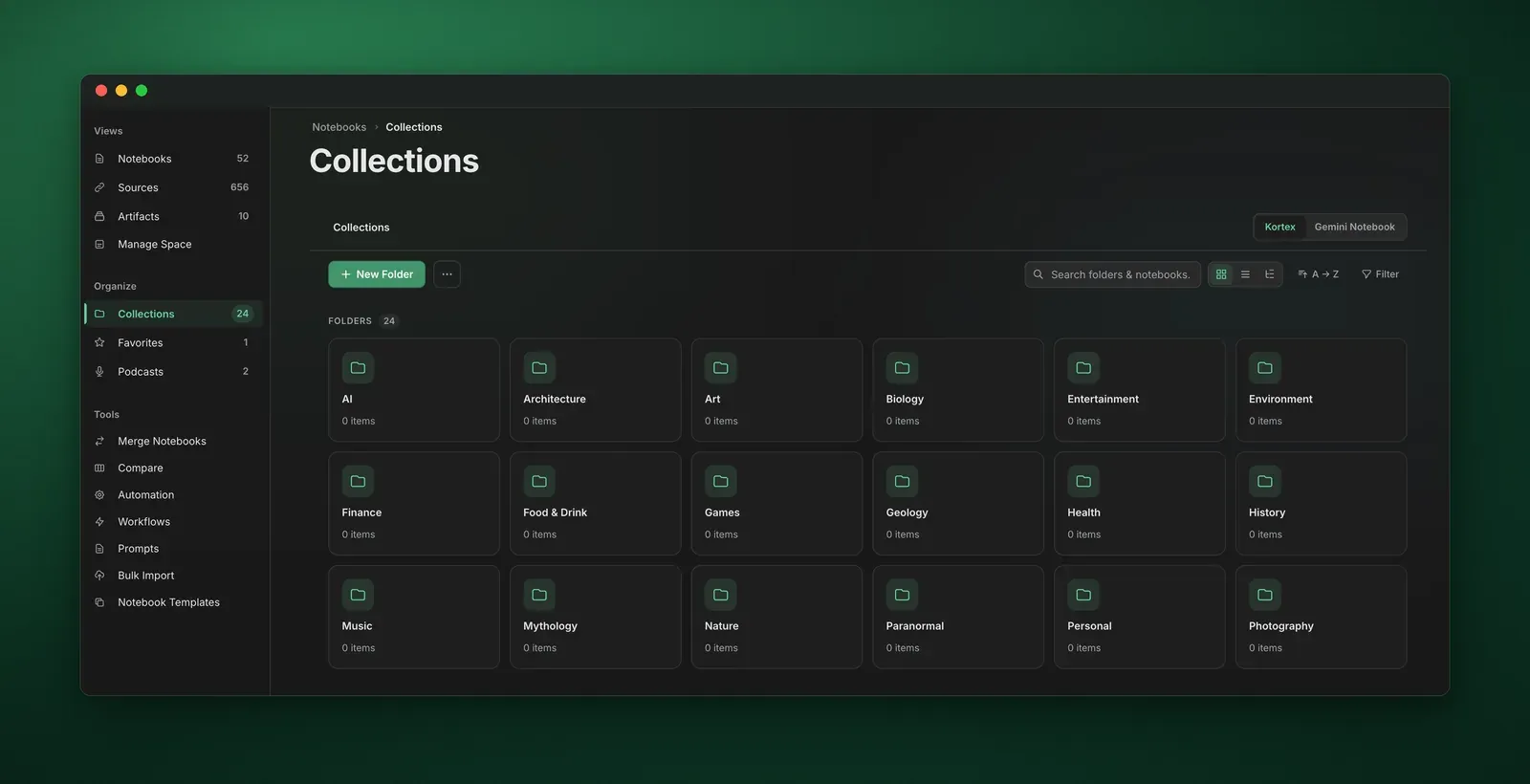
Collections in the Workspace, with search, sorting and filters.
## Notebook chores, in fewer clicks.
Create and copy notebooks from the Workspace, keep a memo on each, and change many at once.
Create notebooks
Start a notebook from the Workspace without opening Gemini Notebook first.
Duplicate
Copy a notebook, with all its metadata, in one click.
Notebook view
Open one notebook to see its sources, notes and artifacts, and add or generate from there.
Quick memo
A scratchpad on every notebook for the thought you do not want to lose.
Bulk select
Tick several notebooks to tag, file, compare or delete them together.
Multiple accounts
Switch between Gemini Notebook accounts in one click.
## Every source from every notebook.
One table for all of them. Search, filter and file them, download them, or move them to another notebook.
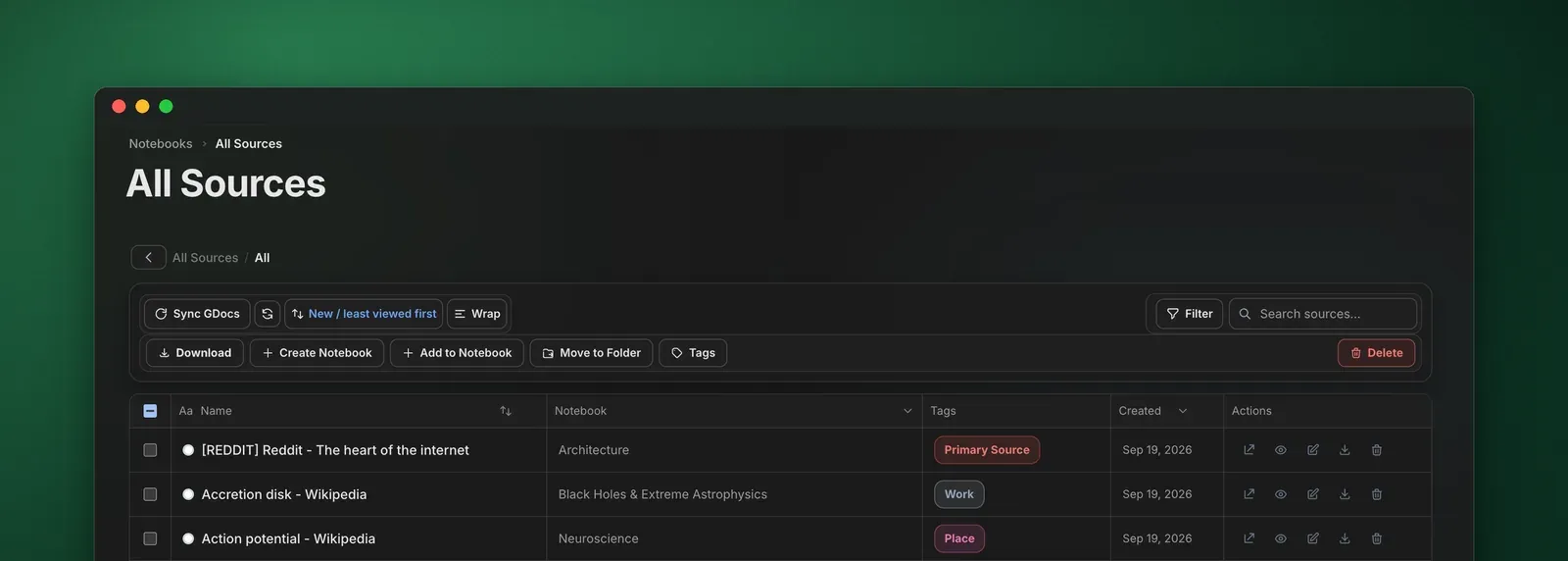
All Sources in the Workspace. Tick rows, then act on them from the toolbar.
One table
Every source across your notebooks, with the notebook it belongs to.
Source folders
File sources into folders and subfolders.
Filters
Narrow by notebook, tag or highlight colour, or search by name.
Download
Save the sources you tick, several at once.
New notebook Included with Pro
Pick sources from anywhere and start a notebook with them.
Add to a notebook Included with Pro
Move the sources you picked into any notebook you already have.
Delete bad sources Included with Pro
Find sources that failed to process and remove them in bulk.
Sync Google Docs Included with Pro
Pull the latest version of every Google Doc source in one click.
## Find the gaps, then merge. Included with Pro
See what two notebooks share, copy over what is missing, or fold several notebooks into one.
### Compare two notebooks
Source diff
The sources both notebooks share, and the ones only one side has.
Tags
Compare the tags on two notebooks and sync them.
Collections
Compare which collections each notebook is in, and sync those too.
Fill the gaps
Copy the missing sources, tags or collections across in one click.
Diff report
Export the comparison to share or keep.
### Merge several into one
Merge
Combine as many notebooks as you like into a new one.
No duplicates
Remove duplicate sources as you merge.
Tags carry over
The new notebook gets the tags of every notebook in it.
Delete originals
Remove the old notebooks once the merge succeeds, if you want to.
File it
Put the merged notebook straight into a collection.
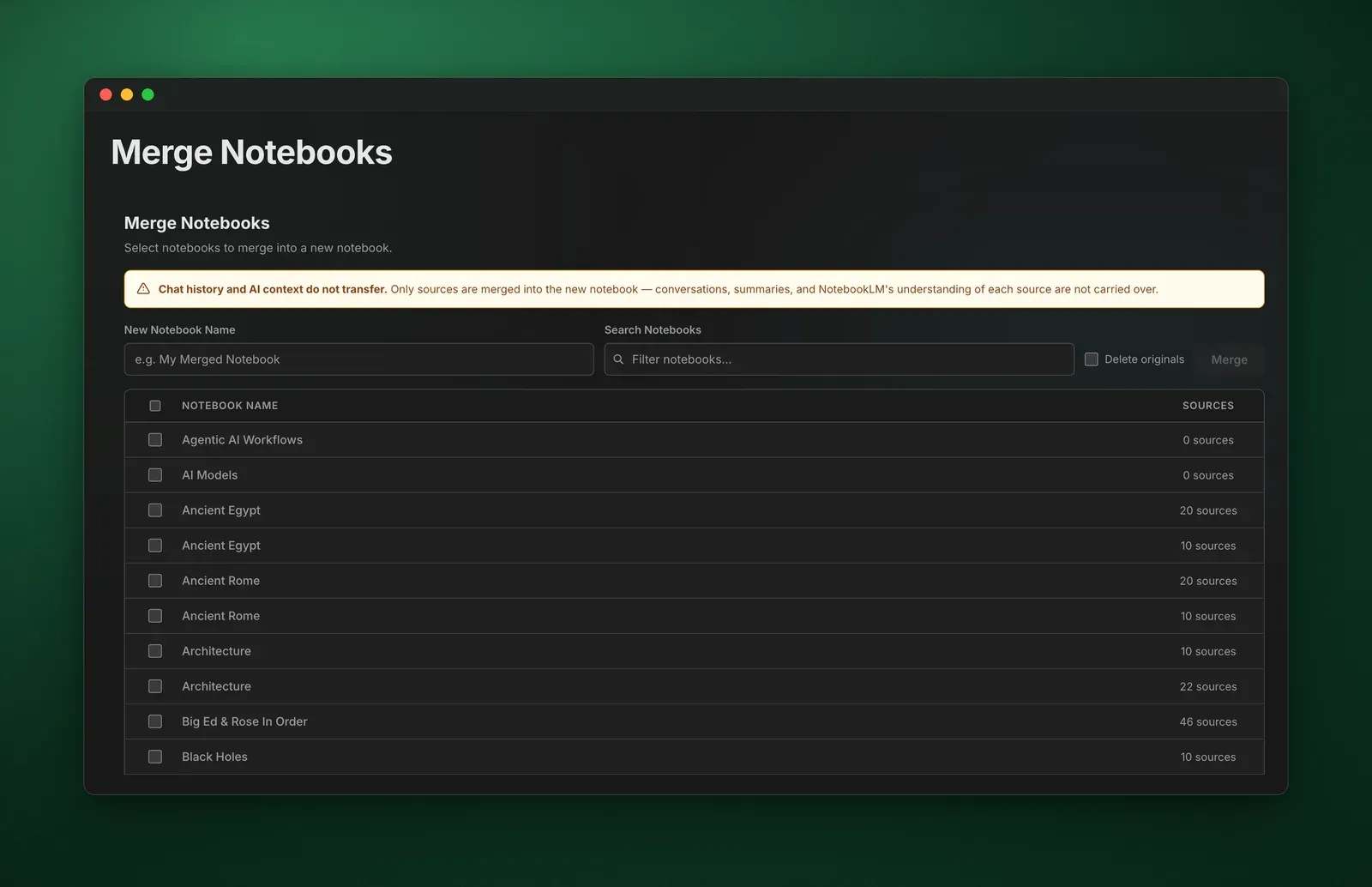
Merge Notebooks in the Workspace. Only sources move; chat history and Gemini Notebook’s summaries stay behind.
## Reuse the setups that work.
Save how a notebook, a source or a note is set up, keep your best prompts, and apply them anywhere in one click.
Notebook templates
Save a notebook’s tags and collection.
Apply them to any notebook in one click.
Source templates
Save a source’s tags and folder.
Apply them to sources in any notebook.
Note templates
Save a note’s title and text, with `{{placeholder}}` variables.
Reuse it yourself, or let an automation add it.
Prompt library
Keep prompts in folders, with favorites and tags.
Insert one into the chat from the Prompts button. The free plan keeps 10; Pro has no limit.
## Rules that do the filing for you. Included with Pro
Pick what starts a rule and what should happen next. Kortex runs it in the background while you keep reading.
### When8 triggers
- A notebook gets a tag
- A source gets a tag
- A notebook moves to a collection
- A title contains your text
- A source is added
- An Audio Overview is ready
- An episode finishes playing
- A notebook has a minimum number of sources
### Then11 actions
- Move to a collection
- Add a tag
- Remove a tag
- Generate audio
- Add a note
- Generate an artifact
- Send to a podcast
- Archive the notebook
- Delete sources
- Apply a source template
- Add a source tag
### 9 ready-made rules
Start from one in a click, or build your own from any trigger and any actions.
Domain Router
Links from arxiv.org go straight to your Papers notebook.
Smart Sort
Tag a notebook **#work** and it moves to the Work collection.
The Escalator
Tag **#paper** and Kortex adds **#to-summarize** and **#cite** as well.
Template Engine
File a notebook in CS224N and it gets Lecture summary, Key terms and Exam questions notes.
Auto-Researcher
Tag **#to-summarize** and a briefing doc and flashcards start generating.
Audio Generator
Move a notebook into Daily Read and its Audio Overview starts generating.
Podcast Pipeline
Notebooks filed in Daily Read add their audio to your Morning Commute podcast.
Podcast Curator
Tag **#listenlater** and the notebook’s audio joins My Playlist.
The Cleaner
Finish an episode and it leaves the feed.
## Every artifact, filed and ready.
Study guides, flashcards, slide decks and more, from all your notebooks in one table you can search, sort into folders and download.
### Artifact types
- Briefing doc
- Study guide
- Flashcards
- Quiz
- Slide deck
- Infographic
- Mind map
- FAQ
- Timeline
- Table of contents
- Cheat sheet
- Video overview
One view
Every artifact across your notebooks, with its type and notebook.
Folders
Folders and subfolders to keep artifacts in order.
Search and filter
Find one by name, or filter by type and notebook.
Generation settings
Set the amount and difficulty, a length of 5, 10 or 15 minutes, and a style: Deep Dive, Brief, Critique or Debate.
Generate in bulk Included with Pro
Make several artifact types from one notebook at once.
Preview and edit Included with Pro
Check an artifact, and change it, before you download it.
Download
Save one artifact or a whole batch to your device.
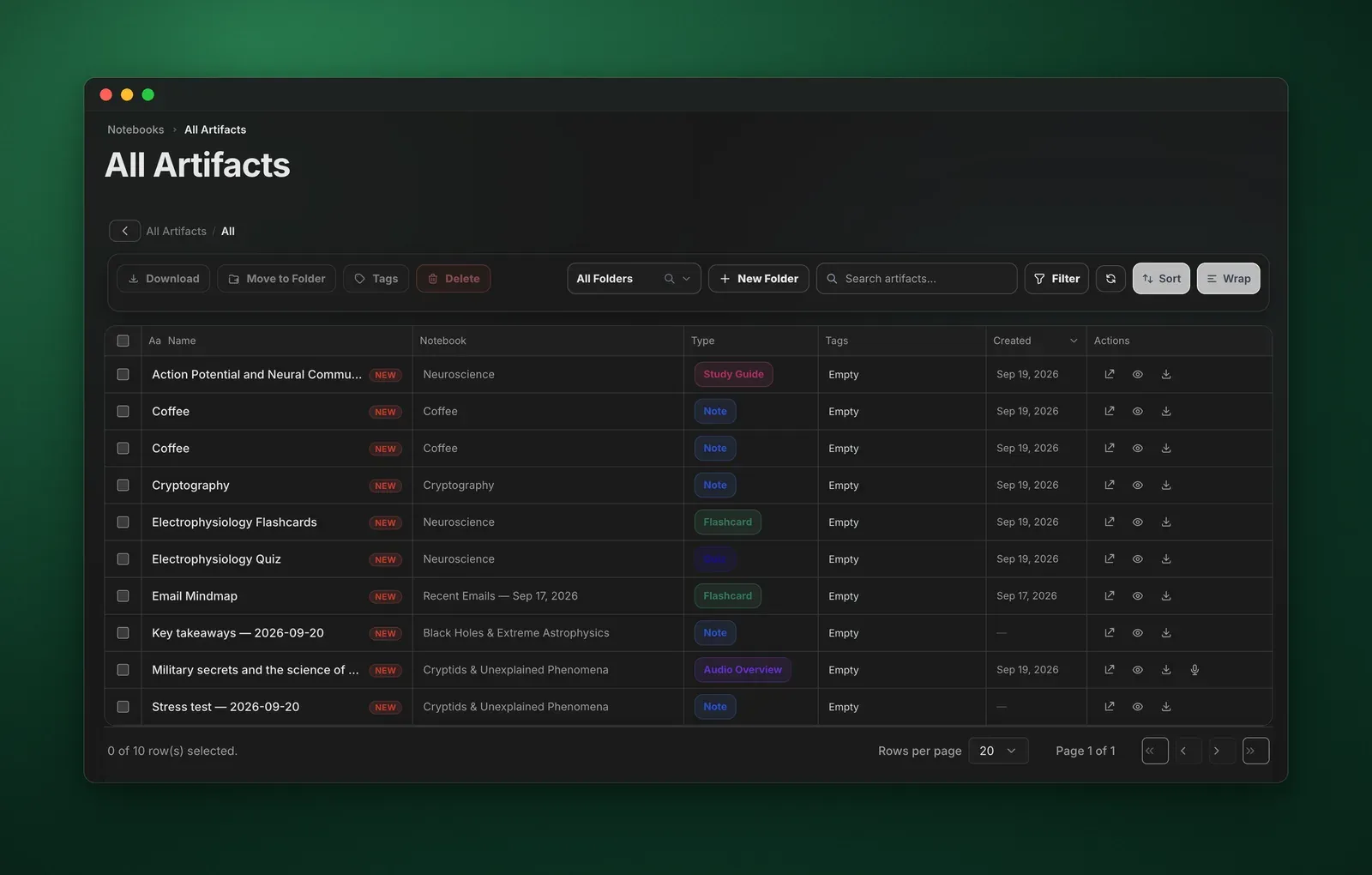
All Artifacts in the Workspace, with study guides, notes, flashcards and an Audio Overview from several notebooks.
## Audio Overviews in one click.
Kortex starts them for you. Gemini Notebook makes the audio, on your own account and within its daily limit.
From the Workspace
Every notebook row has a Generate Audio button.
Style and length
Pick Deep Dive, Brief, Critique or Debate, and set the length.
Your instructions
Tell it what to cover before it starts.
Download
Save any Audio Overview to your device.
## Your notebooks, in your podcast app. Included with Pro
Kortex turns the Audio Overviews you make in Gemini Notebook into a private podcast feed. Subscribe once and new episodes just appear.
1,000 audio minutes included with Pro. Removing an episode gives its minutes back.
Private RSS feed
Each podcast has its own link for Spotify, Apple Podcasts, Pocket Casts, Overcast or any app that takes a URL.
Built-in player
Listen in the Workspace at 0.5x to 2x, skip 15 seconds, and pick up where you stopped.
Your own audio
Upload recordings as MP3, M4A, WAV and more, next to your Audio Overviews.
Cover art
Give each podcast its own artwork. Artwork never costs minutes.
Categories
Give each podcast a category, like Science or Technology.
Episode order
Reorder, remove and bulk-manage the episodes in a feed.
Download as ZIP
Save every episode of a podcast in one file.
Pinned podcasts
Pin up to 3 podcasts to the sidebar.
Podcast explorer
Search across all your feeds on one page.
Collection to podcast
Link a collection and its new audio becomes episodes by itself.
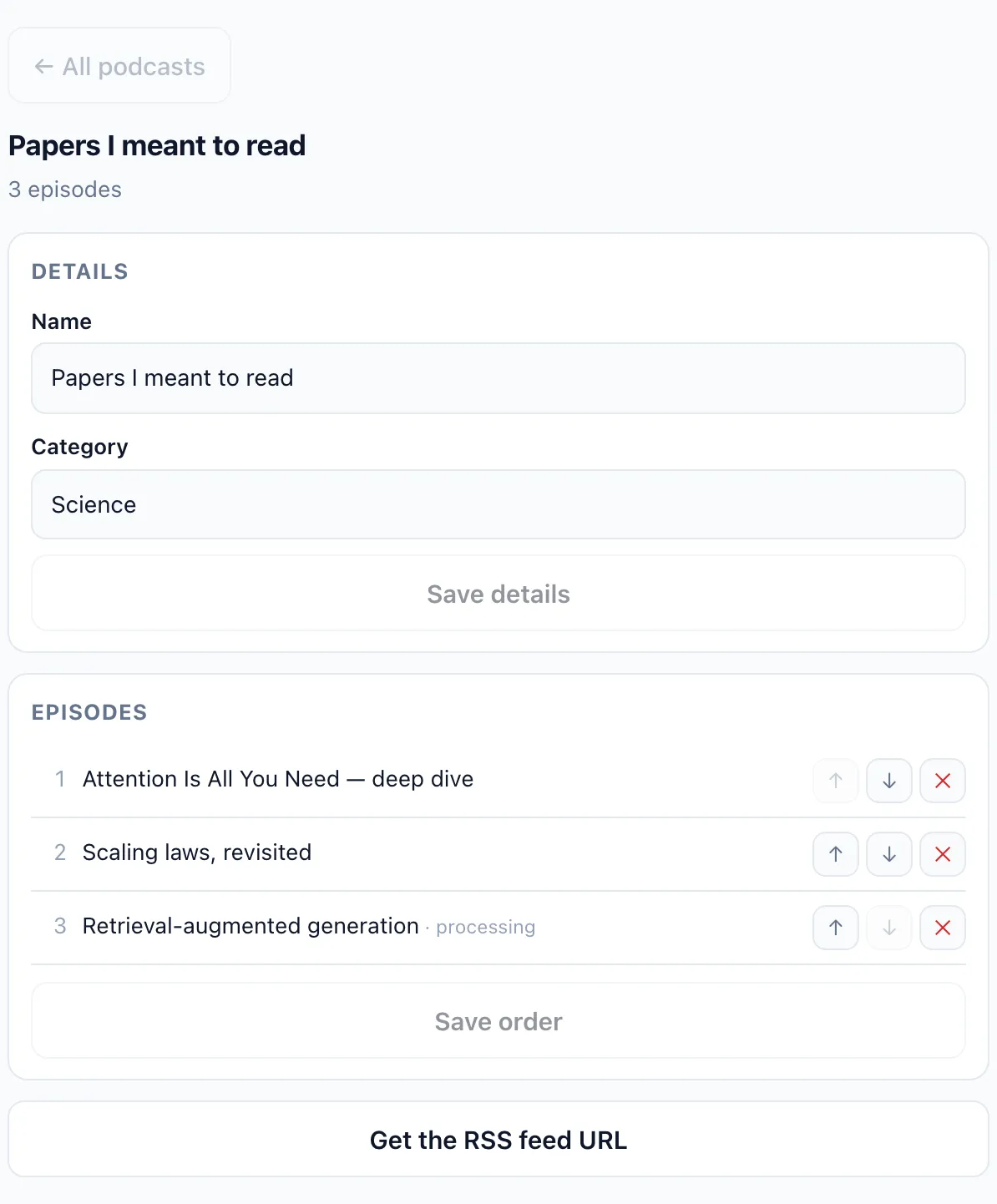
A podcast in Kortex, opened here from an AI assistant: its details, episode order and RSS link.
## Get it all back out.
Sources, notes, chats and Studio artifacts, downloaded as real files you can open in any app.
Download all sources
One button above the sources panel saves every source in the notebook as PDF, Markdown, text or a ZIP.
Export the Studio
Save every note and artifact from the Studio panel at once, as PDF, Markdown or a ZIP.
One note
Export a single note as Markdown, or convert it to PDF.
Chats
Export the whole chat or only the replies you tick, as Markdown, text, PDF or JSON.
Your messages, or not
Include your own questions in a chat export, or leave them out.
Copy a chat
Copy it to your clipboard as Markdown. Free, and it never counts toward a limit.
The free plan includes 10 exports a day. Pro has no limit.
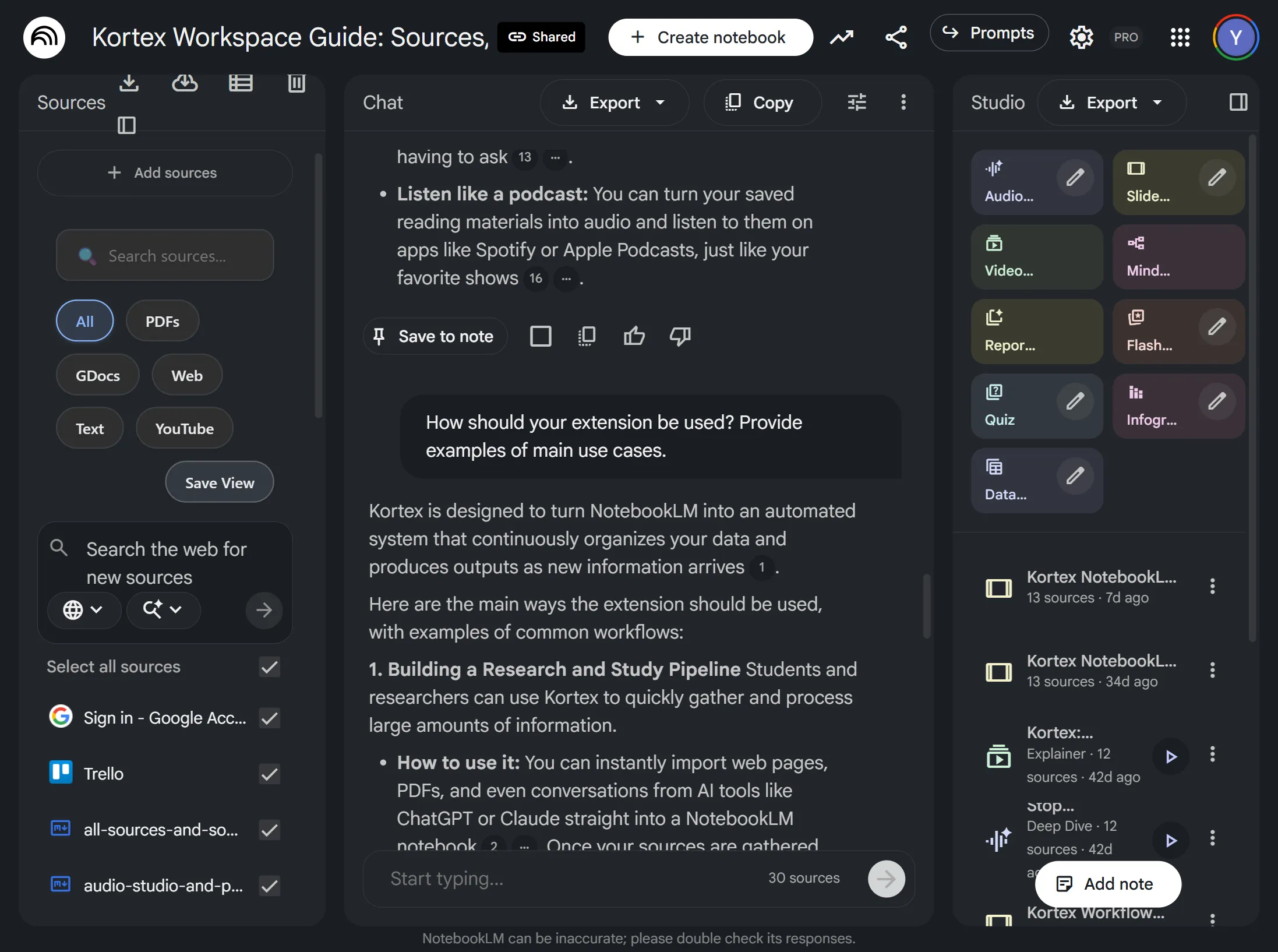
Kortex’s buttons sit inside Gemini Notebook, on the panels they act on: sources, chat and Studio.
## See the shape of your library.
Charts that show how your library is organized, and one place each to manage tags, collections, podcasts and favorites.
### Charts
Tag distribution
Your most-used tags across every notebook.
Notebooks per collection
Spot the overstuffed collections and the empty ones.
Recently active
The notebooks you worked on last, ready to reopen.
### Managers
Tags
Create, rename, recolour and delete notebook tags.
Source tags
Manage the tags on single sources across every notebook.
Collections
Create, rename and delete collections.
Podcasts Included with Pro
Create, rename and delete podcasts, and add audio to them.
Favorites
See and manage every notebook you starred.
## Hand your notebooks to your AI assistant. Included with Pro
Kortex MCP connects Claude, ChatGPT, Cursor or any other MCP client to your Gemini Notebooks. Your assistant can then search them, fill them and generate from them. It is in private beta, for invited members.
145+ notebook tools
Create notebooks, add sources, ask questions, tag, compare and generate, all by asking.
Panels in the chat
Some tools answer with a panel you use right in the conversation.
One config
Paste one config into your AI client, or sign in with OAuth.
Your login stays yours
Your Google login stays in your browser. Kortex never stores your password or cookies.
[Read the MCP docs](/docs/mcp-server)
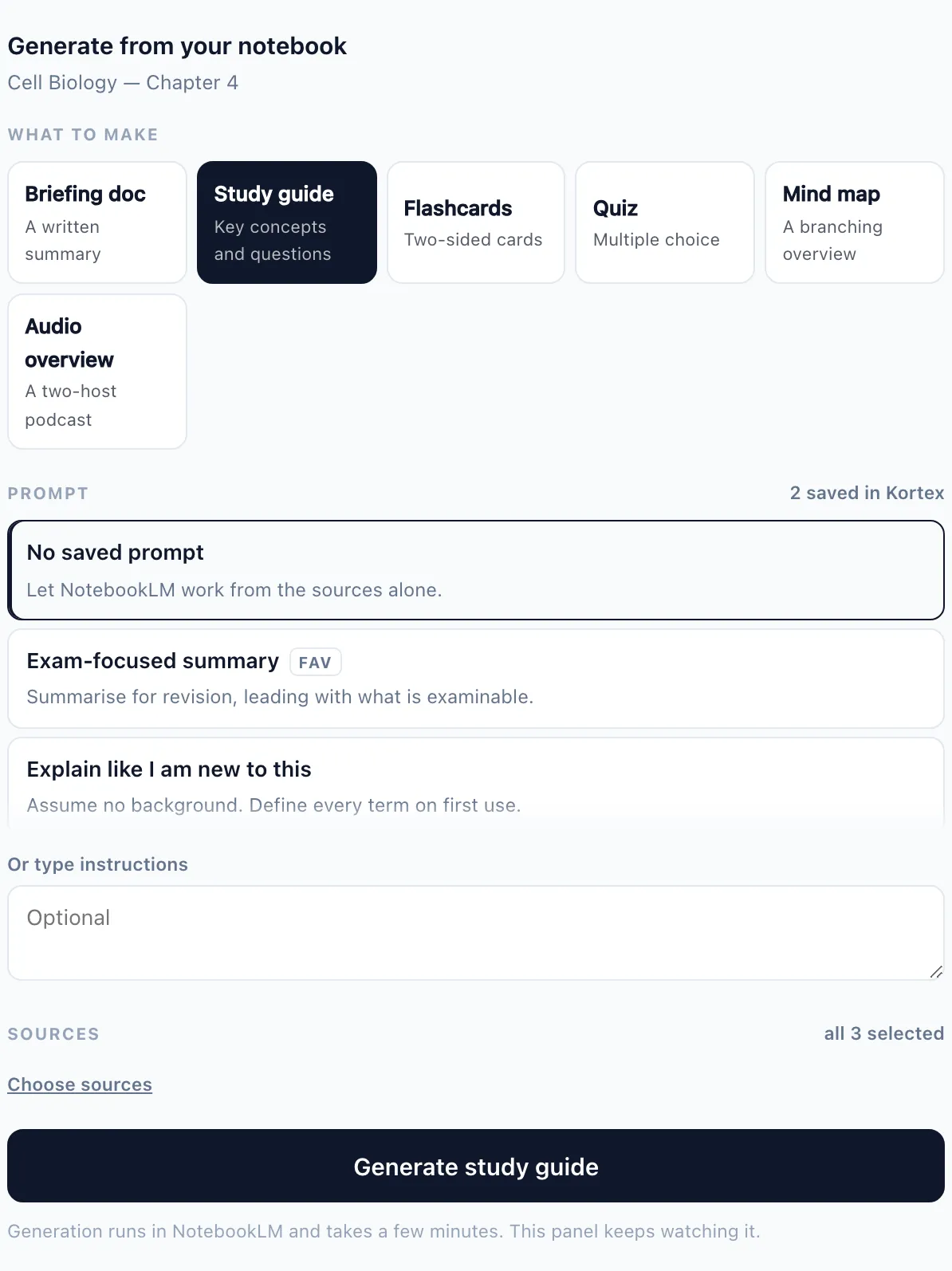
A Kortex panel inside the chat: pick what to make, a saved prompt and the sources, then generate.
## Give your notebooks a home.
Install Kortex in under a minute. It works inside the Gemini Notebook you already use, free forever for the basics.
[Add to Chrome](https://chromewebstore.google.com/detail/kortex/hdapplggdhndkblofffknpmnnnnbncbn) [Read the docs](/docs)
Join 130,000+ people. Works in Chrome, Edge, Brave and other Chromium browsers.

---
Source: https://www.kortex-notebooklm.com/docs/
# Kortex Documentation
Kortex is the Chrome extension for Gemini Notebook (formerly NotebookLM). Import research from anywhere, organize every notebook, automate the busywork, export anything, and let AI assistants work in your notebooks with Kortex MCP, now in private beta.
Everything below happens in one place — the Kortex dashboard, which lists every notebook in your account with its sources, tags and collections beside it.
## What Kortex Does
Export all sources from your Gemini Notebooks in multiple formats: PDF, Markdown, Plain Text, or ZIP archives with batch export support.
Import content from LinkedIn, Reddit, Twitter/X, Google Docs, and AI platform conversations directly into Gemini Notebook with one click.
Save, organize, and reuse your best prompts with folders and tags. Build a library of effective prompts for all your AI interactions.
Export AI-generated notes, study guides, and other artifacts from Gemini Notebook in your preferred format with one-click download.
Export full or curated chat conversations from ChatGPT, Claude, Gemini, and Perplexity to Gemini Notebook with message selection.
Organize and manage multiple Gemini Notebook projects with source views. Keep track of all your research sources in one place.
Preview and edit your exports before downloading. Perfect your content with live markdown preview and KaTeX math rendering.
One-click instant sync for all Google Doc sources. Keep your Gemini Notebook sources up-to-date automatically without manual lifting.
Search through your sources and notebooks instantly. Find specific documents or content within your knowledge base quickly.
Delete multiple sources at once. Filter sources by type (PDF, Google Docs, Web, Text, YouTube) and manage them efficiently.
Select any text on the web and send it directly to Gemini Notebook. Perfect for capturing quotes, research snippets, and important information.
Create “If this happens → then do that” rules to auto-organize notebooks, generate audio, and keep your workspace tidy.
Select specific messages from conversations to create curated briefings. Export only what matters most to you.
Connect Claude, Cursor or VS Code straight to your notebooks. Your AI assistant gets 120+ tools to read, ask and organise. Pro only.
## Works With
ChatGPT
Gemini
Claude
Perplexity
X (Twitter)
Reddit
LinkedIn
Gemini Notebook
## Getting Started
1
### Sign In
Click the extension icon and sign in with Google to get started. Your data will be synced across devices.
2
### Start Using
Visit your favorite AI platform (ChatGPT, Gemini, Claude, X/Twitter, Reddit, LinkedIn, etc.) and start saving prompts and conversations!
3
### Export & Share
Export your conversations to Gemini Notebook or download them as PDF, Markdown, or Text files.
[Get Started with Installation →](#)
---
Source: https://www.kortex-notebooklm.com/docs/installation
# Installation
How to install Kortex on Chrome
## Chrome Installation
1. Visit the [Chrome Web Store](https://chromewebstore.google.com/detail/kortex/hdapplggdhndkblofffknpmnnnnbncbn)
1. Click **"Add to Chrome"**
1. Confirm by clicking **"Add extension"** in the popup
1. The extension icon will appear in your browser toolbar
 ## First Time Setup
After installing Kortex:
1. A welcome page will open automatically
1. Sign in with your Google account or create an account with email/password
1. If using email/password, verify your email address
1. After signing in, you're ready to start using Kortex!
## First Time Setup
After installing Kortex:
1. A welcome page will open automatically
1. Sign in with your Google account or create an account with email/password
1. If using email/password, verify your email address
1. After signing in, you're ready to start using Kortex!
 ## Browser Compatibility
Kortex currently supports:
- **Google Chrome** (Recommended)
- **Microsoft Edge** (Chromium-based)
- **Brave Browser**
- Other Chromium-based browsers
Firefox support is coming soon.
---
Source: https://www.kortex-notebooklm.com/docs/all-notebooks
# All Notebooks
View and manage all your Gemini Notebooks in one centralized dashboard.
:::tip Video walkthrough
[Watch on YouTube](https://www.youtube.com/watch?v=AyfSQ2_U_4s)
:::
## Browser Compatibility
Kortex currently supports:
- **Google Chrome** (Recommended)
- **Microsoft Edge** (Chromium-based)
- **Brave Browser**
- Other Chromium-based browsers
Firefox support is coming soon.
---
Source: https://www.kortex-notebooklm.com/docs/all-notebooks
# All Notebooks
View and manage all your Gemini Notebooks in one centralized dashboard.
:::tip Video walkthrough
[Watch on YouTube](https://www.youtube.com/watch?v=AyfSQ2_U_4s)
:::
 ## What It Does
The All Notebooks view is your central hub for managing all Gemini Notebooks. It provides a comprehensive overview with search, filtering, and organization tools.
### Search across everything
One search box, and it looks through notebooks, sources, notes, artifacts, collections and tags at once. Press `/` anywhere to open it.
### Filter and sort
Narrow the table by name, tag or highlight, and order it by whatever matters — name, date added, or how many sources a notebook holds.
### Choose what the table shows
Columns you do not use can be switched off, and the choice is remembered.
## Features
- **Search** - Quickly find notebooks by name
- **Collections** - Organize notebooks into collections
- **Tags** - Add tags for better organization
- **Favorites** - Mark important notebooks as favorites
- **Sort Options** - Sort by name, date, or custom order
## How to Use
1. Click "All Notebooks" in the dashboard sidebar
1. Browse your notebooks in the main view
1. Use the search bar to find specific notebooks
1. Click on any notebook to open it in Gemini Notebook
1. Right-click for additional options (add to collection, tag, etc.)
## Pro Tips
- Use collections to group related notebooks
- Add tags for cross-project organization
- Favorite your most-used notebooks for quick access
- Use the search bar for instant filtering
---
Source: https://www.kortex-notebooklm.com/docs/notebook-detail
# Notebook Detail
Open a notebook’s detail view to see everything about it in one place: sources, artifacts, tags, collections, and quick actions.
:::tip Video walkthrough
[Watch on YouTube](https://www.youtube.com/watch?v=5Wyjv2-hBOE)
:::
## What It Does
The All Notebooks view is your central hub for managing all Gemini Notebooks. It provides a comprehensive overview with search, filtering, and organization tools.
### Search across everything
One search box, and it looks through notebooks, sources, notes, artifacts, collections and tags at once. Press `/` anywhere to open it.
### Filter and sort
Narrow the table by name, tag or highlight, and order it by whatever matters — name, date added, or how many sources a notebook holds.
### Choose what the table shows
Columns you do not use can be switched off, and the choice is remembered.
## Features
- **Search** - Quickly find notebooks by name
- **Collections** - Organize notebooks into collections
- **Tags** - Add tags for better organization
- **Favorites** - Mark important notebooks as favorites
- **Sort Options** - Sort by name, date, or custom order
## How to Use
1. Click "All Notebooks" in the dashboard sidebar
1. Browse your notebooks in the main view
1. Use the search bar to find specific notebooks
1. Click on any notebook to open it in Gemini Notebook
1. Right-click for additional options (add to collection, tag, etc.)
## Pro Tips
- Use collections to group related notebooks
- Add tags for cross-project organization
- Favorite your most-used notebooks for quick access
- Use the search bar for instant filtering
---
Source: https://www.kortex-notebooklm.com/docs/notebook-detail
# Notebook Detail
Open a notebook’s detail view to see everything about it in one place: sources, artifacts, tags, collections, and quick actions.
:::tip Video walkthrough
[Watch on YouTube](https://www.youtube.com/watch?v=5Wyjv2-hBOE)
:::
 ## What It Is
The Notebook Detail page is a single notebook “command center.” Instead of hunting across multiple screens, you get the notebook’s context, content, and actions consolidated.
## What You Can Do From Here
- **Review sources** - See what inputs the notebook is built from
- **Review artifacts** - Quickly access notes, study guides, briefings, FAQs, and more
- **Organize** - Add/remove tags, move between [Collections](#)
- **Quick actions** - Common actions like open in Gemini Notebook, export, sync, or share (depending on your setup)
## How to Access
1. Open [All Notebooks](#)
1. Click a notebook card/row to open its detail view
1. Use the detail view to take action or jump into Gemini Notebook
## Best Practices
- **Use tags as workflow states** - e.g. `#inbox`, `#active`, `#archive`
- **Pair Collections with Automation Rules** - for example, use [Smart Sort](#) to auto-file notebooks into collections based on tags
- **Keep a “hot” collection** - e.g. _This Week_ or _Now_ for active work
---
Source: https://www.kortex-notebooklm.com/docs/collections
# Collections
Collections are folders for notebooks. Use them to create lanes for projects, workflows, and playlists.
:::tip Video walkthrough
[Watch on YouTube](https://www.youtube.com/watch?v=0j7vD5gCX2c)
:::
## What It Is
The Notebook Detail page is a single notebook “command center.” Instead of hunting across multiple screens, you get the notebook’s context, content, and actions consolidated.
## What You Can Do From Here
- **Review sources** - See what inputs the notebook is built from
- **Review artifacts** - Quickly access notes, study guides, briefings, FAQs, and more
- **Organize** - Add/remove tags, move between [Collections](#)
- **Quick actions** - Common actions like open in Gemini Notebook, export, sync, or share (depending on your setup)
## How to Access
1. Open [All Notebooks](#)
1. Click a notebook card/row to open its detail view
1. Use the detail view to take action or jump into Gemini Notebook
## Best Practices
- **Use tags as workflow states** - e.g. `#inbox`, `#active`, `#archive`
- **Pair Collections with Automation Rules** - for example, use [Smart Sort](#) to auto-file notebooks into collections based on tags
- **Keep a “hot” collection** - e.g. _This Week_ or _Now_ for active work
---
Source: https://www.kortex-notebooklm.com/docs/collections
# Collections
Collections are folders for notebooks. Use them to create lanes for projects, workflows, and playlists.
:::tip Video walkthrough
[Watch on YouTube](https://www.youtube.com/watch?v=0j7vD5gCX2c)
:::
 ## What Collections Are For
- **Project grouping** - Keep related notebooks together
- **Workflow lanes** - Inbox → Active → Archive
- **Audio lanes** - Use a collection as a podcast queue via [The Pipeline](#)
- **Standardization** - Trigger templates or artifacts when notebooks enter a collection
## Common Collection Patterns
- **Inbox / Active / Archive** - A simple lifecycle for everything you save
- **Topics** - Health, Finance, Career, Learning
- **Clients** - One collection per client
- **Media Queues** - Daily Read, Commute Queue, Workout Queue
## How Collections Work With Automation Rules
- **Auto-file with tags** - [Smart Sort](#) can move notebooks into a collection when you apply a tag
- **Auto-create structure** - [Template Engine](#) can create notes when a notebook enters a collection
- **Auto-generate audio** - [The Generator](#) can generate audio when a notebook is added to a collection
- **Auto-queue audio** - [The Pipeline](#) can send notebooks in a collection to a podcast feed
## Example: Collection as a Listening Queue
1. Create a collection: _Daily Read_
1. Enable [The Generator](#): when notebook enters _Daily Read_ → generate audio
1. Enable [The Pipeline](#): _Daily Read_ → Podcast _Morning Commute_
1. Enable [The Cleaner](#): finished episode → remove it
## Pro Tips
- **Use collections as triggers** - they’re easier to reason about than many overlapping tags
- **Keep names action-oriented** - _To Read_, _To Write_, _Deliver This Week_
- **Don’t over-nest** - a few high-signal collections beat dozens of micro-folders
---
Source: https://www.kortex-notebooklm.com/docs/all-sources
# All Sources
View, filter, and manage all sources across all your Gemini Notebooks.
:::tip Video walkthrough
[Watch on YouTube](https://www.youtube.com/watch?v=fhiQ0RyNxY0)
:::
## What Collections Are For
- **Project grouping** - Keep related notebooks together
- **Workflow lanes** - Inbox → Active → Archive
- **Audio lanes** - Use a collection as a podcast queue via [The Pipeline](#)
- **Standardization** - Trigger templates or artifacts when notebooks enter a collection
## Common Collection Patterns
- **Inbox / Active / Archive** - A simple lifecycle for everything you save
- **Topics** - Health, Finance, Career, Learning
- **Clients** - One collection per client
- **Media Queues** - Daily Read, Commute Queue, Workout Queue
## How Collections Work With Automation Rules
- **Auto-file with tags** - [Smart Sort](#) can move notebooks into a collection when you apply a tag
- **Auto-create structure** - [Template Engine](#) can create notes when a notebook enters a collection
- **Auto-generate audio** - [The Generator](#) can generate audio when a notebook is added to a collection
- **Auto-queue audio** - [The Pipeline](#) can send notebooks in a collection to a podcast feed
## Example: Collection as a Listening Queue
1. Create a collection: _Daily Read_
1. Enable [The Generator](#): when notebook enters _Daily Read_ → generate audio
1. Enable [The Pipeline](#): _Daily Read_ → Podcast _Morning Commute_
1. Enable [The Cleaner](#): finished episode → remove it
## Pro Tips
- **Use collections as triggers** - they’re easier to reason about than many overlapping tags
- **Keep names action-oriented** - _To Read_, _To Write_, _Deliver This Week_
- **Don’t over-nest** - a few high-signal collections beat dozens of micro-folders
---
Source: https://www.kortex-notebooklm.com/docs/all-sources
# All Sources
View, filter, and manage all sources across all your Gemini Notebooks.
:::tip Video walkthrough
[Watch on YouTube](https://www.youtube.com/watch?v=fhiQ0RyNxY0)
:::
 ## What It Does
The All Sources view aggregates sources from all your notebooks, allowing you to search, filter, download, and manage them in one place.
## Features
- **Global Search** - Search across all sources
- **Folder** - Organize sources into folders
- **Google Doc Sync** - Sync Google Docs across all notebooks
- **Delete Bad Sources** - Delete bad sources from all notebooks
- **Filter by Notebook** - See sources from specific notebooks
- **Bulk Download** - Download multiple sources at once
- **Create Notebook** - Create new notebook from selected sources
- **Add to Notebook** - Add sources to existing notebooks
- **Delete Sources** - Remove sources from notebooks
## How to Use
1. Click "All Sources" in the dashboard sidebar
1. Browse or search for sources
1. Use filters to narrow down results
1. Select sources using checkboxes
1. Use action buttons to download, create notebook, add to notebook, or delete
## Pro Tips
- Use filters to find sources by type or notebook
- Select multiple sources for bulk operations
- Create new notebooks from related sources
- Download sources for offline access
---
Source: https://www.kortex-notebooklm.com/docs/all-artifacts
# All Artifacts
Access and download all artifacts (notes, study guides, briefings) from all your notebooks.
:::tip Video walkthrough
[Watch on YouTube](https://www.youtube.com/watch?v=J8DWjj7hajQ)
:::
## What It Does
The All Sources view aggregates sources from all your notebooks, allowing you to search, filter, download, and manage them in one place.
## Features
- **Global Search** - Search across all sources
- **Folder** - Organize sources into folders
- **Google Doc Sync** - Sync Google Docs across all notebooks
- **Delete Bad Sources** - Delete bad sources from all notebooks
- **Filter by Notebook** - See sources from specific notebooks
- **Bulk Download** - Download multiple sources at once
- **Create Notebook** - Create new notebook from selected sources
- **Add to Notebook** - Add sources to existing notebooks
- **Delete Sources** - Remove sources from notebooks
## How to Use
1. Click "All Sources" in the dashboard sidebar
1. Browse or search for sources
1. Use filters to narrow down results
1. Select sources using checkboxes
1. Use action buttons to download, create notebook, add to notebook, or delete
## Pro Tips
- Use filters to find sources by type or notebook
- Select multiple sources for bulk operations
- Create new notebooks from related sources
- Download sources for offline access
---
Source: https://www.kortex-notebooklm.com/docs/all-artifacts
# All Artifacts
Access and download all artifacts (notes, study guides, briefings) from all your notebooks.
:::tip Video walkthrough
[Watch on YouTube](https://www.youtube.com/watch?v=J8DWjj7hajQ)
:::
 ## What It Does
The All Artifacts view shows all artifacts generated across your notebooks, including notes, study guides, briefings, FAQs, timelines, and more.
## Features
- **Global Search** - Search across all artifacts
- **Folder** - Organize artifacts into folders
- **Filter by Type** - Notes, study guides, briefings, FAQs, etc.
- **Filter by Notebook** - See artifacts from specific notebooks
- **Download All** - Download all artifacts in various formats
- **Preview** - Preview artifacts before downloading
## How to Use
1. Click "All Artifacts" in the dashboard sidebar
1. Browse or search for artifacts
1. Use filters to find specific types
1. Click on an artifact to preview it
1. Use "Download All" to export all artifacts
## Supported Artifact Types
- Notes
- Study Guides
- Briefing Documents
- FAQs
- Timelines
- Tables of Contents
- Custom artifacts
## Pro Tips
- Download all artifacts regularly for backup
- Use filters to find artifacts by type or notebook
- Preview before downloading to verify content
- Export in ZIP format to keep artifacts organized
---
Source: https://www.kortex-notebooklm.com/docs/merge-notebooks
# Merge Notebooks
Combine multiple Gemini Notebooks into a single unified notebook.
:::tip Video walkthrough
[Watch on YouTube](https://www.youtube.com/watch?v=J9L6qOolWdM)
:::
## What It Does
The All Artifacts view shows all artifacts generated across your notebooks, including notes, study guides, briefings, FAQs, timelines, and more.
## Features
- **Global Search** - Search across all artifacts
- **Folder** - Organize artifacts into folders
- **Filter by Type** - Notes, study guides, briefings, FAQs, etc.
- **Filter by Notebook** - See artifacts from specific notebooks
- **Download All** - Download all artifacts in various formats
- **Preview** - Preview artifacts before downloading
## How to Use
1. Click "All Artifacts" in the dashboard sidebar
1. Browse or search for artifacts
1. Use filters to find specific types
1. Click on an artifact to preview it
1. Use "Download All" to export all artifacts
## Supported Artifact Types
- Notes
- Study Guides
- Briefing Documents
- FAQs
- Timelines
- Tables of Contents
- Custom artifacts
## Pro Tips
- Download all artifacts regularly for backup
- Use filters to find artifacts by type or notebook
- Preview before downloading to verify content
- Export in ZIP format to keep artifacts organized
---
Source: https://www.kortex-notebooklm.com/docs/merge-notebooks
# Merge Notebooks
Combine multiple Gemini Notebooks into a single unified notebook.
:::tip Video walkthrough
[Watch on YouTube](https://www.youtube.com/watch?v=J9L6qOolWdM)
:::
 ## What It Does
The Merge Notebooks feature allows you to combine multiple notebooks into a new notebook, perfect for consolidating research or creating comprehensive knowledge bases.
## How to Use
1. Click "Merge Notebooks" in the dashboard sidebar
1. Select the notebooks you want to merge
1. Choose a name for the new merged notebook
1. Click "Merge" to create the new notebook
1. Wait for the merge to complete
## Use Cases
- Consolidating research from multiple projects
- Creating comprehensive study guides
- Combining related topics into one notebook
- Archiving completed projects
## Pro Tips
- Always keep original notebooks until you verify the merge
- Use "Remove Duplicates" to avoid redundant sources
- Merge related notebooks for better AI responses
- Consider notebook size limits when merging
---
Source: https://www.kortex-notebooklm.com/docs/prompts-library
# Prompts Library
Manage and organize all your saved prompts in one centralized library.
:::tip Video walkthrough
[Watch on YouTube](https://www.youtube.com/watch?v=bYoMMSIoFTg)
:::
## What It Does
The Merge Notebooks feature allows you to combine multiple notebooks into a new notebook, perfect for consolidating research or creating comprehensive knowledge bases.
## How to Use
1. Click "Merge Notebooks" in the dashboard sidebar
1. Select the notebooks you want to merge
1. Choose a name for the new merged notebook
1. Click "Merge" to create the new notebook
1. Wait for the merge to complete
## Use Cases
- Consolidating research from multiple projects
- Creating comprehensive study guides
- Combining related topics into one notebook
- Archiving completed projects
## Pro Tips
- Always keep original notebooks until you verify the merge
- Use "Remove Duplicates" to avoid redundant sources
- Merge related notebooks for better AI responses
- Consider notebook size limits when merging
---
Source: https://www.kortex-notebooklm.com/docs/prompts-library
# Prompts Library
Manage and organize all your saved prompts in one centralized library.
:::tip Video walkthrough
[Watch on YouTube](https://www.youtube.com/watch?v=bYoMMSIoFTg)
:::
 ## What It Does
The Prompts Library is your central hub for managing saved prompts. Organize prompts into folders, add tags, and quickly find the perfect prompt for any situation.
## Features
- **Folders** - Organize prompts into categories
- **Tags** - Add tags for cross-category organization
- **Search** - Quickly find prompts by name or content
- **Favorites** - Mark frequently used prompts
- **Edit & Delete** - Manage your prompt collection
- **Quick Insert** - Copy prompts to clipboard with one click
## How to Use
1. Click "Prompts Library" in the dashboard sidebar
1. Browse prompts by folder or use search
1. Click "Add New Prompt" to create a prompt
1. Organize prompts into folders
1. Add tags for better discoverability
1. Click on any prompt to copy it to clipboard
## Organizing Prompts
- **By Purpose** - Research, Writing, Analysis, Study
- **By Subject** - Science, History, Business, etc.
- **By Complexity** - Simple, Detailed, Expert-level
- **By Output Type** - Summaries, Lists, Essays, etc.
## Pro Tips
- Create folders for different use cases
- Use tags to create cross-folder connections
- Favorite your most-used prompts
- Include placeholders like [TOPIC] in prompts
- Regularly review and update your prompt library
---
Source: https://www.kortex-notebooklm.com/docs/bulk-import
# Bulk Import
Import multiple links into Gemini Notebooks at once using various methods.
:::tip Video walkthrough
[Watch on YouTube](https://www.youtube.com/watch?v=p5CHLh8p2fI)
:::
## What It Does
The Prompts Library is your central hub for managing saved prompts. Organize prompts into folders, add tags, and quickly find the perfect prompt for any situation.
## Features
- **Folders** - Organize prompts into categories
- **Tags** - Add tags for cross-category organization
- **Search** - Quickly find prompts by name or content
- **Favorites** - Mark frequently used prompts
- **Edit & Delete** - Manage your prompt collection
- **Quick Insert** - Copy prompts to clipboard with one click
## How to Use
1. Click "Prompts Library" in the dashboard sidebar
1. Browse prompts by folder or use search
1. Click "Add New Prompt" to create a prompt
1. Organize prompts into folders
1. Add tags for better discoverability
1. Click on any prompt to copy it to clipboard
## Organizing Prompts
- **By Purpose** - Research, Writing, Analysis, Study
- **By Subject** - Science, History, Business, etc.
- **By Complexity** - Simple, Detailed, Expert-level
- **By Output Type** - Summaries, Lists, Essays, etc.
## Pro Tips
- Create folders for different use cases
- Use tags to create cross-folder connections
- Favorite your most-used prompts
- Include placeholders like [TOPIC] in prompts
- Regularly review and update your prompt library
---
Source: https://www.kortex-notebooklm.com/docs/bulk-import
# Bulk Import
Import multiple links into Gemini Notebooks at once using various methods.
:::tip Video walkthrough
[Watch on YouTube](https://www.youtube.com/watch?v=p5CHLh8p2fI)
:::
 ## What It Does
Bulk Import allows you to add multiple web links to your Gemini Notebooks at once using various import methods, saving time when building comprehensive research collections.
## Import Methods
- **Paste Links** - Paste multiple URLs line by line
- **Browser Tabs** - Import all open tabs from your browser
- **CSV Upload** - Upload a CSV file containing URLs
- **RSS Feed** - Import articles from RSS/Atom feeds
- **Web Crawling** - Crawl a website to discover and import links
## How to Use
1. Click "Bulk Import" in the dashboard sidebar
1. Choose your import method (paste, tabs, CSV, RSS, or crawl)
1. Provide the links or source based on your chosen method
1. Select target notebook or create a new one
1. Click "Import" to start the process
1. Wait for all links to be imported
## Method Details
- **Paste Links** - Enter one URL per line in the text area
- **Browser Tabs** - Automatically captures all open tabs in current window
- **CSV Upload** - Upload a CSV with URLs in the first column
- **RSS Feed** - Enter RSS/Atom feed URL to import articles
- **Web Crawling** - Enter starting URL and set crawl depth/filters
## Use Cases
- Research projects with multiple web sources
- Importing bookmarked articles and resources
- Building knowledge bases from blog posts
- Archiving news articles from RSS feeds
- Discovering and importing related content via crawling
## Pro Tips
- Use browser tabs method to quickly capture research sessions
- CSV upload is great for pre-organized link collections
- RSS feeds enable automatic content discovery
- Set crawl depth carefully to avoid importing too many pages
- Review imported sources before processing with AI
---
Source: https://www.kortex-notebooklm.com/docs/podcasts-view
# Podcasts
Turn the Audio Overviews you generate in Gemini Notebook into a private podcast feed you can listen to in Spotify, Apple Podcasts, or any podcast app.
:::tip Video walkthrough
[Watch on YouTube](https://www.youtube.com/watch?v=GC7jTg7i6sY)
:::
## What It Does
Bulk Import allows you to add multiple web links to your Gemini Notebooks at once using various import methods, saving time when building comprehensive research collections.
## Import Methods
- **Paste Links** - Paste multiple URLs line by line
- **Browser Tabs** - Import all open tabs from your browser
- **CSV Upload** - Upload a CSV file containing URLs
- **RSS Feed** - Import articles from RSS/Atom feeds
- **Web Crawling** - Crawl a website to discover and import links
## How to Use
1. Click "Bulk Import" in the dashboard sidebar
1. Choose your import method (paste, tabs, CSV, RSS, or crawl)
1. Provide the links or source based on your chosen method
1. Select target notebook or create a new one
1. Click "Import" to start the process
1. Wait for all links to be imported
## Method Details
- **Paste Links** - Enter one URL per line in the text area
- **Browser Tabs** - Automatically captures all open tabs in current window
- **CSV Upload** - Upload a CSV with URLs in the first column
- **RSS Feed** - Enter RSS/Atom feed URL to import articles
- **Web Crawling** - Enter starting URL and set crawl depth/filters
## Use Cases
- Research projects with multiple web sources
- Importing bookmarked articles and resources
- Building knowledge bases from blog posts
- Archiving news articles from RSS feeds
- Discovering and importing related content via crawling
## Pro Tips
- Use browser tabs method to quickly capture research sessions
- CSV upload is great for pre-organized link collections
- RSS feeds enable automatic content discovery
- Set crawl depth carefully to avoid importing too many pages
- Review imported sources before processing with AI
---
Source: https://www.kortex-notebooklm.com/docs/podcasts-view
# Podcasts
Turn the Audio Overviews you generate in Gemini Notebook into a private podcast feed you can listen to in Spotify, Apple Podcasts, or any podcast app.
:::tip Video walkthrough
[Watch on YouTube](https://www.youtube.com/watch?v=GC7jTg7i6sY)
:::
 ## Read this first: who makes the audio?
**Gemini Notebook generates the audio. Kortex does not.** This is the single most common point of confusion, so it is worth being precise:
- **Gemini Notebook** creates the Audio Overview. You do this inside your notebook, using Google's own feature. Kortex has no text-to-speech of its own and never creates audio.
- **Kortex** takes an Audio Overview you have already generated and puts it into a podcast feed — so you can listen outside the browser, on your phone, in the app you already use.
If you have not generated an Audio Overview in Gemini Notebook yet, there is nothing for Kortex to add to a podcast. That is the starting point, not Kortex.
## Do I need a paid Gemini Notebook plan?
**Kortex does not require one.** We never check what Gemini Notebook plan you are on.
Generation runs on **your own Gemini Notebook account**, using its quota. So whatever Gemini Notebook lets your account do is what you get here. Gemini Notebook enforces a daily Audio Overview limit; if you hit it, generation fails and Kortex reports that the daily limit was reached. That cap is Google's, not ours — check Gemini Notebook for the current numbers.
Short version: if Gemini Notebook lets you make the audio, Kortex can turn it into a podcast.
## How to create a podcast
1. **Generate an Audio Overview in Gemini Notebook.** Open your notebook, use Gemini Notebook's Audio Overview feature, and wait for it to finish.
1. **Open the Podcasts page** in the Kortex dashboard sidebar.
1. **Create a podcast.** Think of it as a playlist or a show — you can have several (for example, one per subject or project).
1. **Add the audio to it.** Pick the Audio Overview from the notebook you generated it in. This is the step that uses minutes — see below.
1. **Copy the RSS link** for that podcast.
1. **Paste it into your podcast app.** Every app has an "add show by URL" option. From then on, anything you add to that podcast appears in the app automatically.
## Podcast minutes explained
Minutes are what let Kortex host your audio so a podcast app can fetch it.
### What uses minutes
- **Adding an episode to a podcast** — this is the only thing that spends minutes.
- You are charged for the **length of that episode**, rounded up to the next whole minute. A 12 minute 10 second overview costs 13 minutes.
- Each episode is charged **once**. Re-adding or retrying the same episode will not charge you twice.
### What does not use minutes
- **Generating the Audio Overview in Gemini Notebook** — that runs on Google's quota, not ours.
- **Listening**, in the dashboard or in your podcast app — unlimited, however often you replay.
- **Downloading** an episode.
### Getting minutes back
**Removing an episode from a podcast refunds its minutes.** If you add something by mistake, or clear out an old episode, the balance returns. Minutes are a pool you reuse, not a meter that only counts up.
### Checking your balance
Open **Podcasts** in the dashboard sidebar. In the toolbar at the top you will see a **"{n} min left"** pill, next to a **Buy Minutes** button. There is nothing to enable — it is on the page.
It updates as you add and remove episodes, without reloading. It **turns red when you drop below 60 minutes**, as a heads-up that you are running low.
### How many you get
- Podcasts are a **paid feature** — Pro or Pro Yearly. The free Basic plan does not include them.
- Upgrading grants **1,000 minutes** — roughly 60 to 90 typical Audio Overviews. AppSumo Lifetime tiers grant more, depending on the tier you bought.
- This is a **one-time balance, not a monthly allowance.** It does not expire and it does not refill on renewal. Because removing episodes refunds minutes, most people never exhaust it.
- If you do run low, you can **top up** — 500 additional minutes for $10.
### If you run out
Kortex checks before it starts. For a file you upload it knows the length up front and stops immediately; for a Gemini Notebook overview the length is not knowable in advance, so it can only stop you when your balance is already at zero.
If the finished audio turns out longer than your remaining balance, the episode is **removed from the podcast** rather than left stuck part-added, and you are told how many minutes it needed. Nothing already in your feeds is touched. Free up minutes by removing episodes you have finished with, or use **Buy Minutes** on the Podcasts page.
## Listening in Spotify and other apps
Each podcast has its own RSS link. On the podcast, click **Podcast RSS** — the link is copied to your clipboard. Then paste it into any app that accepts a feed URL:
- **Spotify** — Settings, then "Add a podcast by URL"
- **Apple Podcasts** — Library, then "Follow a Show by URL"
- **Pocket Casts, Overcast, and most others** — look for "add by URL" or "add custom feed"
Once added, new episodes show up on their own. You do not need to re-paste the link.
The exact wording differs between apps, and some change where the option lives. If you cannot find it, search that app's help for "add podcast by URL" — the feature is standard, even when it is buried.
New to RSS or want detailed, click-by-click steps for each app? See [What Is RSS? (And How to Use Your Podcast Feed)](#).
:::warning
**Treat your RSS link as private.** It contains a long random token so it cannot be guessed, but it is a secret link, not a login — podcast apps cannot sign in. Anyone you send it to can listen to that podcast. Note that the feed also contains your account email address, in the owner field that podcast apps expect. Share the link only with people you would give both to.
:::
## Uploading your own audio
Podcasts are not limited to Gemini Notebook overviews. Use **Upload** on a podcast to add your own files — lecture recordings, interviews, voice memos — mixed in with your generated episodes.
Common formats work, including MP3, M4A, WAV, AAC, OGG, and WebM. Uploaded audio is charged the same way, by length.
Large files are **compressed automatically** before upload, so an uncompressed recording will not stall. This affects file size only — the duration, and therefore the minutes charged, is unchanged.
Re-uploading a file you have already added **reuses the existing episode and is not charged again**.
## Podcast artwork
You can set cover art per podcast; it is what shows up in your podcast app. Images are resized and compressed for you, and **artwork never costs minutes** — minutes apply to audio only.
## Listening in the dashboard
- **Speed control** - 0.5x to 2x
- **Skip** - 15 seconds forward or back
- **Resume** - picks up where you stopped
- **Queue** - line up several episodes
## Automating it
If you do this often, two automation rules remove the manual steps (paid plans):
- **The Generator** - triggers Gemini Notebook's Audio Overview generation when a notebook matches a rule you set
- **Podcast Curator** - files new audio into the right podcast automatically, based on tags
Together these mean a tagged notebook can become an episode in your phone's podcast app without you touching the dashboard.
## Common questions
**Where is the Podcasts page?** Podcasts require a paid plan — Pro or Pro Yearly. On the free Basic plan the page shows an upgrade prompt instead.
**Why is my podcast empty?** No Audio Overview has been added yet. Generate one in Gemini Notebook first, then add it here.
**Can Kortex generate the audio for me?** No. Gemini Notebook generates it; Kortex distributes it. The Generator automation can trigger Gemini Notebook's generation for you, but the audio is still made by Gemini Notebook.
**Do minutes reset every month?** No. It is a one-time balance that does not expire. Removing episodes refunds minutes.
**My episode is not showing in Spotify.** Podcast apps cache feeds and refresh on their own schedule — usually within a few hours. Pull to refresh in the app. Confirm the episode appears in the Kortex dashboard first; if it is not there, it was not added.
**Can I have more than one podcast?** Yes, as many as you like, each with its own RSS link. Most people keep one per subject.
---
Source: https://www.kortex-notebooklm.com/docs/download-all-sources-button
# Download All Sources Button
Quickly download all sources from your Gemini Notebook in one click.
:::tip Video walkthrough
[Watch on YouTube](https://www.youtube.com/watch?v=gv556vKBQ2U)
:::
## What It Does
The Download All Sources button appears in the source panel header on Gemini Notebook. It allows you to download all sources from your current notebook in various formats.
## How to Use
1. Open any notebook in Gemini Notebook
1. Look for the download icon button in the source panel header
1. Click the button to start downloading all sources
1. Choose your preferred format (PDF, Markdown, Text, or ZIP)
1. Wait for the download to complete
## Read this first: who makes the audio?
**Gemini Notebook generates the audio. Kortex does not.** This is the single most common point of confusion, so it is worth being precise:
- **Gemini Notebook** creates the Audio Overview. You do this inside your notebook, using Google's own feature. Kortex has no text-to-speech of its own and never creates audio.
- **Kortex** takes an Audio Overview you have already generated and puts it into a podcast feed — so you can listen outside the browser, on your phone, in the app you already use.
If you have not generated an Audio Overview in Gemini Notebook yet, there is nothing for Kortex to add to a podcast. That is the starting point, not Kortex.
## Do I need a paid Gemini Notebook plan?
**Kortex does not require one.** We never check what Gemini Notebook plan you are on.
Generation runs on **your own Gemini Notebook account**, using its quota. So whatever Gemini Notebook lets your account do is what you get here. Gemini Notebook enforces a daily Audio Overview limit; if you hit it, generation fails and Kortex reports that the daily limit was reached. That cap is Google's, not ours — check Gemini Notebook for the current numbers.
Short version: if Gemini Notebook lets you make the audio, Kortex can turn it into a podcast.
## How to create a podcast
1. **Generate an Audio Overview in Gemini Notebook.** Open your notebook, use Gemini Notebook's Audio Overview feature, and wait for it to finish.
1. **Open the Podcasts page** in the Kortex dashboard sidebar.
1. **Create a podcast.** Think of it as a playlist or a show — you can have several (for example, one per subject or project).
1. **Add the audio to it.** Pick the Audio Overview from the notebook you generated it in. This is the step that uses minutes — see below.
1. **Copy the RSS link** for that podcast.
1. **Paste it into your podcast app.** Every app has an "add show by URL" option. From then on, anything you add to that podcast appears in the app automatically.
## Podcast minutes explained
Minutes are what let Kortex host your audio so a podcast app can fetch it.
### What uses minutes
- **Adding an episode to a podcast** — this is the only thing that spends minutes.
- You are charged for the **length of that episode**, rounded up to the next whole minute. A 12 minute 10 second overview costs 13 minutes.
- Each episode is charged **once**. Re-adding or retrying the same episode will not charge you twice.
### What does not use minutes
- **Generating the Audio Overview in Gemini Notebook** — that runs on Google's quota, not ours.
- **Listening**, in the dashboard or in your podcast app — unlimited, however often you replay.
- **Downloading** an episode.
### Getting minutes back
**Removing an episode from a podcast refunds its minutes.** If you add something by mistake, or clear out an old episode, the balance returns. Minutes are a pool you reuse, not a meter that only counts up.
### Checking your balance
Open **Podcasts** in the dashboard sidebar. In the toolbar at the top you will see a **"{n} min left"** pill, next to a **Buy Minutes** button. There is nothing to enable — it is on the page.
It updates as you add and remove episodes, without reloading. It **turns red when you drop below 60 minutes**, as a heads-up that you are running low.
### How many you get
- Podcasts are a **paid feature** — Pro or Pro Yearly. The free Basic plan does not include them.
- Upgrading grants **1,000 minutes** — roughly 60 to 90 typical Audio Overviews. AppSumo Lifetime tiers grant more, depending on the tier you bought.
- This is a **one-time balance, not a monthly allowance.** It does not expire and it does not refill on renewal. Because removing episodes refunds minutes, most people never exhaust it.
- If you do run low, you can **top up** — 500 additional minutes for $10.
### If you run out
Kortex checks before it starts. For a file you upload it knows the length up front and stops immediately; for a Gemini Notebook overview the length is not knowable in advance, so it can only stop you when your balance is already at zero.
If the finished audio turns out longer than your remaining balance, the episode is **removed from the podcast** rather than left stuck part-added, and you are told how many minutes it needed. Nothing already in your feeds is touched. Free up minutes by removing episodes you have finished with, or use **Buy Minutes** on the Podcasts page.
## Listening in Spotify and other apps
Each podcast has its own RSS link. On the podcast, click **Podcast RSS** — the link is copied to your clipboard. Then paste it into any app that accepts a feed URL:
- **Spotify** — Settings, then "Add a podcast by URL"
- **Apple Podcasts** — Library, then "Follow a Show by URL"
- **Pocket Casts, Overcast, and most others** — look for "add by URL" or "add custom feed"
Once added, new episodes show up on their own. You do not need to re-paste the link.
The exact wording differs between apps, and some change where the option lives. If you cannot find it, search that app's help for "add podcast by URL" — the feature is standard, even when it is buried.
New to RSS or want detailed, click-by-click steps for each app? See [What Is RSS? (And How to Use Your Podcast Feed)](#).
:::warning
**Treat your RSS link as private.** It contains a long random token so it cannot be guessed, but it is a secret link, not a login — podcast apps cannot sign in. Anyone you send it to can listen to that podcast. Note that the feed also contains your account email address, in the owner field that podcast apps expect. Share the link only with people you would give both to.
:::
## Uploading your own audio
Podcasts are not limited to Gemini Notebook overviews. Use **Upload** on a podcast to add your own files — lecture recordings, interviews, voice memos — mixed in with your generated episodes.
Common formats work, including MP3, M4A, WAV, AAC, OGG, and WebM. Uploaded audio is charged the same way, by length.
Large files are **compressed automatically** before upload, so an uncompressed recording will not stall. This affects file size only — the duration, and therefore the minutes charged, is unchanged.
Re-uploading a file you have already added **reuses the existing episode and is not charged again**.
## Podcast artwork
You can set cover art per podcast; it is what shows up in your podcast app. Images are resized and compressed for you, and **artwork never costs minutes** — minutes apply to audio only.
## Listening in the dashboard
- **Speed control** - 0.5x to 2x
- **Skip** - 15 seconds forward or back
- **Resume** - picks up where you stopped
- **Queue** - line up several episodes
## Automating it
If you do this often, two automation rules remove the manual steps (paid plans):
- **The Generator** - triggers Gemini Notebook's Audio Overview generation when a notebook matches a rule you set
- **Podcast Curator** - files new audio into the right podcast automatically, based on tags
Together these mean a tagged notebook can become an episode in your phone's podcast app without you touching the dashboard.
## Common questions
**Where is the Podcasts page?** Podcasts require a paid plan — Pro or Pro Yearly. On the free Basic plan the page shows an upgrade prompt instead.
**Why is my podcast empty?** No Audio Overview has been added yet. Generate one in Gemini Notebook first, then add it here.
**Can Kortex generate the audio for me?** No. Gemini Notebook generates it; Kortex distributes it. The Generator automation can trigger Gemini Notebook's generation for you, but the audio is still made by Gemini Notebook.
**Do minutes reset every month?** No. It is a one-time balance that does not expire. Removing episodes refunds minutes.
**My episode is not showing in Spotify.** Podcast apps cache feeds and refresh on their own schedule — usually within a few hours. Pull to refresh in the app. Confirm the episode appears in the Kortex dashboard first; if it is not there, it was not added.
**Can I have more than one podcast?** Yes, as many as you like, each with its own RSS link. Most people keep one per subject.
---
Source: https://www.kortex-notebooklm.com/docs/download-all-sources-button
# Download All Sources Button
Quickly download all sources from your Gemini Notebook in one click.
:::tip Video walkthrough
[Watch on YouTube](https://www.youtube.com/watch?v=gv556vKBQ2U)
:::
## What It Does
The Download All Sources button appears in the source panel header on Gemini Notebook. It allows you to download all sources from your current notebook in various formats.
## How to Use
1. Open any notebook in Gemini Notebook
1. Look for the download icon button in the source panel header
1. Click the button to start downloading all sources
1. Choose your preferred format (PDF, Markdown, Text, or ZIP)
1. Wait for the download to complete
 ## Supported Formats
- **PDF** - All sources combined into a single PDF document
- **Markdown** - All sources as markdown files in a ZIP
- **Text** - Plain text format
- **ZIP** - All sources packaged together
## Supported Formats
- **PDF** - All sources combined into a single PDF document
- **Markdown** - All sources as markdown files in a ZIP
- **Text** - Plain text format
- **ZIP** - All sources packaged together
 ## Pro Tips
- Use ZIP format for large notebooks with many sources
- Markdown format preserves formatting and is great for archiving
- PDF format is best for sharing or printing
---
Source: https://www.kortex-notebooklm.com/docs/sync-all-gdocs-button
# Sync All Google Docs Button
Automatically sync all Google Docs sources in your Gemini Notebook to get the latest content.
:::tip Video walkthrough
[Watch on YouTube](https://www.youtube.com/watch?v=jASlYyG0UI4)
:::
## What It Does
This button appears in the source panel header when you have Google Docs sources in your notebook. It automatically updates all Google Docs sources to their latest versions.
## How to Use
1. Open a notebook that contains Google Docs sources
1. Look for the sync icon (cloud_download) in the source panel header
1. Click the "Sync All GDocs" button to sync all Google Doc sources
1. The page will automatically reload after syncing completes
1. All Google Doc sources will be updated with the latest content
## Pro Tips
- Use ZIP format for large notebooks with many sources
- Markdown format preserves formatting and is great for archiving
- PDF format is best for sharing or printing
---
Source: https://www.kortex-notebooklm.com/docs/sync-all-gdocs-button
# Sync All Google Docs Button
Automatically sync all Google Docs sources in your Gemini Notebook to get the latest content.
:::tip Video walkthrough
[Watch on YouTube](https://www.youtube.com/watch?v=jASlYyG0UI4)
:::
## What It Does
This button appears in the source panel header when you have Google Docs sources in your notebook. It automatically updates all Google Docs sources to their latest versions.
## How to Use
1. Open a notebook that contains Google Docs sources
1. Look for the sync icon (cloud_download) in the source panel header
1. Click the "Sync All GDocs" button to sync all Google Doc sources
1. The page will automatically reload after syncing completes
1. All Google Doc sources will be updated with the latest content
 ## When to Use
- When you've edited your Google Docs and want to update Gemini Notebook
- Before generating new artifacts to ensure they use the latest content
- When collaborating with others who are updating shared docs
## Availability
- **Basic**: Feature not available (locked) — Basic users see a locked button that prompts them to upgrade
- **Pro**: Unlimited syncs (feature fully available)
## Pro Tips
- Sync regularly to keep your notebook up-to-date
- You can also sync individual docs from the dashboard
- Google Docs sync requires a paid plan
---
Source: https://www.kortex-notebooklm.com/docs/source-views-dropdown
# Source Views Dropdown
Filter and organize your sources with custom views for better focus and productivity.
:::tip Video walkthrough
[Watch on YouTube](https://www.youtube.com/watch?v=q3Lm75yvsJE)
:::
## What It Does
Source Views let you create custom filters to show only specific sources in your Gemini Notebook interface. This is perfect for large notebooks with many sources.
## How to Use
1. Click the "Views" dropdown button in the source panel header
1. Select "Create New View" or choose an existing view
1. Use the source search bar to filter sources
1. Click "Save View" to save your current filter as a view
1. Switch between views anytime from the dropdown
## When to Use
- When you've edited your Google Docs and want to update Gemini Notebook
- Before generating new artifacts to ensure they use the latest content
- When collaborating with others who are updating shared docs
## Availability
- **Basic**: Feature not available (locked) — Basic users see a locked button that prompts them to upgrade
- **Pro**: Unlimited syncs (feature fully available)
## Pro Tips
- Sync regularly to keep your notebook up-to-date
- You can also sync individual docs from the dashboard
- Google Docs sync requires a paid plan
---
Source: https://www.kortex-notebooklm.com/docs/source-views-dropdown
# Source Views Dropdown
Filter and organize your sources with custom views for better focus and productivity.
:::tip Video walkthrough
[Watch on YouTube](https://www.youtube.com/watch?v=q3Lm75yvsJE)
:::
## What It Does
Source Views let you create custom filters to show only specific sources in your Gemini Notebook interface. This is perfect for large notebooks with many sources.
## How to Use
1. Click the "Views" dropdown button in the source panel header
1. Select "Create New View" or choose an existing view
1. Use the source search bar to filter sources
1. Click "Save View" to save your current filter as a view
1. Switch between views anytime from the dropdown
 ## Available Filters
- **All** - Show all sources (default)
- **PDFs** - Filter to show only PDF documents
- **GDocs** - Filter to show only Google Docs
- **Web** - Filter to show only web sources
- **Text** - Filter to show text-based sources (descriptions, notes, text files)
- **YouTube** - Filter to show video sources
## Available Filters
- **All** - Show all sources (default)
- **PDFs** - Filter to show only PDF documents
- **GDocs** - Filter to show only Google Docs
- **Web** - Filter to show only web sources
- **Text** - Filter to show text-based sources (descriptions, notes, text files)
- **YouTube** - Filter to show video sources
 ## Use Cases
- **By Topic** - Create views for different research topics
- **By Source Type** - Filter by PDFs, websites, or Google Docs
- **By Project** - Organize sources for different projects
- **By Priority** - Create a view for your most important sources
## Source View Limits
Source view limits work on a slot-based system:
- **Basic**: 5 source views per day
- **Pro**: Unlimited slots
**Note**: You have a fixed number of slots. When you delete a source view, that slot becomes available again. Views are synced across all your devices via Firestore.
## Pro Tips
- Use descriptive names for your views
- Combine with source search for powerful filtering
- Views are saved per notebook
- You can have multiple views per notebook
---
Source: https://www.kortex-notebooklm.com/docs/delete-sources-button
# Delete Sources Button
Bulk delete sources from your Gemini Notebook with preview and confirmation.
:::tip Video walkthrough
[Watch on YouTube](https://www.youtube.com/watch?v=4kzH9e9Ebb4)
:::
## What It Does
The Delete Sources button allows you to select and delete multiple sources at once from your Gemini Notebook. It includes a preview mode to see which sources will be deleted before confirming.
## How to Use
1. Click the "Delete Sources" button in the source panel header
1. Select the sources you want to delete using checkboxes
1. Review the list of selected sources
1. Click "Delete Selected" to confirm
1. Wait for the deletion to complete
1. Gemini Notebook will automatically refresh
## Features
- **Bulk Selection** - Select multiple sources at once
- **Preview Mode** - See what will be deleted before confirming
- **Auto-Refresh** - Notebook updates automatically after deletion
- **Safe Deletion** - Confirmation required before deleting
- **Search Support** - Search for specific sources to delete
## What Gets Deleted?
When you delete sources, selected sources are permanently removed from your notebook. This action cannot be undone, and the source content will no longer be available to the AI in that notebook.
## When to Use
- Cleaning up outdated sources
- Removing duplicate sources
- Deleting sources that are no longer relevant
- Managing notebook size
**Note**: This feature is available to all users (no subscription required). You must be signed in to delete sources.
---
Source: https://www.kortex-notebooklm.com/docs/prompt-holder-button
# Prompt Holder Button
Save and reuse your favorite prompts across all your Gemini Notebooks.
:::tip Video walkthrough
[Watch on YouTube](https://www.youtube.com/watch?v=h8LUgTJwXSk)
:::
## What It Does
The Prompt Holder button appears next to the share button in Gemini Notebook. It lets you save frequently used prompts and quickly insert them into your chat.
## How to Use
1. Click the Prompt Holder button (bookmark icon) in the header
1. Click "Add New Prompt" to save a new prompt
1. Enter your prompt text and give it a name
1. Click "Save" to add it to your library
1. To use a saved prompt, click the Prompt Holder button and select it
1. The prompt will be inserted into the chat input
## Use Cases
- **By Topic** - Create views for different research topics
- **By Source Type** - Filter by PDFs, websites, or Google Docs
- **By Project** - Organize sources for different projects
- **By Priority** - Create a view for your most important sources
## Source View Limits
Source view limits work on a slot-based system:
- **Basic**: 5 source views per day
- **Pro**: Unlimited slots
**Note**: You have a fixed number of slots. When you delete a source view, that slot becomes available again. Views are synced across all your devices via Firestore.
## Pro Tips
- Use descriptive names for your views
- Combine with source search for powerful filtering
- Views are saved per notebook
- You can have multiple views per notebook
---
Source: https://www.kortex-notebooklm.com/docs/delete-sources-button
# Delete Sources Button
Bulk delete sources from your Gemini Notebook with preview and confirmation.
:::tip Video walkthrough
[Watch on YouTube](https://www.youtube.com/watch?v=4kzH9e9Ebb4)
:::
## What It Does
The Delete Sources button allows you to select and delete multiple sources at once from your Gemini Notebook. It includes a preview mode to see which sources will be deleted before confirming.
## How to Use
1. Click the "Delete Sources" button in the source panel header
1. Select the sources you want to delete using checkboxes
1. Review the list of selected sources
1. Click "Delete Selected" to confirm
1. Wait for the deletion to complete
1. Gemini Notebook will automatically refresh
## Features
- **Bulk Selection** - Select multiple sources at once
- **Preview Mode** - See what will be deleted before confirming
- **Auto-Refresh** - Notebook updates automatically after deletion
- **Safe Deletion** - Confirmation required before deleting
- **Search Support** - Search for specific sources to delete
## What Gets Deleted?
When you delete sources, selected sources are permanently removed from your notebook. This action cannot be undone, and the source content will no longer be available to the AI in that notebook.
## When to Use
- Cleaning up outdated sources
- Removing duplicate sources
- Deleting sources that are no longer relevant
- Managing notebook size
**Note**: This feature is available to all users (no subscription required). You must be signed in to delete sources.
---
Source: https://www.kortex-notebooklm.com/docs/prompt-holder-button
# Prompt Holder Button
Save and reuse your favorite prompts across all your Gemini Notebooks.
:::tip Video walkthrough
[Watch on YouTube](https://www.youtube.com/watch?v=h8LUgTJwXSk)
:::
## What It Does
The Prompt Holder button appears next to the share button in Gemini Notebook. It lets you save frequently used prompts and quickly insert them into your chat.
## How to Use
1. Click the Prompt Holder button (bookmark icon) in the header
1. Click "Add New Prompt" to save a new prompt
1. Enter your prompt text and give it a name
1. Click "Save" to add it to your library
1. To use a saved prompt, click the Prompt Holder button and select it
1. The prompt will be inserted into the chat input
 ## Prompt Holder Limits
Prompt limits work on a slot-based system:
- **Basic**: 10 saved prompts in total
- **Pro**: Unlimited slots
**Note**: You have a fixed number of slots. When you delete a prompt, that slot becomes available again.
## Use Cases
- **Research Prompts** - "Summarize the key findings from these sources"
- **Writing Prompts** - "Write a blog post about..."
- **Analysis Prompts** - "Compare and contrast..."
- **Study Prompts** - "Create flashcards for..."
## Pro Tips
- Organize prompts with descriptive names
- Use placeholders like [TOPIC] that you can fill in later
- Prompts are synced across all your devices
- You can edit or delete saved prompts anytime
---
Source: https://www.kortex-notebooklm.com/docs/export-chat
# Export Chat Conversations
Copy or export your Gemini Notebook chat conversations to save, share, or reference later.
:::tip Video walkthrough
[Watch on YouTube](https://www.youtube.com/watch?v=_yktggCyNso)
:::
## What It Does
Two buttons appear in the chat header: **Copy** and **Export**. Copy sends the conversation straight to your clipboard in markdown format — a free feature with no limit. Export downloads it as a file in your choice of format. Both support curated selection, so you can grab the whole conversation or just the messages that matter.
## Prompt Holder Limits
Prompt limits work on a slot-based system:
- **Basic**: 10 saved prompts in total
- **Pro**: Unlimited slots
**Note**: You have a fixed number of slots. When you delete a prompt, that slot becomes available again.
## Use Cases
- **Research Prompts** - "Summarize the key findings from these sources"
- **Writing Prompts** - "Write a blog post about..."
- **Analysis Prompts** - "Compare and contrast..."
- **Study Prompts** - "Create flashcards for..."
## Pro Tips
- Organize prompts with descriptive names
- Use placeholders like [TOPIC] that you can fill in later
- Prompts are synced across all your devices
- You can edit or delete saved prompts anytime
---
Source: https://www.kortex-notebooklm.com/docs/export-chat
# Export Chat Conversations
Copy or export your Gemini Notebook chat conversations to save, share, or reference later.
:::tip Video walkthrough
[Watch on YouTube](https://www.youtube.com/watch?v=_yktggCyNso)
:::
## What It Does
Two buttons appear in the chat header: **Copy** and **Export**. Copy sends the conversation straight to your clipboard in markdown format — a free feature with no limit. Export downloads it as a file in your choice of format. Both support curated selection, so you can grab the whole conversation or just the messages that matter.
 ## How to Use
1. Navigate to your Gemini Notebook chat
1. Use the "Copy" button to copy the entire conversation to clipboard (free feature)
1. Use the "Export" button to export the conversation in various formats
1. In the export dropdown, toggle "Include user messages" on/off to control what's exported
1. Select specific messages using checkboxes for curated export or copy
1. Choose your preferred format (Markdown, Text, PDF, or JSON) when exporting
## Curated Selection with Message Checkboxes
Checkboxes appear next to each AI response, letting you select specific messages instead of the whole conversation:
1. Hover over any AI message to see the checkbox icon
1. Click the checkbox to select that message
1. Select multiple messages across the conversation
1. Click Copy or Export — only the selected messages are included
## How to Use
1. Navigate to your Gemini Notebook chat
1. Use the "Copy" button to copy the entire conversation to clipboard (free feature)
1. Use the "Export" button to export the conversation in various formats
1. In the export dropdown, toggle "Include user messages" on/off to control what's exported
1. Select specific messages using checkboxes for curated export or copy
1. Choose your preferred format (Markdown, Text, PDF, or JSON) when exporting
## Curated Selection with Message Checkboxes
Checkboxes appear next to each AI response, letting you select specific messages instead of the whole conversation:
1. Hover over any AI message to see the checkbox icon
1. Click the checkbox to select that message
1. Select multiple messages across the conversation
1. Click Copy or Export — only the selected messages are included
 Checkboxes only appear on AI responses, not user messages. Selected messages are highlighted for easy identification, and you can deselect by clicking the checkbox again. Selection persists until you refresh the page.
## Export Formats
- **Markdown (.md)** - Intelligently formatted markdown with proper hierarchy (headings, lists, paragraphs)
- **Text (.txt)** - Plain text format, universal compatibility
- **PDF (.pdf)** - Professional format, great for sharing and printing
- **JSON (.json)** - Structured data format
## Features
- **Full Conversation Export** - Export entire chat conversations
- **Curated Briefings** - Select specific messages to export or copy (checkbox selection)
- **Copy to Clipboard** - Quick copy without using export credits (free feature)
- **Multiple Formats** - Export as Markdown, Text, PDF, or JSON
- **User Messages Toggle** - Control whether user messages are included in exports (default: ON)
## Use Cases
- **Key Insights** - Export only the most important findings
- **Specific Topics** - Select messages about a particular topic
- **Clean Exports** - Exclude trial-and-error or irrelevant messages
- Saving important insights, sharing findings with colleagues, creating documentation, or archiving conversations
---
Source: https://www.kortex-notebooklm.com/docs/studio-panel-export
# Studio Panel Export Button
Export all artifacts (notes, study guides, briefings) from the Studio panel at once.
:::tip Video walkthrough
[Watch on YouTube](https://www.youtube.com/watch?v=daDVqvSj-UM)
:::
## What It Does
The Studio Panel Export button appears in the studio panel header (where your notes and artifacts are displayed). It allows you to export all artifacts from the current notebook in one click.
## How to Use
1. Open the Studio panel in Gemini Notebook
1. Click the "Export All" button in the panel header
1. Choose your preferred format (PDF, Markdown, ZIP)
1. Wait for the export to complete
1. All artifacts will be downloaded as a single file or ZIP
## What Gets Exported
- All notes you've created
- Study guides
- Briefing documents
- FAQs
- Timelines
- Any other artifacts in the studio panel
## Pro Tips
- Use ZIP format to keep artifacts organized in separate files
- PDF format combines everything into one document
- Markdown preserves formatting and is great for further editing
---
Source: https://www.kortex-notebooklm.com/docs/note-export-button
# Note Export Button
Export individual notes from the artifact viewer with optional PDF conversion.
:::tip Video walkthrough
[Watch on YouTube](https://www.youtube.com/watch?v=daDVqvSj-UM)
:::
## What It Does
When you open a note in the artifact viewer, a dedicated export button appears. It allows you to export that specific note with options for PDF conversion.
## How to Use
1. Open any note in the artifact viewer
1. Click the "Export Note" button in the viewer toolbar
1. Check "Convert to PDF" if you want PDF format
1. Click "Export" to download
1. The note will be downloaded in your chosen format
Checkboxes only appear on AI responses, not user messages. Selected messages are highlighted for easy identification, and you can deselect by clicking the checkbox again. Selection persists until you refresh the page.
## Export Formats
- **Markdown (.md)** - Intelligently formatted markdown with proper hierarchy (headings, lists, paragraphs)
- **Text (.txt)** - Plain text format, universal compatibility
- **PDF (.pdf)** - Professional format, great for sharing and printing
- **JSON (.json)** - Structured data format
## Features
- **Full Conversation Export** - Export entire chat conversations
- **Curated Briefings** - Select specific messages to export or copy (checkbox selection)
- **Copy to Clipboard** - Quick copy without using export credits (free feature)
- **Multiple Formats** - Export as Markdown, Text, PDF, or JSON
- **User Messages Toggle** - Control whether user messages are included in exports (default: ON)
## Use Cases
- **Key Insights** - Export only the most important findings
- **Specific Topics** - Select messages about a particular topic
- **Clean Exports** - Exclude trial-and-error or irrelevant messages
- Saving important insights, sharing findings with colleagues, creating documentation, or archiving conversations
---
Source: https://www.kortex-notebooklm.com/docs/studio-panel-export
# Studio Panel Export Button
Export all artifacts (notes, study guides, briefings) from the Studio panel at once.
:::tip Video walkthrough
[Watch on YouTube](https://www.youtube.com/watch?v=daDVqvSj-UM)
:::
## What It Does
The Studio Panel Export button appears in the studio panel header (where your notes and artifacts are displayed). It allows you to export all artifacts from the current notebook in one click.
## How to Use
1. Open the Studio panel in Gemini Notebook
1. Click the "Export All" button in the panel header
1. Choose your preferred format (PDF, Markdown, ZIP)
1. Wait for the export to complete
1. All artifacts will be downloaded as a single file or ZIP
## What Gets Exported
- All notes you've created
- Study guides
- Briefing documents
- FAQs
- Timelines
- Any other artifacts in the studio panel
## Pro Tips
- Use ZIP format to keep artifacts organized in separate files
- PDF format combines everything into one document
- Markdown preserves formatting and is great for further editing
---
Source: https://www.kortex-notebooklm.com/docs/note-export-button
# Note Export Button
Export individual notes from the artifact viewer with optional PDF conversion.
:::tip Video walkthrough
[Watch on YouTube](https://www.youtube.com/watch?v=daDVqvSj-UM)
:::
## What It Does
When you open a note in the artifact viewer, a dedicated export button appears. It allows you to export that specific note with options for PDF conversion.
## How to Use
1. Open any note in the artifact viewer
1. Click the "Export Note" button in the viewer toolbar
1. Check "Convert to PDF" if you want PDF format
1. Click "Export" to download
1. The note will be downloaded in your chosen format
 ## Supported Note Types
- **Notes** - Standard AI-generated notes
- **Study Guides** - Comprehensive study materials
- **Quizzes** - Interactive quiz content
- **Briefings** - Summary briefings
- **FAQs** - Frequently asked questions
- **Timelines** - Chronological content
## Export Options
- **Markdown** - Original format, preserves all formatting
- **PDF** - Professional format, great for sharing and printing
## Export Limits
Notes export uses the same limits as source exports:
- **Basic**: 10 exports per day (free)
- **Pro**: Unlimited exports
**Note**: Export limits are shared between source exports and notes exports.
## When to Use
- Exporting a single important note
- Sharing a specific artifact with colleagues
- Creating a PDF version for printing or archiving
- Saving a note for offline access
---
Source: https://www.kortex-notebooklm.com/docs/source-search-bar
# Source Search Bar
Quickly find specific sources in your Gemini Notebook with powerful filtering.
:::tip Video walkthrough
[Watch on YouTube](https://www.youtube.com/watch?v=CS-GABtwHDE)
:::
## What It Does
The Source Search Bar appears in the source picker dialog. It filters your sources in real-time as you type, making it easy to find specific sources in large notebooks.
## How to Use
1. Open the source picker in Gemini Notebook
1. Type in the search bar to filter sources
1. Use the filter dropdown to filter by source type
1. Sources update in real-time as you type
1. Click "Save View" to save your current filter
## Filter Options
- **All Sources** - Show all sources
- **PDFs** - Only PDF documents
- **Websites** - Only web URLs
- **Google Docs** - Only Google Docs sources
- **Text** - Only pasted text sources
## Pro Tips
- Search works on source titles and content
- Combine search with type filters for precise results
- Save frequently used searches as views
- Search is case-insensitive
---
Source: https://www.kortex-notebooklm.com/docs/notebook-search-bar
# Notebook Search Bar
Quickly find notebooks on the Gemini Notebook dashboard.
:::tip Video walkthrough
[Watch on YouTube](https://www.youtube.com/watch?v=CS-GABtwHDE)
:::
## What It Does
The Notebook Search Bar appears on the Gemini Notebook dashboard. It filters your notebooks in real-time as you type, making it easy to find specific notebooks when you have many.
## How to Use
1. Go to the Gemini Notebook dashboard (main page)
1. Type in the search bar at the top
1. Notebooks filter in real-time as you type
1. Click on any notebook to open it
1. Clear the search to see all notebooks again
## Supported Note Types
- **Notes** - Standard AI-generated notes
- **Study Guides** - Comprehensive study materials
- **Quizzes** - Interactive quiz content
- **Briefings** - Summary briefings
- **FAQs** - Frequently asked questions
- **Timelines** - Chronological content
## Export Options
- **Markdown** - Original format, preserves all formatting
- **PDF** - Professional format, great for sharing and printing
## Export Limits
Notes export uses the same limits as source exports:
- **Basic**: 10 exports per day (free)
- **Pro**: Unlimited exports
**Note**: Export limits are shared between source exports and notes exports.
## When to Use
- Exporting a single important note
- Sharing a specific artifact with colleagues
- Creating a PDF version for printing or archiving
- Saving a note for offline access
---
Source: https://www.kortex-notebooklm.com/docs/source-search-bar
# Source Search Bar
Quickly find specific sources in your Gemini Notebook with powerful filtering.
:::tip Video walkthrough
[Watch on YouTube](https://www.youtube.com/watch?v=CS-GABtwHDE)
:::
## What It Does
The Source Search Bar appears in the source picker dialog. It filters your sources in real-time as you type, making it easy to find specific sources in large notebooks.
## How to Use
1. Open the source picker in Gemini Notebook
1. Type in the search bar to filter sources
1. Use the filter dropdown to filter by source type
1. Sources update in real-time as you type
1. Click "Save View" to save your current filter
## Filter Options
- **All Sources** - Show all sources
- **PDFs** - Only PDF documents
- **Websites** - Only web URLs
- **Google Docs** - Only Google Docs sources
- **Text** - Only pasted text sources
## Pro Tips
- Search works on source titles and content
- Combine search with type filters for precise results
- Save frequently used searches as views
- Search is case-insensitive
---
Source: https://www.kortex-notebooklm.com/docs/notebook-search-bar
# Notebook Search Bar
Quickly find notebooks on the Gemini Notebook dashboard.
:::tip Video walkthrough
[Watch on YouTube](https://www.youtube.com/watch?v=CS-GABtwHDE)
:::
## What It Does
The Notebook Search Bar appears on the Gemini Notebook dashboard. It filters your notebooks in real-time as you type, making it easy to find specific notebooks when you have many.
## How to Use
1. Go to the Gemini Notebook dashboard (main page)
1. Type in the search bar at the top
1. Notebooks filter in real-time as you type
1. Click on any notebook to open it
1. Clear the search to see all notebooks again
 ## Search Tips
- Search works on notebook titles
- Use multiple keywords to narrow results (e.g., "API design security")
- Search is case-insensitive
- Partial matches are shown (e.g., "api" matches "API Design")
- Results update instantly as you type
## Search Tips
- Search works on notebook titles
- Use multiple keywords to narrow results (e.g., "API design security")
- Search is case-insensitive
- Partial matches are shown (e.g., "api" matches "API Design")
- Results update instantly as you type
 ## When to Use
- When you have many notebooks
- To quickly find a specific project
- To filter notebooks by topic or keyword
## Features
- **Real-time filtering**: Results update as you type
- **Theme-aware**: Automatically adapts to dark/light mode
- **Dashboard only**: Search bar only appears on the dashboard
**Note**: This feature is available to all users (no subscription required).
---
Source: https://www.kortex-notebooklm.com/docs/highlight-snipe
# Highlight & Snipe
Save highlighted text from any webpage directly to Gemini Notebook with a simple right-click.
## What It Does
Highlight & Snipe lets you save highlighted text from any webpage directly to Gemini Notebook with a simple right-click. Perfect for quickly capturing quotes, research snippets, or important information while browsing. Unlike the other features on this page, it works on any webpage, not just Gemini Notebook.
## How to Use
1. Select any text on any webpage
1. Right-click to open the context menu
1. Click "Send highlight to Gemini Notebook"
1. A popup will open showing your notebooks
1. Select an existing notebook or create a new one
1. The highlighted text will be saved as a source in your notebook
## When to Use
- When you have many notebooks
- To quickly find a specific project
- To filter notebooks by topic or keyword
## Features
- **Real-time filtering**: Results update as you type
- **Theme-aware**: Automatically adapts to dark/light mode
- **Dashboard only**: Search bar only appears on the dashboard
**Note**: This feature is available to all users (no subscription required).
---
Source: https://www.kortex-notebooklm.com/docs/highlight-snipe
# Highlight & Snipe
Save highlighted text from any webpage directly to Gemini Notebook with a simple right-click.
## What It Does
Highlight & Snipe lets you save highlighted text from any webpage directly to Gemini Notebook with a simple right-click. Perfect for quickly capturing quotes, research snippets, or important information while browsing. Unlike the other features on this page, it works on any webpage, not just Gemini Notebook.
## How to Use
1. Select any text on any webpage
1. Right-click to open the context menu
1. Click "Send highlight to Gemini Notebook"
1. A popup will open showing your notebooks
1. Select an existing notebook or create a new one
1. The highlighted text will be saved as a source in your notebook
 ## Features
- **Universal access** - Works on any webpage, not just Gemini Notebook
- **Quick capture** - Right-click context menu for instant access
- **Smart organization** - Automatically creates "[SNIPPETS]" notebooks if needed
- **Source metadata** - Includes source URL and date when snippet was captured
- **Notebook selection** - Choose which notebook to save to, or create new
- **Search notebooks** - Search bar in popup to quickly find the right notebook
## Features
- **Universal access** - Works on any webpage, not just Gemini Notebook
- **Quick capture** - Right-click context menu for instant access
- **Smart organization** - Automatically creates "[SNIPPETS]" notebooks if needed
- **Source metadata** - Includes source URL and date when snippet was captured
- **Notebook selection** - Choose which notebook to save to, or create new
- **Search notebooks** - Search bar in popup to quickly find the right notebook
 ## What Gets Saved?
When you save a highlight, Kortex creates a source in your Gemini Notebook containing:
- **Source title** - First 8 words of the highlighted text
- **Source content** - the source URL, the date and time the snippet was captured, and the full highlighted text
**Note**: This feature is available to all users (no subscription required). You must be signed in to use this feature.
---
Source: https://www.kortex-notebooklm.com/docs/automation-rules
# Automation Rules
Automation Rules are simple “If this happens → then do that” workflows that keep your Gemini Notebook workspace organized and up-to-date.
## What Gets Saved?
When you save a highlight, Kortex creates a source in your Gemini Notebook containing:
- **Source title** - First 8 words of the highlighted text
- **Source content** - the source URL, the date and time the snippet was captured, and the full highlighted text
**Note**: This feature is available to all users (no subscription required). You must be signed in to use this feature.
---
Source: https://www.kortex-notebooklm.com/docs/automation-rules
# Automation Rules
Automation Rules are simple “If this happens → then do that” workflows that keep your Gemini Notebook workspace organized and up-to-date.
 ## The Basic Idea
Each rule has two parts:
- **Trigger** — the thing you do (add a tag, move a notebook into a collection, finish an episode, etc.)
- **Action** — what Kortex does for you (move a notebook, create notes, generate audio, add to a podcast feed, etc.)
## Why Use Automation Rules
- **Less busywork** — stop doing the same organizing steps over and over
- **Consistent structure** — every project starts the same way
- **Faster workflows** — tagging once can trigger multiple steps
## Common Examples
- **Tag → Collection**: Tag a notebook `#work` and it automatically gets filed into _Office Projects_
- **Tag → More Tags**: Tag `#final` and it automatically adds `#reviewed` + `#archive`
- **Collection → Audio**: Move a notebook into _Daily Read_ and it starts generating an Audio Overview
- **Tag → Podcast**: Tag `#listenlater` and its audio gets added to your podcast feed
## Automation Types
- [Smart Sort](#) — tag → collection (auto-filing)
- [The Escalator](#) — tag → more tags (tag macros)
- [Domain Router](#) — URL match → notebook (auto-routing)
- [Template Engine](#) — tag/collection → create notes (instant structure)
- [The Cleaner](#) — episode finished → remove from feed (auto-cleanup)
- [The Pipeline](#) — collection → podcast (playlist by folder)
- [Podcast Curator](#) — tag → podcast (playlist by tag)
- [The Generator](#) — collection → generate audio (auto-produce)
- [Auto-Researcher](#) — tag/collection → generate artifacts (AI analyst)
## Smart Pipelines (Multi-Rule Recipes)
Most people get the best results by combining multiple rules into a single pipeline. Think of it like building a conveyor belt:
- **Route** content to the right place ([Domain Router](#))
- **Organize** with tags/collections ([Smart Sort](#), [The Escalator](#))
- **Bootstrap** structure ([Template Engine](#))
- **Produce** outputs ([The Generator](#), [Auto-Researcher](#))
- **Distribute** audio ([The Pipeline](#), [Podcast Curator](#))
- **Keep it clean** ([The Cleaner](#))
### Pipeline 1: “Inbox → Processed → Archived” (the universal workflow)
**Goal**: Every new notebook starts in an inbox, gets processed, and ends up archived with consistent tags.
1. **Create Collections**: _Inbox_, _Active_, _Archive_
1. **Smart Sort**: Tag `#active` → move to _Active_
1. **Smart Sort**: Tag `#archive` → move to _Archive_
1. **Escalator**: Tag `#archive` → auto-add `#reviewed` + `#done`
1. **Template Engine**: When moved to _Active_ → create notes: _Goals_, _Key Sources_, _Next Actions_
### Pipeline 2: “Tag once → full project setup” (tag macro + structure)
**Goal**: Apply one tag and the notebook is immediately standardized for your workflow.
1. **Escalator**: Tag `#client` → auto-add `#work` + `#priority`
1. **Smart Sort**: Tag `#work` → move to _Work Projects_
1. **Template Engine**: On tag `#client` (or on entering _Work Projects_) → create notes: _Brief_, _Deliverables_, _Meeting Notes_, _Open Questions_
### Pipeline 3: “Research Links → Correct Notebook automatically” (routing + filing)
**Goal**: Save links from many sites but have them land in the right notebook every time.
1. **Domain Router**: If URL contains `arxiv.org` → notebook _Papers_
1. **Domain Router**: If URL contains `youtube.com` → notebook _Videos to Watch_
1. **Escalator**: When you tag `#paper` → auto-add `#to-summarize` + `#cite`
1. **Auto-Researcher**: On tag `#to-summarize` → generate a _Briefing Doc_ (and/or _Flashcards_ if it’s for studying)
### Pipeline 4: “Daily Reading → Auto Audio Playlist” (collection → audio → podcast)
**Goal**: Turn a folder into a listening queue with minimal effort.
1. **Create Collection**: _Daily Read_
1. **Generator**: When notebook enters _Daily Read_ → generate Audio Overview
1. **Pipeline**: Collection _Daily Read_ → Podcast _Morning Commute_
1. **Cleaner**: When an episode finishes → remove it from the feed
**Best practice**: Use the collection as your “single source of truth” queue. Drag notebooks in/out to control what gets produced and queued.
### Pipeline 5: “Listen Later” without moving notebooks (tag → podcast)
**Goal**: Keep notebooks where they belong, but still queue audio for listening.
1. **Create Tag**: `#listenlater`
1. **Podcast Curator**: Tag `#listenlater` → Podcast _My Playlist_
1. **Cleaner**: Finished episode → remove it
### Pipeline 6: “Course Notes → Study Materials + Audio” (class automation)
**Goal**: Every time you file a notebook into a class folder, you get study outputs automatically.
1. **Create Collection**: _CS224N_ (or any class)
1. **Template Engine**: Entering _CS224N_ → create notes: _Lecture Summary_, _Key Terms_, _Exam Questions_
1. **Auto-Researcher**: Entering _CS224N_ → generate _Study Guide_ + _Flashcards_
1. **Generator**: Entering _CS224N_ → generate Audio Overview
1. **Pipeline**: _CS224N_ → Podcast _CS224N Audio_
### Pipeline 7: “Meeting Notes Standardizer” (tag → notes template)
**Goal**: Any notebook tagged as a meeting automatically gets a consistent structure.
1. **Escalator**: Tag `#meeting` → auto-add `#work` + `#action-items`
1. **Template Engine**: On tag `#meeting` → create notes: _Agenda_, _Decisions_, _Action Items_, _Follow-ups_
1. **Smart Sort**: Tag `#work` → move to _Work Projects_ (optional)
### Pipeline 8: “Deep Work / Focus mode” (tags become modes)
**Goal**: Switch a notebook into a mode that triggers multiple automations.
1. **Escalator**: Tag `#focus` → auto-add `#noisy-sources-off` + `#summarize` (use whatever tags match your process)
1. **Auto-Researcher**: On tag `#summarize` → generate a _Briefing Doc_
1. **Podcast Curator**: Tag `#focus` → Podcast _Focus Queue_ (optional)
### Pipeline 9: “Client Deliverables Assembly Line” (project folder → outputs)
**Goal**: When a notebook enters a delivery folder, the outputs you need are generated automatically.
1. **Create Collection**: _Deliver This Week_
1. **Template Engine**: Entering _Deliver This Week_ → create notes: _Deliverable Outline_, _Risks_, _Client Questions_
1. **Auto-Researcher**: Entering _Deliver This Week_ → generate a _Briefing Doc_ (or other artifact you ship)
1. **Generator**: Entering _Deliver This Week_ → generate Audio Overview (for review while walking/commuting)
### Pipeline 10: “Topic Router + Filing” (URL routing then tag-based filing)
**Goal**: Use URL patterns to get things into the right notebook, then tags to file notebooks into the right collections.
1. **Domain Router**: If URL contains `topic=machine-learning` → notebook _ML Research_
1. **Escalator**: Tag `#ml` → auto-add `#paper` + `#to-summarize`
1. **Smart Sort**: Tag `#ml` → move notebook to collection _Machine Learning_
1. **Auto-Researcher**: Tag `#to-summarize` → generate _Briefing Doc_
### Pipeline 11: “Multi-Playlist System” (one notebook, multiple destinations)
**Goal**: Use tags to send the same notebook’s audio to different podcast feeds depending on what you need.
1. **Podcast Curator**: Tag `#commute` → Podcast _Morning Commute_
1. **Podcast Curator**: Tag `#workout` → Podcast _Workout Queue_
1. **Podcast Curator**: Tag `#sleep` → Podcast _Wind Down_
1. **Escalator** (optional): Tag `#commute` → auto-add `#listenlater`
**Tip**: Keep tags mutually exclusive if you only want one destination at a time, or allow multiple tags if you want cross-posting.
### Pipeline 12: “One Tag to Rule Them All” (master trigger tag)
**Goal**: Apply a single master tag and it triggers a full chain of organization + output creation.
1. **Escalator**: Tag `#ship` → auto-add `#work` + `#priority` + `#listenlater`
1. **Smart Sort**: Tag `#work` → collection _Work Projects_
1. **Template Engine**: On tag `#ship` → create notes: _Scope_, _Checklist_, _QA_
1. **Generator**: On entering _Work Projects_ (or on tag `#ship`) → generate Audio Overview
1. **Podcast Curator**: Tag `#listenlater` → Podcast _Work Review Queue_
### Pipeline 13: “Two-stage review” (draft → final → archive)
**Goal**: Make it hard to accidentally archive something before it’s reviewed.
1. **Create Tags**: `#draft`, `#ready`, `#final`
1. **Escalator**: Tag `#final` → auto-add `#archive` + `#reviewed`
1. **Smart Sort**: Tag `#draft` → collection _In Progress_
1. **Smart Sort**: Tag `#ready` → collection _Review_
1. **Smart Sort**: Tag `#archive` → collection _Archive_
### Pipeline 14: “Podcast-first research loop” (listen → tag → artifacts)
**Goal**: Use listening as the first pass, then automatically generate artifacts for anything worth keeping.
1. **Podcast Curator**: Tag `#listenlater` → Podcast _Inbox Audio_
1. **Escalator**: Tag `#keeper` → auto-add `#to-summarize` + `#cite`
1. **Auto-Researcher**: Tag `#to-summarize` → generate _Briefing Doc_ (or _Study Guide_)
### Pipeline 15: “Personal knowledge base lanes” (topics as collections)
**Goal**: A clean long-term system where adding a topic tag files it and boots up the right templates.
1. **Create Collections**: _Health_, _Finance_, _Career_, _Learning_
1. **Smart Sort**: `#health` → _Health_, `#finance` → _Finance_, etc.
1. **Template Engine**: Entering _Health_ → create notes: _Summary_, _Action Plan_, _Questions_
1. **Auto-Researcher** (optional): Entering _Learning_ → generate _Flashcards_
## Good Rule Design (Quick Tips)
- **Start with 1 pipeline** — build one “lane” (like Daily Read) and run it for a week
- **Name tags like verbs** — `#listenlater`, `#to-summarize`, `#archive`
- **Prefer one main trigger** — choose either a tag or a collection move as the main “start” signal
- **Keep rules predictable** — if a rule surprises you once, make the trigger more specific
---
Source: https://www.kortex-notebooklm.com/docs/automation-smart-sort
# Smart Sort
Smart Sort automatically files notebooks into the right Collection when you tag them.
## The Basic Idea
Each rule has two parts:
- **Trigger** — the thing you do (add a tag, move a notebook into a collection, finish an episode, etc.)
- **Action** — what Kortex does for you (move a notebook, create notes, generate audio, add to a podcast feed, etc.)
## Why Use Automation Rules
- **Less busywork** — stop doing the same organizing steps over and over
- **Consistent structure** — every project starts the same way
- **Faster workflows** — tagging once can trigger multiple steps
## Common Examples
- **Tag → Collection**: Tag a notebook `#work` and it automatically gets filed into _Office Projects_
- **Tag → More Tags**: Tag `#final` and it automatically adds `#reviewed` + `#archive`
- **Collection → Audio**: Move a notebook into _Daily Read_ and it starts generating an Audio Overview
- **Tag → Podcast**: Tag `#listenlater` and its audio gets added to your podcast feed
## Automation Types
- [Smart Sort](#) — tag → collection (auto-filing)
- [The Escalator](#) — tag → more tags (tag macros)
- [Domain Router](#) — URL match → notebook (auto-routing)
- [Template Engine](#) — tag/collection → create notes (instant structure)
- [The Cleaner](#) — episode finished → remove from feed (auto-cleanup)
- [The Pipeline](#) — collection → podcast (playlist by folder)
- [Podcast Curator](#) — tag → podcast (playlist by tag)
- [The Generator](#) — collection → generate audio (auto-produce)
- [Auto-Researcher](#) — tag/collection → generate artifacts (AI analyst)
## Smart Pipelines (Multi-Rule Recipes)
Most people get the best results by combining multiple rules into a single pipeline. Think of it like building a conveyor belt:
- **Route** content to the right place ([Domain Router](#))
- **Organize** with tags/collections ([Smart Sort](#), [The Escalator](#))
- **Bootstrap** structure ([Template Engine](#))
- **Produce** outputs ([The Generator](#), [Auto-Researcher](#))
- **Distribute** audio ([The Pipeline](#), [Podcast Curator](#))
- **Keep it clean** ([The Cleaner](#))
### Pipeline 1: “Inbox → Processed → Archived” (the universal workflow)
**Goal**: Every new notebook starts in an inbox, gets processed, and ends up archived with consistent tags.
1. **Create Collections**: _Inbox_, _Active_, _Archive_
1. **Smart Sort**: Tag `#active` → move to _Active_
1. **Smart Sort**: Tag `#archive` → move to _Archive_
1. **Escalator**: Tag `#archive` → auto-add `#reviewed` + `#done`
1. **Template Engine**: When moved to _Active_ → create notes: _Goals_, _Key Sources_, _Next Actions_
### Pipeline 2: “Tag once → full project setup” (tag macro + structure)
**Goal**: Apply one tag and the notebook is immediately standardized for your workflow.
1. **Escalator**: Tag `#client` → auto-add `#work` + `#priority`
1. **Smart Sort**: Tag `#work` → move to _Work Projects_
1. **Template Engine**: On tag `#client` (or on entering _Work Projects_) → create notes: _Brief_, _Deliverables_, _Meeting Notes_, _Open Questions_
### Pipeline 3: “Research Links → Correct Notebook automatically” (routing + filing)
**Goal**: Save links from many sites but have them land in the right notebook every time.
1. **Domain Router**: If URL contains `arxiv.org` → notebook _Papers_
1. **Domain Router**: If URL contains `youtube.com` → notebook _Videos to Watch_
1. **Escalator**: When you tag `#paper` → auto-add `#to-summarize` + `#cite`
1. **Auto-Researcher**: On tag `#to-summarize` → generate a _Briefing Doc_ (and/or _Flashcards_ if it’s for studying)
### Pipeline 4: “Daily Reading → Auto Audio Playlist” (collection → audio → podcast)
**Goal**: Turn a folder into a listening queue with minimal effort.
1. **Create Collection**: _Daily Read_
1. **Generator**: When notebook enters _Daily Read_ → generate Audio Overview
1. **Pipeline**: Collection _Daily Read_ → Podcast _Morning Commute_
1. **Cleaner**: When an episode finishes → remove it from the feed
**Best practice**: Use the collection as your “single source of truth” queue. Drag notebooks in/out to control what gets produced and queued.
### Pipeline 5: “Listen Later” without moving notebooks (tag → podcast)
**Goal**: Keep notebooks where they belong, but still queue audio for listening.
1. **Create Tag**: `#listenlater`
1. **Podcast Curator**: Tag `#listenlater` → Podcast _My Playlist_
1. **Cleaner**: Finished episode → remove it
### Pipeline 6: “Course Notes → Study Materials + Audio” (class automation)
**Goal**: Every time you file a notebook into a class folder, you get study outputs automatically.
1. **Create Collection**: _CS224N_ (or any class)
1. **Template Engine**: Entering _CS224N_ → create notes: _Lecture Summary_, _Key Terms_, _Exam Questions_
1. **Auto-Researcher**: Entering _CS224N_ → generate _Study Guide_ + _Flashcards_
1. **Generator**: Entering _CS224N_ → generate Audio Overview
1. **Pipeline**: _CS224N_ → Podcast _CS224N Audio_
### Pipeline 7: “Meeting Notes Standardizer” (tag → notes template)
**Goal**: Any notebook tagged as a meeting automatically gets a consistent structure.
1. **Escalator**: Tag `#meeting` → auto-add `#work` + `#action-items`
1. **Template Engine**: On tag `#meeting` → create notes: _Agenda_, _Decisions_, _Action Items_, _Follow-ups_
1. **Smart Sort**: Tag `#work` → move to _Work Projects_ (optional)
### Pipeline 8: “Deep Work / Focus mode” (tags become modes)
**Goal**: Switch a notebook into a mode that triggers multiple automations.
1. **Escalator**: Tag `#focus` → auto-add `#noisy-sources-off` + `#summarize` (use whatever tags match your process)
1. **Auto-Researcher**: On tag `#summarize` → generate a _Briefing Doc_
1. **Podcast Curator**: Tag `#focus` → Podcast _Focus Queue_ (optional)
### Pipeline 9: “Client Deliverables Assembly Line” (project folder → outputs)
**Goal**: When a notebook enters a delivery folder, the outputs you need are generated automatically.
1. **Create Collection**: _Deliver This Week_
1. **Template Engine**: Entering _Deliver This Week_ → create notes: _Deliverable Outline_, _Risks_, _Client Questions_
1. **Auto-Researcher**: Entering _Deliver This Week_ → generate a _Briefing Doc_ (or other artifact you ship)
1. **Generator**: Entering _Deliver This Week_ → generate Audio Overview (for review while walking/commuting)
### Pipeline 10: “Topic Router + Filing” (URL routing then tag-based filing)
**Goal**: Use URL patterns to get things into the right notebook, then tags to file notebooks into the right collections.
1. **Domain Router**: If URL contains `topic=machine-learning` → notebook _ML Research_
1. **Escalator**: Tag `#ml` → auto-add `#paper` + `#to-summarize`
1. **Smart Sort**: Tag `#ml` → move notebook to collection _Machine Learning_
1. **Auto-Researcher**: Tag `#to-summarize` → generate _Briefing Doc_
### Pipeline 11: “Multi-Playlist System” (one notebook, multiple destinations)
**Goal**: Use tags to send the same notebook’s audio to different podcast feeds depending on what you need.
1. **Podcast Curator**: Tag `#commute` → Podcast _Morning Commute_
1. **Podcast Curator**: Tag `#workout` → Podcast _Workout Queue_
1. **Podcast Curator**: Tag `#sleep` → Podcast _Wind Down_
1. **Escalator** (optional): Tag `#commute` → auto-add `#listenlater`
**Tip**: Keep tags mutually exclusive if you only want one destination at a time, or allow multiple tags if you want cross-posting.
### Pipeline 12: “One Tag to Rule Them All” (master trigger tag)
**Goal**: Apply a single master tag and it triggers a full chain of organization + output creation.
1. **Escalator**: Tag `#ship` → auto-add `#work` + `#priority` + `#listenlater`
1. **Smart Sort**: Tag `#work` → collection _Work Projects_
1. **Template Engine**: On tag `#ship` → create notes: _Scope_, _Checklist_, _QA_
1. **Generator**: On entering _Work Projects_ (or on tag `#ship`) → generate Audio Overview
1. **Podcast Curator**: Tag `#listenlater` → Podcast _Work Review Queue_
### Pipeline 13: “Two-stage review” (draft → final → archive)
**Goal**: Make it hard to accidentally archive something before it’s reviewed.
1. **Create Tags**: `#draft`, `#ready`, `#final`
1. **Escalator**: Tag `#final` → auto-add `#archive` + `#reviewed`
1. **Smart Sort**: Tag `#draft` → collection _In Progress_
1. **Smart Sort**: Tag `#ready` → collection _Review_
1. **Smart Sort**: Tag `#archive` → collection _Archive_
### Pipeline 14: “Podcast-first research loop” (listen → tag → artifacts)
**Goal**: Use listening as the first pass, then automatically generate artifacts for anything worth keeping.
1. **Podcast Curator**: Tag `#listenlater` → Podcast _Inbox Audio_
1. **Escalator**: Tag `#keeper` → auto-add `#to-summarize` + `#cite`
1. **Auto-Researcher**: Tag `#to-summarize` → generate _Briefing Doc_ (or _Study Guide_)
### Pipeline 15: “Personal knowledge base lanes” (topics as collections)
**Goal**: A clean long-term system where adding a topic tag files it and boots up the right templates.
1. **Create Collections**: _Health_, _Finance_, _Career_, _Learning_
1. **Smart Sort**: `#health` → _Health_, `#finance` → _Finance_, etc.
1. **Template Engine**: Entering _Health_ → create notes: _Summary_, _Action Plan_, _Questions_
1. **Auto-Researcher** (optional): Entering _Learning_ → generate _Flashcards_
## Good Rule Design (Quick Tips)
- **Start with 1 pipeline** — build one “lane” (like Daily Read) and run it for a week
- **Name tags like verbs** — `#listenlater`, `#to-summarize`, `#archive`
- **Prefer one main trigger** — choose either a tag or a collection move as the main “start” signal
- **Keep rules predictable** — if a rule surprises you once, make the trigger more specific
---
Source: https://www.kortex-notebooklm.com/docs/automation-smart-sort
# Smart Sort
Smart Sort automatically files notebooks into the right Collection when you tag them.
 ## How It Works
**IF** you add a specific tag (example: `#Work`)
**THEN** the notebook moves into a specific collection (example: _Office Projects_)
## Why Use It
- **Auto-filing** — tagging becomes filing
- **Consistent organization** — everything lands where it should
- **Less drag-and-drop**
## Example Setup
- Trigger tag: `#biology`
- Target collection: _Science_
---
Source: https://www.kortex-notebooklm.com/docs/automation-escalator
# The Escalator
Apply one tag and automatically add a whole set of related tags (like a macro).
## How It Works
**IF** you add a specific tag (example: `#Work`)
**THEN** the notebook moves into a specific collection (example: _Office Projects_)
## Why Use It
- **Auto-filing** — tagging becomes filing
- **Consistent organization** — everything lands where it should
- **Less drag-and-drop**
## Example Setup
- Trigger tag: `#biology`
- Target collection: _Science_
---
Source: https://www.kortex-notebooklm.com/docs/automation-escalator
# The Escalator
Apply one tag and automatically add a whole set of related tags (like a macro).
 ## How It Works
**IF** you add Tag A (example: `#Final`)
**THEN** Kortex adds Tag B + Tag C (example: `#Archive`, `#Reviewed`)
## Why Use It
- **Tag macros** — reduce repetitive tagging
- **Standardize statuses** — everyone uses the same workflow
- **Fewer mistakes** — one trigger tag handles the rest
## Practical Examples
- `#urgent` → also add `#todo` + `#priority`
- `#published` → also add `#archive` + `#done`
---
Source: https://www.kortex-notebooklm.com/docs/automation-domain-router
# Domain Router
Automatically route saved links into the right notebook based on the URL.
## How It Works
**IF** you add Tag A (example: `#Final`)
**THEN** Kortex adds Tag B + Tag C (example: `#Archive`, `#Reviewed`)
## Why Use It
- **Tag macros** — reduce repetitive tagging
- **Standardize statuses** — everyone uses the same workflow
- **Fewer mistakes** — one trigger tag handles the rest
## Practical Examples
- `#urgent` → also add `#todo` + `#priority`
- `#published` → also add `#archive` + `#done`
---
Source: https://www.kortex-notebooklm.com/docs/automation-domain-router
# Domain Router
Automatically route saved links into the right notebook based on the URL.
 ## How It Works
**IF** you capture a URL containing specific text (example: `/cs224n/` or `topic=machine-learning`)
**THEN** Kortex saves it into a specific notebook (example: _NLP Class_)
## Why Use It
- **Auto-routing** — no “which notebook was that for?”
- **Separates contexts** — work vs personal vs school
- **Scales well** — great for heavy web research
## Example Rules
- `youtube.com` → _Watch Later_
- `arxiv.org` → _Papers_
- `/cs224n/` → _NLP Class_
---
Source: https://www.kortex-notebooklm.com/docs/automation-template-engine
# Template Engine
Automatically create pre-written notes inside a notebook when it gets organized.
## How It Works
**IF** you capture a URL containing specific text (example: `/cs224n/` or `topic=machine-learning`)
**THEN** Kortex saves it into a specific notebook (example: _NLP Class_)
## Why Use It
- **Auto-routing** — no “which notebook was that for?”
- **Separates contexts** — work vs personal vs school
- **Scales well** — great for heavy web research
## Example Rules
- `youtube.com` → _Watch Later_
- `arxiv.org` → _Papers_
- `/cs224n/` → _NLP Class_
---
Source: https://www.kortex-notebooklm.com/docs/automation-template-engine
# Template Engine
Automatically create pre-written notes inside a notebook when it gets organized.
 ## How It Works
**IF** a notebook is moved into a collection or gets a tag
**THEN** Kortex creates pre-made notes (example: _Meeting Agenda_, _Project Checklist_)
## Why Use It
- **Instant structure** — every notebook starts with the right sections
- **Repeatable workflows** — meetings, classes, client projects
- **Less blank-page time**
## Example Templates
- **Meeting**: Agenda, Notes, Action Items
- **Research**: Questions, Key Findings, Next Steps
- **Class**: Summary, Flashcards, Practice Questions
---
Source: https://www.kortex-notebooklm.com/docs/automation-generator
# The Generator
Automatically start generating an Audio Overview when a notebook is organized.
## How It Works
**IF** a notebook is moved into a collection or gets a tag
**THEN** Kortex creates pre-made notes (example: _Meeting Agenda_, _Project Checklist_)
## Why Use It
- **Instant structure** — every notebook starts with the right sections
- **Repeatable workflows** — meetings, classes, client projects
- **Less blank-page time**
## Example Templates
- **Meeting**: Agenda, Notes, Action Items
- **Research**: Questions, Key Findings, Next Steps
- **Class**: Summary, Flashcards, Practice Questions
---
Source: https://www.kortex-notebooklm.com/docs/automation-generator
# The Generator
Automatically start generating an Audio Overview when a notebook is organized.
 ## How It Works
**IF** a notebook is added to a specific collection
**THEN** it automatically starts generating audio (example: Deep Dive, Brief, etc.)
## Why Use It
- **Audio is ready sooner** — file it, come back later and listen
- **Consistent output** — always generate audio for certain types of notebooks
- **Great for classes** — auto-generate study audio when you file notes
---
Source: https://www.kortex-notebooklm.com/docs/automation-pipeline
# The Pipeline
Sync a Collection to a Podcast feed. Any notebook that enters that collection can automatically add its audio to your playlist.
## How It Works
**IF** a notebook is added to a specific collection
**THEN** it automatically starts generating audio (example: Deep Dive, Brief, etc.)
## Why Use It
- **Audio is ready sooner** — file it, come back later and listen
- **Consistent output** — always generate audio for certain types of notebooks
- **Great for classes** — auto-generate study audio when you file notes
---
Source: https://www.kortex-notebooklm.com/docs/automation-pipeline
# The Pipeline
Sync a Collection to a Podcast feed. Any notebook that enters that collection can automatically add its audio to your playlist.
 ## How It Works
**IF** a notebook enters a specific collection (example: _Daily Read_)
**THEN** its Audio Overview is added to a specific podcast feed (example: _Morning Commute_)
## Why Use It
- **Playlist by folder** — drag & drop becomes queue building
- **Perfect for routines** — commute, workouts, daily reading
- **Turns organization into distribution**
---
Source: https://www.kortex-notebooklm.com/docs/automation-podcast-curator
# Podcast Curator
Sync a tag to a podcast feed. Tag a notebook and its audio is added to your playlist.
## How It Works
**IF** a notebook enters a specific collection (example: _Daily Read_)
**THEN** its Audio Overview is added to a specific podcast feed (example: _Morning Commute_)
## Why Use It
- **Playlist by folder** — drag & drop becomes queue building
- **Perfect for routines** — commute, workouts, daily reading
- **Turns organization into distribution**
---
Source: https://www.kortex-notebooklm.com/docs/automation-podcast-curator
# Podcast Curator
Sync a tag to a podcast feed. Tag a notebook and its audio is added to your playlist.
 ## How It Works
**IF** you add a specific tag (example: `#ListenLater`)
**THEN** its Audio Overview is added to a podcast feed (example: _My Playlist_)
## Why Use It
- **Playlist by tag** — no need to move notebooks
- **Curate “best of”** — just tag your favorites
- **Works across collections**
---
Source: https://www.kortex-notebooklm.com/docs/automation-cleaner
# The Cleaner
Keeps your podcast feeds fresh by removing episodes after you finish listening.
## How It Works
**IF** you add a specific tag (example: `#ListenLater`)
**THEN** its Audio Overview is added to a podcast feed (example: _My Playlist_)
## Why Use It
- **Playlist by tag** — no need to move notebooks
- **Curate “best of”** — just tag your favorites
- **Works across collections**
---
Source: https://www.kortex-notebooklm.com/docs/automation-cleaner
# The Cleaner
Keeps your podcast feeds fresh by removing episodes after you finish listening.
 ## How It Works
**IF** a podcast episode finishes playing
**THEN** it’s removed from the podcast feed
## Why Use It
- **Less clutter** — your feed stays “new content only”
- **Set-and-forget** — no manual cleanup
- **Better daily listening** — especially for news / updates
---
Source: https://www.kortex-notebooklm.com/docs/automation-auto-researcher
# Auto-Researcher
Automatically read your sources and generate high-value artifacts without you writing a prompt.
## How It Works
**IF** a podcast episode finishes playing
**THEN** it’s removed from the podcast feed
## Why Use It
- **Less clutter** — your feed stays “new content only”
- **Set-and-forget** — no manual cleanup
- **Better daily listening** — especially for news / updates
---
Source: https://www.kortex-notebooklm.com/docs/automation-auto-researcher
# Auto-Researcher
Automatically read your sources and generate high-value artifacts without you writing a prompt.
 ## How It Works
**IF** a notebook is added to a collection or tagged
**THEN** Kortex creates AI-generated artifacts (Briefing Doc, Study Guide, Flashcards, Slide Deck, Infographic, Quiz)
## Why Use It
- **Instant study materials** — drop sources in, get a guide out
- **Executive summaries** — get high-signal outputs automatically
- **Scale learning** — automate the “first pass” analysis
## Example Workflows
- Add `#class` → generate a Study Guide + Flashcards
- Move into _Client Research_ → generate a Briefing Doc
---
Source: https://www.kortex-notebooklm.com/docs/platform-integrations
# Platform Integrations
Import content from various platforms directly into Gemini Notebook with one click.
:::tip Video walkthrough
[Watch on YouTube](https://www.youtube.com/watch?v=yoNu714VBE4)
:::
## What It Does
Kortex adds "Import to Gemini Notebook" buttons across multiple platforms, allowing you to save conversations, threads, posts, and documents directly to your Gemini Notebooks for research and analysis.
## Supported Platforms
### AI Chat Platforms
- **ChatGPT** - Import full conversations with all messages and responses
- **Claude** - Save Claude conversations for research and reference
- **Gemini** - Seamless workflow between Google's AI platforms
- **Perplexity** - Import research threads with citations and sources
- **Grok** - Save Grok conversations for analysis
- **Kimi** - Import Kimi AI interactions
- **Genspark** - Save Genspark research and insights
### Social Media Platforms
- **X (Twitter)** - Import entire threads with all tweets and context
- **Reddit** - Save posts with top comments for research
- **LinkedIn** - Import professional posts and articles with author info
### Document Platforms
- **Google Docs** - Quick import with live sync capability and resync feature
## How to Use
1. Visit any supported platform
1. Look for the Kortex "Import to Gemini Notebook" button (appears in the chat interface, thread header, or post action bar)
1. Click the button to open the notebook selector
1. Choose to create a new notebook or add to an existing one
1. Content will be imported as a source in Gemini Notebook
1. Open the notebook to continue your research
## How It Works
**IF** a notebook is added to a collection or tagged
**THEN** Kortex creates AI-generated artifacts (Briefing Doc, Study Guide, Flashcards, Slide Deck, Infographic, Quiz)
## Why Use It
- **Instant study materials** — drop sources in, get a guide out
- **Executive summaries** — get high-signal outputs automatically
- **Scale learning** — automate the “first pass” analysis
## Example Workflows
- Add `#class` → generate a Study Guide + Flashcards
- Move into _Client Research_ → generate a Briefing Doc
---
Source: https://www.kortex-notebooklm.com/docs/platform-integrations
# Platform Integrations
Import content from various platforms directly into Gemini Notebook with one click.
:::tip Video walkthrough
[Watch on YouTube](https://www.youtube.com/watch?v=yoNu714VBE4)
:::
## What It Does
Kortex adds "Import to Gemini Notebook" buttons across multiple platforms, allowing you to save conversations, threads, posts, and documents directly to your Gemini Notebooks for research and analysis.
## Supported Platforms
### AI Chat Platforms
- **ChatGPT** - Import full conversations with all messages and responses
- **Claude** - Save Claude conversations for research and reference
- **Gemini** - Seamless workflow between Google's AI platforms
- **Perplexity** - Import research threads with citations and sources
- **Grok** - Save Grok conversations for analysis
- **Kimi** - Import Kimi AI interactions
- **Genspark** - Save Genspark research and insights
### Social Media Platforms
- **X (Twitter)** - Import entire threads with all tweets and context
- **Reddit** - Save posts with top comments for research
- **LinkedIn** - Import professional posts and articles with author info
### Document Platforms
- **Google Docs** - Quick import with live sync capability and resync feature
## How to Use
1. Visit any supported platform
1. Look for the Kortex "Import to Gemini Notebook" button (appears in the chat interface, thread header, or post action bar)
1. Click the button to open the notebook selector
1. Choose to create a new notebook or add to an existing one
1. Content will be imported as a source in Gemini Notebook
1. Open the notebook to continue your research
 ## What Gets Imported
- **AI Chats** - Full conversation history with user messages and AI responses
- **Social Media** - Thread/post content, author information, and top comments
- **Documents** - Full document content with formatting preserved
- All content is formatted in markdown for readability
- Source metadata (title, author, URL, date) is preserved
## What Gets Imported
- **AI Chats** - Full conversation history with user messages and AI responses
- **Social Media** - Thread/post content, author information, and top comments
- **Documents** - Full document content with formatting preserved
- All content is formatted in markdown for readability
- Source metadata (title, author, URL, date) is preserved
 ## Import Limits
Import limits depend on your subscription tier:
- **Basic**: 10 imports per day (free)
- **Pro**: Unlimited imports
**Note**: Import limits reset daily for the Basic tier. Each import from any platform costs 10 credits from your account balance and counts against your daily import limit.
## Resync Feature for AI Chats
When you import the same AI conversation multiple times, Kortex provides a smart resync feature:
- **No Duplicates** - Resync updates the existing source instead of creating a new one
- **Automatic Detection** - Kortex detects if you've already imported a conversation
- **One-Click Update** - Click "Resync" instead of "Import" to update the existing source
- **Preserves Organization** - Keeps your notebook clean without duplicate sources
- **Latest Content** - Updates the source with the newest messages from the conversation
This is especially useful when you want to import an ongoing conversation multiple times as it progresses, ensuring you always have the latest version without cluttering your notebook with duplicates.
## Use Cases
- Building comprehensive research notebooks from multiple AI conversations
- Saving expert insights from social media discussions
- Archiving important threads and posts for reference
- Combining insights from different AI platforms
- Creating knowledge bases from professional content
- Analyzing trends and opinions across platforms
- Collaborative research with live-synced Google Docs
## Pro Tips
- Organize related content from different platforms in the same notebook
- Use Gemini Notebook to synthesize insights from multiple sources
- Import conversations before they expire or get deleted
- Combine AI chat insights with social media discussions
- Use the resync feature to keep Google Docs sources up-to-date
- Create thematic notebooks by importing content from multiple platforms
---
Source: https://www.kortex-notebooklm.com/docs/mcp-server
# Kortex MCP Server
:::note
**Kortex MCP is in private beta.** Only invited members can connect for now, and invites go out from the waitlist. Everything on this page is what you will use once yours arrives. [Join the beta waitlist →](https://forms.gle/1KeSLTxQHdSwpjPV9)
:::
Connect Claude, Cursor, VS Code, or any other MCP client to your Gemini Notebooks. Your AI assistant can then read your sources, ask grounded questions, and organise your library — without you leaving the chat.
:::note
**In one sentence:** Kortex MCP turns your Gemini Notebook library into tools your AI assistant can call. You paste one config into your AI client, and it gains 145+ notebook tools.
:::
## What is Kortex MCP?
Kortex MCP is a server that hands your Gemini Notebook library to your AI assistant as a set of tools it can call. It speaks the [Model Context Protocol](https://modelcontextprotocol.io), the open standard AI clients use to reach outside systems, so anything that speaks MCP — Claude, Cursor, VS Code, and others — can use it.
The reason this is worth its own product: **Google publishes no public API for Gemini Notebook.** Kortex reaches your notebooks through the same authenticated path the extension already uses in your browser, which is why no other tool can offer this.
That shapes how it works. Your AI client talks to a Kortex endpoint; the endpoint hands the job to _your_ Chrome extension, which makes the Gemini Notebook call using your existing Google session; the answer travels back the same way.
## Import Limits
Import limits depend on your subscription tier:
- **Basic**: 10 imports per day (free)
- **Pro**: Unlimited imports
**Note**: Import limits reset daily for the Basic tier. Each import from any platform costs 10 credits from your account balance and counts against your daily import limit.
## Resync Feature for AI Chats
When you import the same AI conversation multiple times, Kortex provides a smart resync feature:
- **No Duplicates** - Resync updates the existing source instead of creating a new one
- **Automatic Detection** - Kortex detects if you've already imported a conversation
- **One-Click Update** - Click "Resync" instead of "Import" to update the existing source
- **Preserves Organization** - Keeps your notebook clean without duplicate sources
- **Latest Content** - Updates the source with the newest messages from the conversation
This is especially useful when you want to import an ongoing conversation multiple times as it progresses, ensuring you always have the latest version without cluttering your notebook with duplicates.
## Use Cases
- Building comprehensive research notebooks from multiple AI conversations
- Saving expert insights from social media discussions
- Archiving important threads and posts for reference
- Combining insights from different AI platforms
- Creating knowledge bases from professional content
- Analyzing trends and opinions across platforms
- Collaborative research with live-synced Google Docs
## Pro Tips
- Organize related content from different platforms in the same notebook
- Use Gemini Notebook to synthesize insights from multiple sources
- Import conversations before they expire or get deleted
- Combine AI chat insights with social media discussions
- Use the resync feature to keep Google Docs sources up-to-date
- Create thematic notebooks by importing content from multiple platforms
---
Source: https://www.kortex-notebooklm.com/docs/mcp-server
# Kortex MCP Server
:::note
**Kortex MCP is in private beta.** Only invited members can connect for now, and invites go out from the waitlist. Everything on this page is what you will use once yours arrives. [Join the beta waitlist →](https://forms.gle/1KeSLTxQHdSwpjPV9)
:::
Connect Claude, Cursor, VS Code, or any other MCP client to your Gemini Notebooks. Your AI assistant can then read your sources, ask grounded questions, and organise your library — without you leaving the chat.
:::note
**In one sentence:** Kortex MCP turns your Gemini Notebook library into tools your AI assistant can call. You paste one config into your AI client, and it gains 145+ notebook tools.
:::
## What is Kortex MCP?
Kortex MCP is a server that hands your Gemini Notebook library to your AI assistant as a set of tools it can call. It speaks the [Model Context Protocol](https://modelcontextprotocol.io), the open standard AI clients use to reach outside systems, so anything that speaks MCP — Claude, Cursor, VS Code, and others — can use it.
The reason this is worth its own product: **Google publishes no public API for Gemini Notebook.** Kortex reaches your notebooks through the same authenticated path the extension already uses in your browser, which is why no other tool can offer this.
That shapes how it works. Your AI client talks to a Kortex endpoint; the endpoint hands the job to _your_ Chrome extension, which makes the Gemini Notebook call using your existing Google session; the answer travels back the same way.
 Two consequences worth knowing up front:
- **Chrome must be running** with the Kortex extension installed and signed in. The extension is what holds your Google session — no extension, no answers.
- **Kortex never stores your Google password or cookies.** Nothing about your Google account leaves your browser.
## What you can do with it
"What do my three competitor notebooks disagree about?" Kortex asks each notebook and returns grounded answers with real citations.
Add URLs, YouTube channels, RSS feeds, Google Docs, pasted text, or local PDFs as sources without opening a tab.
Tag, file, collect, rename, merge, dedupe and clean up hundreds of notebooks and sources in one instruction.
Kick off Audio Overviews, study guides, video overviews and data tables, then export them to Markdown, Docs or Sheets.
## Panels you act in
Some tools answer with a panel rather than text. Your assistant opens it in the conversation, you use it, and what you do there runs as a real call — no copying ids back and forth.
Two consequences worth knowing up front:
- **Chrome must be running** with the Kortex extension installed and signed in. The extension is what holds your Google session — no extension, no answers.
- **Kortex never stores your Google password or cookies.** Nothing about your Google account leaves your browser.
## What you can do with it
"What do my three competitor notebooks disagree about?" Kortex asks each notebook and returns grounded answers with real citations.
Add URLs, YouTube channels, RSS feeds, Google Docs, pasted text, or local PDFs as sources without opening a tab.
Tag, file, collect, rename, merge, dedupe and clean up hundreds of notebooks and sources in one instruction.
Kick off Audio Overviews, study guides, video overviews and data tables, then export them to Markdown, Docs or Sheets.
## Panels you act in
Some tools answer with a panel rather than text. Your assistant opens it in the conversation, you use it, and what you do there runs as a real call — no copying ids back and forth.
 Ask for something to be generated and this is what you get: pick the artifact, pick a saved prompt, narrow the sources, and go. The same happens for flashcards and quizzes, for comparing two notebooks, for managing a podcast feed, and for running a saved workflow.
## What it looks like in practice
The tools above are the parts. What makes them worth connecting is that your assistant already reaches your other systems — Kortex is what lets it put any of that into a Gemini Notebook, and use what is in one everywhere else. Neither tool can do that alone.
| You say | What happens |
| --- | --- |
| "Go through my inbox for every email from my landlord this year and put them in one notebook." | Your assistant reads Gmail. Kortex writes the sources. There is no import screen for this. |
| "Read every PDF in this folder and import the ones that mention the tariff change." | It decides which ones qualify. You do not sort them first. |
| "Turn last month of product feedback from Slack into a notebook." | Same for Drive, Linear, Notion, or anything else your assistant can already reach. |
| "Answer this customer question from my support notebook and draft the reply." | Your notebooks become the grounding for work happening outside Gemini Notebooks. |
| "Read all 200 of my sources and tag the ones that are actually about pricing." | Judgement across the whole library, not a filter on file names. |
| "Create a notebook for each of these 20 topics and put 20 sources in each." | One `bulk` call rather than forty, run at the safe concurrency for the work. |
| "Every Monday, summarise last week's sources and save the digest as a new source." | Saved once as an automation; it keeps running without you. See [Workflows & Schedules](/docs/mcp-workflows). |
These depend on which connectors your own AI client has. Kortex supplies the notebook half; your client supplies Gmail, Slack, Drive or your filesystem.
## Requirements
| Requirement | Detail |
| --- | --- |
| Extension | Kortex installed in Chrome and signed in to the same account. |
| Browser | Chrome running. It can be minimised; no Notebook tab needs to be open. |
| Client | Any MCP client that supports remote HTTP servers with a custom header. |
## Next steps
1. [Quickstart](/docs/mcp-quickstart) — generate a key and make your first call.
1. [Connect your client](/docs/mcp-clients) — copy-paste config for Claude, Cursor, VS Code and more.
1. [Tools reference](/docs/mcp-tools) — everything your assistant can do.
1. [Security & limits](/docs/mcp-security) — key profiles, rate limits, safe defaults.
---
Source: https://www.kortex-notebooklm.com/docs/mcp-quickstart
# MCP Quickstart
:::note
**Kortex MCP is in private beta.** Only invited members can connect for now, and invites go out from the waitlist. Everything on this page is what you will use once yours arrives. [Join the beta waitlist →](https://forms.gle/1KeSLTxQHdSwpjPV9)
:::
One command. No key to generate, nothing to paste but a URL.
## Add Kortex to Claude Code
```bash
claude mcp add --transport http kortex https://mcp.kortex-notebooklm.com/mcp
```
Your browser opens a Kortex consent page. Sign in, choose what to allow, and you are connected.
:::note
Using something other than Claude Code? Every client takes the same URL — see [Connect your client](/docs/mcp-clients).
:::
Nothing runs on a Kortex server. The call is handed to the Chrome extension on your own machine, which asks Gemini Notebook with your existing Google session — which is why Chrome has to be open, and why Kortex never sees your Google password.
## Try it
Keep Chrome open with the Kortex extension signed in, then ask your assistant:
- _"List my Gemini notebooks."_
- _"What's in my 'Market Research' notebook?"_
- _"Ask my 'Product Docs' notebook what our refund window is, and cite the sources."_
To see what else it can do, ask _"what can you do with my notebooks?"_ — Kortex ships a guide per area that your assistant can read.
:::note
**The first call of a session can take up to 30 seconds.** Chrome puts idle extensions to sleep, so Kortex has to wake up before it can answer. Every call after that is fast. If it says Kortex is not connected, see [Troubleshooting](/docs/mcp-troubleshooting).
:::
---
Source: https://www.kortex-notebooklm.com/docs/mcp-clients
# Connect Your AI Client
:::note
**Kortex MCP is in private beta.** Only invited members can connect for now, and invites go out from the waitlist. Everything on this page is what you will use once yours arrives. [Join the beta waitlist →](https://forms.gle/1KeSLTxQHdSwpjPV9)
:::
Copy-paste configuration for every major MCP client. Every one of them can connect by signing in, which needs nothing but a URL.
:::note
The snippets that carry `kx_mcp_your_key_here` are the API-key path, for clients or setups that cannot open a browser. [Create your API key](/docs/mcp-api-key) first, then replace that placeholder with it.
:::
## Pick your client
One command. Your browser opens a Kortex consent page; sign in and you are connected.
```bash
claude mcp add --transport http kortex https://mcp.kortex-notebooklm.com/mcp
```
With an [API key](/docs/mcp-api-key) instead — for CI, or a machine with no browser. Same URL; the header is what selects the key path:
```bash
claude mcp add --transport http kortex \
https://mcp.kortex-notebooklm.com/mcp \
--header "Authorization: Bearer kx_mcp_your_key_here"
```
Both take Kortex as a **custom connector**: one URL and a sign-in, with no key to paste and no Node.js to install. The screens are the same in the desktop app and on the web.
#### Add the connector
In the composer, open **+ → Connectors → Add connector → Add custom connector**.
Ask for something to be generated and this is what you get: pick the artifact, pick a saved prompt, narrow the sources, and go. The same happens for flashcards and quizzes, for comparing two notebooks, for managing a podcast feed, and for running a saved workflow.
## What it looks like in practice
The tools above are the parts. What makes them worth connecting is that your assistant already reaches your other systems — Kortex is what lets it put any of that into a Gemini Notebook, and use what is in one everywhere else. Neither tool can do that alone.
| You say | What happens |
| --- | --- |
| "Go through my inbox for every email from my landlord this year and put them in one notebook." | Your assistant reads Gmail. Kortex writes the sources. There is no import screen for this. |
| "Read every PDF in this folder and import the ones that mention the tariff change." | It decides which ones qualify. You do not sort them first. |
| "Turn last month of product feedback from Slack into a notebook." | Same for Drive, Linear, Notion, or anything else your assistant can already reach. |
| "Answer this customer question from my support notebook and draft the reply." | Your notebooks become the grounding for work happening outside Gemini Notebooks. |
| "Read all 200 of my sources and tag the ones that are actually about pricing." | Judgement across the whole library, not a filter on file names. |
| "Create a notebook for each of these 20 topics and put 20 sources in each." | One `bulk` call rather than forty, run at the safe concurrency for the work. |
| "Every Monday, summarise last week's sources and save the digest as a new source." | Saved once as an automation; it keeps running without you. See [Workflows & Schedules](/docs/mcp-workflows). |
These depend on which connectors your own AI client has. Kortex supplies the notebook half; your client supplies Gmail, Slack, Drive or your filesystem.
## Requirements
| Requirement | Detail |
| --- | --- |
| Extension | Kortex installed in Chrome and signed in to the same account. |
| Browser | Chrome running. It can be minimised; no Notebook tab needs to be open. |
| Client | Any MCP client that supports remote HTTP servers with a custom header. |
## Next steps
1. [Quickstart](/docs/mcp-quickstart) — generate a key and make your first call.
1. [Connect your client](/docs/mcp-clients) — copy-paste config for Claude, Cursor, VS Code and more.
1. [Tools reference](/docs/mcp-tools) — everything your assistant can do.
1. [Security & limits](/docs/mcp-security) — key profiles, rate limits, safe defaults.
---
Source: https://www.kortex-notebooklm.com/docs/mcp-quickstart
# MCP Quickstart
:::note
**Kortex MCP is in private beta.** Only invited members can connect for now, and invites go out from the waitlist. Everything on this page is what you will use once yours arrives. [Join the beta waitlist →](https://forms.gle/1KeSLTxQHdSwpjPV9)
:::
One command. No key to generate, nothing to paste but a URL.
## Add Kortex to Claude Code
```bash
claude mcp add --transport http kortex https://mcp.kortex-notebooklm.com/mcp
```
Your browser opens a Kortex consent page. Sign in, choose what to allow, and you are connected.
:::note
Using something other than Claude Code? Every client takes the same URL — see [Connect your client](/docs/mcp-clients).
:::
Nothing runs on a Kortex server. The call is handed to the Chrome extension on your own machine, which asks Gemini Notebook with your existing Google session — which is why Chrome has to be open, and why Kortex never sees your Google password.
## Try it
Keep Chrome open with the Kortex extension signed in, then ask your assistant:
- _"List my Gemini notebooks."_
- _"What's in my 'Market Research' notebook?"_
- _"Ask my 'Product Docs' notebook what our refund window is, and cite the sources."_
To see what else it can do, ask _"what can you do with my notebooks?"_ — Kortex ships a guide per area that your assistant can read.
:::note
**The first call of a session can take up to 30 seconds.** Chrome puts idle extensions to sleep, so Kortex has to wake up before it can answer. Every call after that is fast. If it says Kortex is not connected, see [Troubleshooting](/docs/mcp-troubleshooting).
:::
---
Source: https://www.kortex-notebooklm.com/docs/mcp-clients
# Connect Your AI Client
:::note
**Kortex MCP is in private beta.** Only invited members can connect for now, and invites go out from the waitlist. Everything on this page is what you will use once yours arrives. [Join the beta waitlist →](https://forms.gle/1KeSLTxQHdSwpjPV9)
:::
Copy-paste configuration for every major MCP client. Every one of them can connect by signing in, which needs nothing but a URL.
:::note
The snippets that carry `kx_mcp_your_key_here` are the API-key path, for clients or setups that cannot open a browser. [Create your API key](/docs/mcp-api-key) first, then replace that placeholder with it.
:::
## Pick your client
One command. Your browser opens a Kortex consent page; sign in and you are connected.
```bash
claude mcp add --transport http kortex https://mcp.kortex-notebooklm.com/mcp
```
With an [API key](/docs/mcp-api-key) instead — for CI, or a machine with no browser. Same URL; the header is what selects the key path:
```bash
claude mcp add --transport http kortex \
https://mcp.kortex-notebooklm.com/mcp \
--header "Authorization: Bearer kx_mcp_your_key_here"
```
Both take Kortex as a **custom connector**: one URL and a sign-in, with no key to paste and no Node.js to install. The screens are the same in the desktop app and on the web.
#### Add the connector
In the composer, open **+ → Connectors → Add connector → Add custom connector**.
 Name it `Kortex`, paste the endpoint into the URL field, and press **Continue**. Your browser opens a Kortex consent page; sign in and you are connected.
 #### Switch it on and off
Kortex now sits in that same **+ → Connectors** list with a switch of its own. Leave it on for the chats that should reach your notebooks and off for the ones that should not — with the switch off, that chat cannot call a single tool. **Manage connectors** opens the full settings page.
#### Switch it on and off
Kortex now sits in that same **+ → Connectors** list with a switch of its own. Leave it on for the chats that should reach your notebooks and off for the ones that should not — with the switch off, that chat cannot call a single tool. **Manage connectors** opens the full settings page.
 #### Decide what each tool may do
**Settings → Connectors → Kortex** lists the tools the connector exposes, in groups. Each one can be set to allow, ask every time, or never; the control on a group's header sets all of it at once.
#### Decide what each tool may do
**Settings → Connectors → Kortex** lists the tools the connector exposes, in groups. Each one can be set to allow, ask every time, or never; the control on a group's header sets all of it at once.
 Worth a minute of your time. The tools that only read — `ask_question`, `get_source_content`, `list_all_sources` — are fine left on _always allow_. Set the ones that delete to _ask every time_, so nothing leaves your library without a prompt you have to answer. This is Claude's own gate and sits in front of the [key profile](/docs/mcp-api-key); the two stack, and the narrower of the pair wins.
#### With an API key instead
For a machine that cannot open a browser, Claude Desktop reaches the same endpoint through the `mcp-remote` bridge. Edit your config file:
- **macOS** — `~/Library/Application Support/Claude/claude_desktop_config.json`
- **Windows** — `%APPDATA%\Claude\claude_desktop_config.json`
```json
{
"mcpServers": {
"kortex": {
"command": "npx",
"args": [
"-y",
"mcp-remote",
"https://mcp.kortex-notebooklm.com/mcp",
"--header",
"Authorization: Bearer kx_mcp_your_key_here"
]
}
}
}
```
Restart Claude Desktop. Kortex appears under the tools icon in the composer.
ChatGPT reaches MCP servers through **developer mode**, which is off until you turn it on.
#### Turn developer mode on
**Settings → Security and login → Developer mode**. ChatGPT marks it _elevated risk_ because it lets you add connectors OpenAI has not reviewed — which is what a private endpoint like yours is.
Worth a minute of your time. The tools that only read — `ask_question`, `get_source_content`, `list_all_sources` — are fine left on _always allow_. Set the ones that delete to _ask every time_, so nothing leaves your library without a prompt you have to answer. This is Claude's own gate and sits in front of the [key profile](/docs/mcp-api-key); the two stack, and the narrower of the pair wins.
#### With an API key instead
For a machine that cannot open a browser, Claude Desktop reaches the same endpoint through the `mcp-remote` bridge. Edit your config file:
- **macOS** — `~/Library/Application Support/Claude/claude_desktop_config.json`
- **Windows** — `%APPDATA%\Claude\claude_desktop_config.json`
```json
{
"mcpServers": {
"kortex": {
"command": "npx",
"args": [
"-y",
"mcp-remote",
"https://mcp.kortex-notebooklm.com/mcp",
"--header",
"Authorization: Bearer kx_mcp_your_key_here"
]
}
}
}
```
Restart Claude Desktop. Kortex appears under the tools icon in the composer.
ChatGPT reaches MCP servers through **developer mode**, which is off until you turn it on.
#### Turn developer mode on
**Settings → Security and login → Developer mode**. ChatGPT marks it _elevated risk_ because it lets you add connectors OpenAI has not reviewed — which is what a private endpoint like yours is.
 #### Add Kortex as an MCP app
Open **Plugins** and switch to the **Personal** tab. Public is OpenAI's reviewed directory; yours lives under Personal.
#### Add Kortex as an MCP app
Open **Plugins** and switch to the **Personal** tab. Public is OpenAI's reviewed directory; yours lives under Personal.
 Then **Add → Create MCP App**.
 Fill the dialog in: **Name** `Kortex`, **Connection** left on **Server URL** with the endpoint below, and **Authentication** set to **OAuth**. Tick the box acknowledging the warning, then **Create** — ChatGPT sends you to a Kortex consent page to sign in.
```
https://mcp.kortex-notebooklm.com/mcp
```
Fill the dialog in: **Name** `Kortex`, **Connection** left on **Server URL** with the endpoint below, and **Authentication** set to **OAuth**. Tick the box acknowledging the warning, then **Create** — ChatGPT sends you to a Kortex consent page to sign in.
```
https://mcp.kortex-notebooklm.com/mcp
```
 Add this to `.cursor/mcp.json` in your project, or `~/.cursor/mcp.json` to enable it everywhere:
```json
{
"mcpServers": {
"kortex": {
"url": "https://mcp.kortex-notebooklm.com/mcp",
"headers": {
"Authorization": "Bearer kx_mcp_your_key_here"
}
}
}
}
```
Cursor picks the file up immediately; check **Settings → MCP** for a green indicator.
Add this to `.vscode/mcp.json` in your workspace. The `inputs` block means VS Code prompts for the key once and stores it in the OS keychain, instead of you committing it to a file:
```json
{
"inputs": [
{
"type": "promptString",
"id": "kortex-key",
"description": "Kortex MCP API key",
"password": true
}
],
"servers": {
"kortex": {
"type": "http",
"url": "https://mcp.kortex-notebooklm.com/mcp",
"headers": {
"Authorization": "Bearer ${input:kortex-key}"
}
}
}
}
```
Open the Command Palette and run **MCP: List Servers → kortex → Start Server**, then paste the key when prompted.
Antigravity has an MCP Store, but Kortex is not in it — a private endpoint goes into the config file by hand.
1. Click **…** at the top of the editor's agent side panel and choose **MCP Servers**.
1. Click **Manage MCP Servers**, then **View raw config**.
1. Add Kortex to `mcpServers`:
```json
{
"mcpServers": {
"kortex": {
"serverUrl": "https://mcp.kortex-notebooklm.com/mcp"
}
}
}
```
That is the whole entry. Kortex registers clients dynamically, so Antigravity signs itself up and opens a consent page the first time it connects — no client ID to create, no key to paste.
The file is `~/.gemini/config/mcp_config.json` globally, or `.agents/mcp_config.json` to enable it in one workspace only.
:::warning
The URL key must be `serverUrl`. Antigravity dropped `url` and `httpUrl` when it split MCP out of the old Gemini CLI settings file, and a config still using either is ignored rather than rejected — the server simply never appears.
:::
#### With an API key instead
Add a `headers` object. Same URL; the header is what selects the key path:
```json
{
"mcpServers": {
"kortex": {
"serverUrl": "https://mcp.kortex-notebooklm.com/mcp",
"headers": {
"Authorization": "Bearer kx_mcp_your_key_here"
}
}
}
}
```
#### Holding tools back
Antigravity's own `disabledTools` keeps named tools away from the model — the same job Claude's per-tool permissions do, and worth pointing at the destructive ones:
```json
"disabledTools": ["delete_notebook", "delete_sources", "delete_artifact"]
```
It sits alongside, not instead of, a narrow [key profile](/docs/mcp-api-key) — that one is enforced by Kortex, this one by your editor.
Add this to `~/.codeium/windsurf/mcp_config.json`:
```json
{
"mcpServers": {
"kortex": {
"serverUrl": "https://mcp.kortex-notebooklm.com/mcp",
"headers": {
"Authorization": "Bearer kx_mcp_your_key_here"
}
}
}
}
```
Open **MCP Servers → Configure MCP Servers** in the Cline panel and add:
```json
{
"mcpServers": {
"kortex": {
"url": "https://mcp.kortex-notebooklm.com/mcp",
"headers": {
"Authorization": "Bearer kx_mcp_your_key_here"
}
}
}
}
```
Add this to `~/.codex/config.toml`:
```toml
[mcp_servers.kortex]
command = "npx"
args = [
"-y",
"mcp-remote",
"https://mcp.kortex-notebooklm.com/mcp",
"--header",
"Authorization: Bearer kx_mcp_your_key_here"
]
```
Open `settings.json` from the command palette and add:
```json
{
"context_servers": {
"kortex": {
"command": {
"path": "npx",
"args": [
"-y",
"mcp-remote",
"https://mcp.kortex-notebooklm.com/mcp",
"--header",
"Authorization: Bearer kx_mcp_your_key_here"
]
}
}
}
}
```
## Any other MCP client
If your client supports remote MCP servers, give it these two values:
| Setting | Value |
| --- | --- |
| Transport | HTTP (Streamable HTTP) |
| URL | `https://mcp.kortex-notebooklm.com/mcp` |
| Header | `Authorization: Bearer kx_mcp_your_key_here` |
If it only supports local commands, wrap the endpoint with `npx -y mcp-remote --header "Authorization: Bearer …"`, as in the Claude Desktop tab above.
## Choosing an account
If you use Kortex with more than one Google account, call `list_accounts` and pass the returned email as the `account` argument on any tool. Leaving it out uses your default account, and no tool call ever changes the account selected in the dashboard.
---
Source: https://www.kortex-notebooklm.com/docs/mcp-api-key
# Create an API key
:::note
**Kortex MCP is in private beta.** Only invited members can connect for now, and invites go out from the waitlist. Everything on this page is what you will use once yours arrives. [Join the beta waitlist →](https://forms.gle/1KeSLTxQHdSwpjPV9)
:::
Only needed when your client cannot open a browser — CI, scripts, curl. Everything else should [sign in](/docs/mcp-quickstart) instead, which needs no key at all.
## Generate the key
1. Click the Kortex icon in Chrome to open the popup.
1. Go to **Settings → General → MCP Connection**.
1. Give the key a label you will recognise later (for example `CI — nightly report`).
1. Choose a **profile**. New keys default to **Read-only**, which is the right choice unless you know you need writes.
1. Click **Generate** and copy the key. It starts with `kx_mcp_`.
Add this to `.cursor/mcp.json` in your project, or `~/.cursor/mcp.json` to enable it everywhere:
```json
{
"mcpServers": {
"kortex": {
"url": "https://mcp.kortex-notebooklm.com/mcp",
"headers": {
"Authorization": "Bearer kx_mcp_your_key_here"
}
}
}
}
```
Cursor picks the file up immediately; check **Settings → MCP** for a green indicator.
Add this to `.vscode/mcp.json` in your workspace. The `inputs` block means VS Code prompts for the key once and stores it in the OS keychain, instead of you committing it to a file:
```json
{
"inputs": [
{
"type": "promptString",
"id": "kortex-key",
"description": "Kortex MCP API key",
"password": true
}
],
"servers": {
"kortex": {
"type": "http",
"url": "https://mcp.kortex-notebooklm.com/mcp",
"headers": {
"Authorization": "Bearer ${input:kortex-key}"
}
}
}
}
```
Open the Command Palette and run **MCP: List Servers → kortex → Start Server**, then paste the key when prompted.
Antigravity has an MCP Store, but Kortex is not in it — a private endpoint goes into the config file by hand.
1. Click **…** at the top of the editor's agent side panel and choose **MCP Servers**.
1. Click **Manage MCP Servers**, then **View raw config**.
1. Add Kortex to `mcpServers`:
```json
{
"mcpServers": {
"kortex": {
"serverUrl": "https://mcp.kortex-notebooklm.com/mcp"
}
}
}
```
That is the whole entry. Kortex registers clients dynamically, so Antigravity signs itself up and opens a consent page the first time it connects — no client ID to create, no key to paste.
The file is `~/.gemini/config/mcp_config.json` globally, or `.agents/mcp_config.json` to enable it in one workspace only.
:::warning
The URL key must be `serverUrl`. Antigravity dropped `url` and `httpUrl` when it split MCP out of the old Gemini CLI settings file, and a config still using either is ignored rather than rejected — the server simply never appears.
:::
#### With an API key instead
Add a `headers` object. Same URL; the header is what selects the key path:
```json
{
"mcpServers": {
"kortex": {
"serverUrl": "https://mcp.kortex-notebooklm.com/mcp",
"headers": {
"Authorization": "Bearer kx_mcp_your_key_here"
}
}
}
}
```
#### Holding tools back
Antigravity's own `disabledTools` keeps named tools away from the model — the same job Claude's per-tool permissions do, and worth pointing at the destructive ones:
```json
"disabledTools": ["delete_notebook", "delete_sources", "delete_artifact"]
```
It sits alongside, not instead of, a narrow [key profile](/docs/mcp-api-key) — that one is enforced by Kortex, this one by your editor.
Add this to `~/.codeium/windsurf/mcp_config.json`:
```json
{
"mcpServers": {
"kortex": {
"serverUrl": "https://mcp.kortex-notebooklm.com/mcp",
"headers": {
"Authorization": "Bearer kx_mcp_your_key_here"
}
}
}
}
```
Open **MCP Servers → Configure MCP Servers** in the Cline panel and add:
```json
{
"mcpServers": {
"kortex": {
"url": "https://mcp.kortex-notebooklm.com/mcp",
"headers": {
"Authorization": "Bearer kx_mcp_your_key_here"
}
}
}
}
```
Add this to `~/.codex/config.toml`:
```toml
[mcp_servers.kortex]
command = "npx"
args = [
"-y",
"mcp-remote",
"https://mcp.kortex-notebooklm.com/mcp",
"--header",
"Authorization: Bearer kx_mcp_your_key_here"
]
```
Open `settings.json` from the command palette and add:
```json
{
"context_servers": {
"kortex": {
"command": {
"path": "npx",
"args": [
"-y",
"mcp-remote",
"https://mcp.kortex-notebooklm.com/mcp",
"--header",
"Authorization: Bearer kx_mcp_your_key_here"
]
}
}
}
}
```
## Any other MCP client
If your client supports remote MCP servers, give it these two values:
| Setting | Value |
| --- | --- |
| Transport | HTTP (Streamable HTTP) |
| URL | `https://mcp.kortex-notebooklm.com/mcp` |
| Header | `Authorization: Bearer kx_mcp_your_key_here` |
If it only supports local commands, wrap the endpoint with `npx -y mcp-remote --header "Authorization: Bearer …"`, as in the Claude Desktop tab above.
## Choosing an account
If you use Kortex with more than one Google account, call `list_accounts` and pass the returned email as the `account` argument on any tool. Leaving it out uses your default account, and no tool call ever changes the account selected in the dashboard.
---
Source: https://www.kortex-notebooklm.com/docs/mcp-api-key
# Create an API key
:::note
**Kortex MCP is in private beta.** Only invited members can connect for now, and invites go out from the waitlist. Everything on this page is what you will use once yours arrives. [Join the beta waitlist →](https://forms.gle/1KeSLTxQHdSwpjPV9)
:::
Only needed when your client cannot open a browser — CI, scripts, curl. Everything else should [sign in](/docs/mcp-quickstart) instead, which needs no key at all.
## Generate the key
1. Click the Kortex icon in Chrome to open the popup.
1. Go to **Settings → General → MCP Connection**.
1. Give the key a label you will recognise later (for example `CI — nightly report`).
1. Choose a **profile**. New keys default to **Read-only**, which is the right choice unless you know you need writes.
1. Click **Generate** and copy the key. It starts with `kx_mcp_`.
 The panel that opens does all of it — mint a key, see whether the extension is currently reachable, copy the set-up snippet for your client, and revoke anything you no longer use:
 :::warning
The key is shown **once**. Kortex stores only a hash of it, so it can never be displayed again. If you lose it, revoke it and generate a new one.
:::
## Profiles
A profile decides which tools the key can reach at all. Pick the narrowest one that does the job.
| Profile | Reaches |
| --- | --- |
| **Read-only** _(default)_ | Read tools only. Nothing that writes or deletes |
| **Minimal** | Reads plus additive writes — adding sources, creating notebooks and notes |
| **Standard** | Adds renames and moves on top of that. Still never deletes |
| **Full** | Everything, including deletes |
The popup uses the same four words, so what you pick there and what you read here cannot drift. For what each one means tool by tool, see [Security & limits](/docs/mcp-security).
You can also name individual tools to disable, which is applied on top of the profile.
A profile is per key, not per account, so you can hand a read-only key to a client you trust less and keep a fuller one for yourself.
## Use it
Same URL as signing in — the server takes either credential:
```bash
claude mcp add --transport http kortex \
https://mcp.kortex-notebooklm.com/mcp \
--header "Authorization: Bearer kx_mcp_your_key_here"
```
:::note
Sending a key is what selects the key path. Omit the header and the same URL starts the sign-in flow instead.
:::
The popup shows a ready-made snippet for your client once a key exists — switch the panel from **Sign in** to **API key**. For every client's format, see [Connect your client](/docs/mcp-clients).
:::warning
The key is shown **once**. Kortex stores only a hash of it, so it can never be displayed again. If you lose it, revoke it and generate a new one.
:::
## Profiles
A profile decides which tools the key can reach at all. Pick the narrowest one that does the job.
| Profile | Reaches |
| --- | --- |
| **Read-only** _(default)_ | Read tools only. Nothing that writes or deletes |
| **Minimal** | Reads plus additive writes — adding sources, creating notebooks and notes |
| **Standard** | Adds renames and moves on top of that. Still never deletes |
| **Full** | Everything, including deletes |
The popup uses the same four words, so what you pick there and what you read here cannot drift. For what each one means tool by tool, see [Security & limits](/docs/mcp-security).
You can also name individual tools to disable, which is applied on top of the profile.
A profile is per key, not per account, so you can hand a read-only key to a client you trust less and keep a fuller one for yourself.
## Use it
Same URL as signing in — the server takes either credential:
```bash
claude mcp add --transport http kortex \
https://mcp.kortex-notebooklm.com/mcp \
--header "Authorization: Bearer kx_mcp_your_key_here"
```
:::note
Sending a key is what selects the key path. Omit the header and the same URL starts the sign-in flow instead.
:::
The popup shows a ready-made snippet for your client once a key exists — switch the panel from **Sign in** to **API key**. For every client's format, see [Connect your client](/docs/mcp-clients).
 Pick your client from the dropdown and the snippet comes filled in for it — there is no placeholder left to hand-edit. Below it, every active key with the date it was last used, and a Revoke that takes effect on the next call.
## Check a key works
Ask the server for its tool list with any HTTP client:
```bash
curl -X POST https://mcp.kortex-notebooklm.com/mcp \
-H "Authorization: Bearer kx_mcp_your_key_here" \
-H "Content-Type: application/json" \
-d '{"jsonrpc":"2.0","id":1,"method":"tools/list"}'
```
A list of tools means the key is valid and Kortex is reachable. An error tells you which of the two is wrong.
## Revoking
The same panel lists active keys with the date each was last used, and revokes any of them immediately. Revoke rather than delete-and-hope if a key may have leaked: revocation takes effect on the next call.
---
Source: https://www.kortex-notebooklm.com/docs/mcp-tools
# MCP Tools Reference
147 tools, grouped by what they touch. You never call these by hand — your assistant picks them. This page is here so you know what to ask for, and what a key profile is letting through.
:::note
**Naming conventions.** Tools starting with `list_`, `get_`, `search_`, `ask_`, `compare_` or `is_` only read. Tools that change something are labelled **WRITE**, and irreversible ones are labelled **DESTRUCTIVE** — good clients ask you to confirm those.
:::
## Connection & account
| Tool | What it does |
| --- | --- |
| `get_status` | Whether the extension is connected, which Google account calls run as, and the extension version |
| `list_accounts` | Every Gemini Notebook account available to this Kortex user |
| `get_usage` | Your **Kortex** quota usage for imports, exports, prompts and source views |
| `get_notebooklm_usage` | **Google's** own account state — the Google-side limits that account has hit. A different ceiling from the one above, and the one that stops an Audio Overview generating |
| `get_account_metadata` | The raw Kortex metadata blob for the active account |
| `get_job` | The result of a long-running tool. Anything that may outlast the request hands back a job id instead of timing out; your assistant polls this until it is done |
## Notebooks & sources
| Tool | What it does |
| --- | --- |
| `list_notebooks`, `get_notebook` | List notebooks, or read one with its full source list |
| `list_sources`, `list_all_sources` | Sources in one notebook, or across your whole library. `notebook_id` is optional — omit it and you get every source, each row carrying the notebook it belongs to, instead of listing notebooks and asking once per notebook |
| `get_source_content` | Read a source page by page, as text or HTML, with a cursor for the next page |
| `get_source_summaries` | Gemini Notebook's own summary and key topics for your sources, without reading a word of the source text. Omit the ids and it does the whole notebook in one call — the cheap way to find out what is in a library |
| `get_notebook_guide` | The notebook's own summary plus the questions Gemini Notebook suggests about it, each with the ready-made prompt behind it |
| `get_formatted_content` | Return a source or all notes as Markdown or plain text, with no download |
| `create_notebook`, `rename_notebook`, `duplicate_notebook` | Create, rename or clone a notebook |
| `merge_notebooks`, `move_sources_between_notebooks`, `compare_notebooks` | Combine notebooks, move sources between them, or diff two by source title |
| `rename_source`, `is_source_ready`, `refresh_notebook_data` | Rename a source, check ingestion status, force a data refresh |
| `delete_sources`, `delete_notebook`, `delete_bad_sources` | **Destructive.** Permanent deletion of sources, a notebook, or every failed/empty source |
| `set_notebook_language`, `list_supported_languages` | Set the language a notebook answers and generates in |
| `share_notebook`, `open_notebook` | Read sharing, publish to anyone with the link, or invite someone by email as viewer or editor; open a notebook in your browser |
`compare_notebooks` is one of the tools that answers with a panel instead of a list, because the useful part of a diff is deciding what to do about it:
Pick your client from the dropdown and the snippet comes filled in for it — there is no placeholder left to hand-edit. Below it, every active key with the date it was last used, and a Revoke that takes effect on the next call.
## Check a key works
Ask the server for its tool list with any HTTP client:
```bash
curl -X POST https://mcp.kortex-notebooklm.com/mcp \
-H "Authorization: Bearer kx_mcp_your_key_here" \
-H "Content-Type: application/json" \
-d '{"jsonrpc":"2.0","id":1,"method":"tools/list"}'
```
A list of tools means the key is valid and Kortex is reachable. An error tells you which of the two is wrong.
## Revoking
The same panel lists active keys with the date each was last used, and revokes any of them immediately. Revoke rather than delete-and-hope if a key may have leaked: revocation takes effect on the next call.
---
Source: https://www.kortex-notebooklm.com/docs/mcp-tools
# MCP Tools Reference
147 tools, grouped by what they touch. You never call these by hand — your assistant picks them. This page is here so you know what to ask for, and what a key profile is letting through.
:::note
**Naming conventions.** Tools starting with `list_`, `get_`, `search_`, `ask_`, `compare_` or `is_` only read. Tools that change something are labelled **WRITE**, and irreversible ones are labelled **DESTRUCTIVE** — good clients ask you to confirm those.
:::
## Connection & account
| Tool | What it does |
| --- | --- |
| `get_status` | Whether the extension is connected, which Google account calls run as, and the extension version |
| `list_accounts` | Every Gemini Notebook account available to this Kortex user |
| `get_usage` | Your **Kortex** quota usage for imports, exports, prompts and source views |
| `get_notebooklm_usage` | **Google's** own account state — the Google-side limits that account has hit. A different ceiling from the one above, and the one that stops an Audio Overview generating |
| `get_account_metadata` | The raw Kortex metadata blob for the active account |
| `get_job` | The result of a long-running tool. Anything that may outlast the request hands back a job id instead of timing out; your assistant polls this until it is done |
## Notebooks & sources
| Tool | What it does |
| --- | --- |
| `list_notebooks`, `get_notebook` | List notebooks, or read one with its full source list |
| `list_sources`, `list_all_sources` | Sources in one notebook, or across your whole library. `notebook_id` is optional — omit it and you get every source, each row carrying the notebook it belongs to, instead of listing notebooks and asking once per notebook |
| `get_source_content` | Read a source page by page, as text or HTML, with a cursor for the next page |
| `get_source_summaries` | Gemini Notebook's own summary and key topics for your sources, without reading a word of the source text. Omit the ids and it does the whole notebook in one call — the cheap way to find out what is in a library |
| `get_notebook_guide` | The notebook's own summary plus the questions Gemini Notebook suggests about it, each with the ready-made prompt behind it |
| `get_formatted_content` | Return a source or all notes as Markdown or plain text, with no download |
| `create_notebook`, `rename_notebook`, `duplicate_notebook` | Create, rename or clone a notebook |
| `merge_notebooks`, `move_sources_between_notebooks`, `compare_notebooks` | Combine notebooks, move sources between them, or diff two by source title |
| `rename_source`, `is_source_ready`, `refresh_notebook_data` | Rename a source, check ingestion status, force a data refresh |
| `delete_sources`, `delete_notebook`, `delete_bad_sources` | **Destructive.** Permanent deletion of sources, a notebook, or every failed/empty source |
| `set_notebook_language`, `list_supported_languages` | Set the language a notebook answers and generates in |
| `share_notebook`, `open_notebook` | Read sharing, publish to anyone with the link, or invite someone by email as viewer or editor; open a notebook in your browser |
`compare_notebooks` is one of the tools that answers with a panel instead of a list, because the useful part of a diff is deciding what to do about it:
 Tick the sources that are missing from one side, copy or move them across, or merge both into a new notebook. Every button there runs the real tool.
## Asking questions
| Tool | What it does |
| --- | --- |
| `ask_question` | A grounded question against one notebook. Returns the answer, citations and a `session_id` for follow-ups |
| `ask_library` | The same question across up to three notebooks, chosen by id, tag or collection |
| `list_chat_sessions`, `reset_chat_session`, `close_chat_session` | Manage the durable conversation threads behind `session_id` |
| `batch_to_vault` | Run a long list of questions against a notebook and keep every answer with its citations |
| `save_chat_to_note` | Save the latest answer, citations included, as a native Notebook note |
## Adding sources
| Tool | What it does |
| --- | --- |
| `add_url_source`, `add_text_source` | Add web pages, YouTube links, or pasted text |
| `add_google_doc`, `sync_google_docs` | Link a Google Doc as a live source and re-read it later |
| `save_url`, `save_snippet`, `fetch_url` | Fetch and clean a public page, save a passage, or read a page without saving it |
| `start_file_upload`, `upload_file_chunk`, `finish_file_upload`, `cancel_file_upload` | Upload a local PDF, DOCX or TXT in chunks (50 MiB max, one-hour staging) |
| `import_youtube` | Import up to 50 videos from a channel, playlist or search page |
| `import_pipeline` | Bulk-import from a link list, CSV, RSS/Atom feed, or a bounded site crawl |
| `import_social_post`, `export_chat_to_notebook` | Import a Reddit post, or an AI chat conversation from a supported platform |
| `research_sources` | Start, poll and import source discovery — Fast, or Deep Research for a thorough pass that takes minutes |
## Studio artifacts & podcasts
| Tool | What it does |
| --- | --- |
| `generate_audio_overview`, `generate_artifact` | Start an Audio Overview, study guide, video overview or data table |
| `list_artifacts`, `export_artifact`, `delete_artifact` | Check generation status, export to media/Markdown/CSV/Docs/Sheets, or delete. `list_artifacts` takes an optional `notebook_id`: omit it to sweep every notebook in one call, with anything unreadable reported rather than failing the sweep |
| `get_artifact_content` | The cards, questions or nodes inside a flashcard deck, quiz or mind map — the parts the list view does not carry |
| `open_artifact_studio` | Open the interactive Studio view in your client, to pick sources and options before generating |
| `rename_artifact` | Retitle a Studio artifact, so a column of identical "Briefing Doc" rows becomes navigable |
| `revise_slide_deck` | Revise named slides of an existing deck. Expected to produce a new deck and leave the original alone; the reply tells you which happened |
| `list_podcasts`, `create_podcast`, `update_podcast`, `delete_podcast` | Manage Kortex podcasts built from Audio Overviews |
| `add_podcast_episode`, `remove_podcast_episode`, `reorder_podcast_episodes` | Manage the episode list |
| `get_podcast_feed_url`, `download_podcast_zip` | Get the public RSS URL, or download every episode as a ZIP |
A finished flashcard deck or quiz comes back as something you work through, not as a wall of JSON:
Tick the sources that are missing from one side, copy or move them across, or merge both into a new notebook. Every button there runs the real tool.
## Asking questions
| Tool | What it does |
| --- | --- |
| `ask_question` | A grounded question against one notebook. Returns the answer, citations and a `session_id` for follow-ups |
| `ask_library` | The same question across up to three notebooks, chosen by id, tag or collection |
| `list_chat_sessions`, `reset_chat_session`, `close_chat_session` | Manage the durable conversation threads behind `session_id` |
| `batch_to_vault` | Run a long list of questions against a notebook and keep every answer with its citations |
| `save_chat_to_note` | Save the latest answer, citations included, as a native Notebook note |
## Adding sources
| Tool | What it does |
| --- | --- |
| `add_url_source`, `add_text_source` | Add web pages, YouTube links, or pasted text |
| `add_google_doc`, `sync_google_docs` | Link a Google Doc as a live source and re-read it later |
| `save_url`, `save_snippet`, `fetch_url` | Fetch and clean a public page, save a passage, or read a page without saving it |
| `start_file_upload`, `upload_file_chunk`, `finish_file_upload`, `cancel_file_upload` | Upload a local PDF, DOCX or TXT in chunks (50 MiB max, one-hour staging) |
| `import_youtube` | Import up to 50 videos from a channel, playlist or search page |
| `import_pipeline` | Bulk-import from a link list, CSV, RSS/Atom feed, or a bounded site crawl |
| `import_social_post`, `export_chat_to_notebook` | Import a Reddit post, or an AI chat conversation from a supported platform |
| `research_sources` | Start, poll and import source discovery — Fast, or Deep Research for a thorough pass that takes minutes |
## Studio artifacts & podcasts
| Tool | What it does |
| --- | --- |
| `generate_audio_overview`, `generate_artifact` | Start an Audio Overview, study guide, video overview or data table |
| `list_artifacts`, `export_artifact`, `delete_artifact` | Check generation status, export to media/Markdown/CSV/Docs/Sheets, or delete. `list_artifacts` takes an optional `notebook_id`: omit it to sweep every notebook in one call, with anything unreadable reported rather than failing the sweep |
| `get_artifact_content` | The cards, questions or nodes inside a flashcard deck, quiz or mind map — the parts the list view does not carry |
| `open_artifact_studio` | Open the interactive Studio view in your client, to pick sources and options before generating |
| `rename_artifact` | Retitle a Studio artifact, so a column of identical "Briefing Doc" rows becomes navigable |
| `revise_slide_deck` | Revise named slides of an existing deck. Expected to produce a new deck and leave the original alone; the reply tells you which happened |
| `list_podcasts`, `create_podcast`, `update_podcast`, `delete_podcast` | Manage Kortex podcasts built from Audio Overviews |
| `add_podcast_episode`, `remove_podcast_episode`, `reorder_podcast_episodes` | Manage the episode list |
| `get_podcast_feed_url`, `download_podcast_zip` | Get the public RSS URL, or download every episode as a ZIP |
A finished flashcard deck or quiz comes back as something you work through, not as a wall of JSON:

 The podcast tools do the same — the feed's details, its episodes and their order in one view, with the RSS URL a click away:
 ## Notes
| Tool | What it does |
| --- | --- |
| `list_notes` | Native Notebook notes and generated artifacts |
| `create_notebooklm_note`, `update_notebooklm_note`, `delete_notebooklm_note` | Write to Gemini Notebook's own Studio notes |
| `convert_note_to_source` | Turn a note into a new source in the same notebook |
| `list_kortex_notes`, `save_kortex_note`, `delete_kortex_note` | Kortex's own notes, attached to a notebook in the dashboard |
| `list_note_templates`, `save_note_template`, `delete_note_template` | Reusable note bodies |
## Organising your library
| Tool | What it does |
| --- | --- |
| `list_collections`, `create_collection`, `rename_collection`, `move_collection`, `pin_collection`, `delete_collection` | Kortex collections (the folders in your dashboard) |
| `move_notebook_to_collection` | File a notebook into a collection |
| `list_notebooklm_collections`, `create_notebooklm_collection`, `migrate_collections_to_notebooklm` | Gemini Notebook's own native collections, and a one-way migration from Kortex folders |
| `update_notebooklm_collection`, `delete_notebooklm_collection` | Rename a native collection, set its emoji, add or remove notebooks, or delete the grouping. The notebooks themselves are never deleted |
| `list_tags`, `tag_notebook`, `untag_notebook`, `delete_tag`, `set_favorite` | Notebook tags and favourites |
| `list_source_organizers`, `create_source_folder`, `assign_source_to_folder`, `tag_source`, `bulk_assign_source_organizers` | Source tags and folders, one at a time or in bulk |
| `delete_source_folder`, `delete_source_tag` | **Destructive.** Remove a source folder or tag everywhere |
| `list_source_labels`, `create_source_label`, `update_source_label`, `delete_source_labels` | Gemini Notebook's native source labels, with emoji |
| `auto_label_sources` | Let Gemini Notebook invent labels for a notebook and file every source under them. Its own auto-organise, not a Kortex guess |
| `set_source_highlight`, `set_source_note` | Private colour highlights and notes on a source |
| `list_source_views`, `save_source_view`, `delete_source_view` | Named subsets of sources you can re-select later |
| `list_notebook_templates`, `save_notebook_as_template`, `apply_notebook_template` | Reusable presets of tags and collections |
| `list_source_templates`, `save_source_as_template`, `apply_source_template` | Reusable presets of source tags and a folder |
## Doing many things at once
Every Kortex call is a job the extension runs, and jobs run one at a time — Gemini Notebooks tolerates concurrent requests poorly. So twenty separate calls are twenty round trips, and your assistant cannot speed that up by issuing them in parallel: the server accepts at most three at once and the extension still works through them in order.
`bulk` is the way round it. One call, many targets, run concurrently _inside_ that single job at the safe rate for the work — five reads, three writes, or two generations at a time.
## Notes
| Tool | What it does |
| --- | --- |
| `list_notes` | Native Notebook notes and generated artifacts |
| `create_notebooklm_note`, `update_notebooklm_note`, `delete_notebooklm_note` | Write to Gemini Notebook's own Studio notes |
| `convert_note_to_source` | Turn a note into a new source in the same notebook |
| `list_kortex_notes`, `save_kortex_note`, `delete_kortex_note` | Kortex's own notes, attached to a notebook in the dashboard |
| `list_note_templates`, `save_note_template`, `delete_note_template` | Reusable note bodies |
## Organising your library
| Tool | What it does |
| --- | --- |
| `list_collections`, `create_collection`, `rename_collection`, `move_collection`, `pin_collection`, `delete_collection` | Kortex collections (the folders in your dashboard) |
| `move_notebook_to_collection` | File a notebook into a collection |
| `list_notebooklm_collections`, `create_notebooklm_collection`, `migrate_collections_to_notebooklm` | Gemini Notebook's own native collections, and a one-way migration from Kortex folders |
| `update_notebooklm_collection`, `delete_notebooklm_collection` | Rename a native collection, set its emoji, add or remove notebooks, or delete the grouping. The notebooks themselves are never deleted |
| `list_tags`, `tag_notebook`, `untag_notebook`, `delete_tag`, `set_favorite` | Notebook tags and favourites |
| `list_source_organizers`, `create_source_folder`, `assign_source_to_folder`, `tag_source`, `bulk_assign_source_organizers` | Source tags and folders, one at a time or in bulk |
| `delete_source_folder`, `delete_source_tag` | **Destructive.** Remove a source folder or tag everywhere |
| `list_source_labels`, `create_source_label`, `update_source_label`, `delete_source_labels` | Gemini Notebook's native source labels, with emoji |
| `auto_label_sources` | Let Gemini Notebook invent labels for a notebook and file every source under them. Its own auto-organise, not a Kortex guess |
| `set_source_highlight`, `set_source_note` | Private colour highlights and notes on a source |
| `list_source_views`, `save_source_view`, `delete_source_view` | Named subsets of sources you can re-select later |
| `list_notebook_templates`, `save_notebook_as_template`, `apply_notebook_template` | Reusable presets of tags and collections |
| `list_source_templates`, `save_source_as_template`, `apply_source_template` | Reusable presets of source tags and a folder |
## Doing many things at once
Every Kortex call is a job the extension runs, and jobs run one at a time — Gemini Notebooks tolerates concurrent requests poorly. So twenty separate calls are twenty round trips, and your assistant cannot speed that up by issuing them in parallel: the server accepts at most three at once and the extension still works through them in order.
`bulk` is the way round it. One call, many targets, run concurrently _inside_ that single job at the safe rate for the work — five reads, three writes, or two generations at a time.
 | Tool | What it does |
| --- | --- |
| `bulk` | Run one tool over many targets in a single call. Reach for it whenever the same tool is about to be called more than about three times |
**Creating and filling in one step.** A `create_notebook` entry may carry its own `urls`, so each item creates the notebook _and_ adds its sources. The new notebook's id never has to come back to your assistant and go out again:
```
bulk(tool: "create_notebook", calls: [
{ title: "Ancient Rome", urls: [...] },
{ title: "Deep Sea Creatures", urls: [...] }
])
```
**If it does not all fit.** A long batch stops cleanly at the request budget rather than timing out. Unfinished entries come back marked _"Not attempted"_ with a `task_id`; calling `bulk` again with that id carries on where it stopped.
**What it will not do.** `bulk` runs a fixed list of safe tools — creating notebooks, adding sources, tagging, renaming, generating artifacts and reading. It refuses every destructive tool by name, because a single confirmation covering twenty deletions is exactly what the confirm step exists to prevent. Delete one at a time, on purpose.
## Search, health & prompts
| Tool | What it does |
| --- | --- |
| `search_everything` | One search across notebooks, sources, notes, artifacts, collections, tags and podcasts |
| `get_library_health` | Bad sources, never-viewed sources, failed artifacts, notebooks near their cap |
| `dedupe_library` | A resumable duplicate scan across every notebook's sources |
| `semantic_library_metadata` | Build and maintain a searchable description of each notebook, so your assistant can pick the right one |
| `list_prompts`, `save_prompt`, `delete_prompt` | Your Kortex prompt library |
| `pick_prompt` | Choose a saved prompt and fill its placeholders, without pasting the text yourself |
| `list_prompt_folders`, `create_prompt_folder`, `delete_prompt_folder` | Prompt folders |
## Workflows
A workflow is a sequence of tool calls saved under a name, so a multi-step job you repeat becomes one request. Unlike an automation it runs when you ask, not on a schedule, and a step can wait for a generation to finish before the next one starts — which is what lets a later step use an Audio Overview an earlier step kicked off.
You do not write them in a config file. You do the job once by asking, then ask for it to be saved:
```
Save that as a workflow called "Competitor brief"
```
### What people save
| Workflow | The steps behind it |
| --- | --- |
| **"Run my competitor brief"** | Add this week's URLs to the notebook, wait until they finish indexing, generate a briefing doc, export it to Google Docs. |
| **"Set up a new course notebook for {subject}"** | Create the notebook, apply your notebook template, tag it, file it into the right collection. The `{subject}` is a declared input, so one workflow serves every course. |
| **"Run my weekly digest"** | Ask the same question across three notebooks, stitch the answers together, save the result as a note. |
| **"Turn this notebook into an episode"** | Generate an Audio Overview, wait for it to finish, add it to a podcast as an episode, return the feed URL. |
| **"Ingest today's reading"** | Import a list of URLs, delete anything that failed to extract, then report what actually landed. |
**Inputs.** A workflow can declare inputs — a notebook, a subject, a date — so the same saved sequence works on different targets. Ask for one without its required inputs and it tells you what is missing rather than running a half-configured job.
**Workflows can be scheduled.** A saved workflow becomes an automation action, so anything you can do by hand you can put on a clock. See [Workflows & Schedules](/docs/mcp-workflows).
### Tools
| Tool | What it does |
| --- | --- |
| `list_workflows` | Your saved workflows, with their steps and declared inputs |
| `create_workflow`, `update_workflow` | **WRITE.** Save or change a named sequence of steps |
| `run_workflow` | **WRITE.** Run one, optionally with inputs. Returns a run id |
| `get_workflow_run` | Progress of a run: each step's tool, whether it succeeded, and the final result |
| `delete_workflow` | **DESTRUCTIVE.** Remove a saved workflow |
## Automations
Eight tools create and manage standing rules that Kortex runs on its own — `list_automations`, `create_automation`, `update_automation`, `set_automation_enabled`, `delete_automation`, `run_automation`, `list_automation_runs` and `run_scheduled_automations`. Because a rule keeps acting after the conversation ends, they have [their own page](/docs/mcp-workflows).
---
Source: https://www.kortex-notebooklm.com/docs/mcp-workflows
# Workflows & Schedules
:::note
**Kortex MCP is in private beta.** Only invited members can connect for now, and invites go out from the waitlist. Everything on this page is what you will use once yours arrives. [Join the beta waitlist →](https://forms.gle/1KeSLTxQHdSwpjPV9)
:::
Some jobs are five steps every time. A workflow is one of those jobs, done once and kept, so the second time is a sentence. A schedule is the same job with the asking removed.
## How one gets made
You do not write a workflow, and Kortex does not guess one. You give the whole instruction — every step, in order — your assistant carries it out, and then you keep it:
```
Add these five URLs to my Competitor notebook, wait until they
finish processing, then generate a briefing doc and export it to
Google Docs.
Save that as a workflow called "Competitor brief"
```
The saved thing is the _sequence of tool calls that actually ran_ — not the sentence. So it repeats exactly what happened, and "run my competitor brief" does all four steps again.
| Tool | What it does |
| --- | --- |
| `bulk` | Run one tool over many targets in a single call. Reach for it whenever the same tool is about to be called more than about three times |
**Creating and filling in one step.** A `create_notebook` entry may carry its own `urls`, so each item creates the notebook _and_ adds its sources. The new notebook's id never has to come back to your assistant and go out again:
```
bulk(tool: "create_notebook", calls: [
{ title: "Ancient Rome", urls: [...] },
{ title: "Deep Sea Creatures", urls: [...] }
])
```
**If it does not all fit.** A long batch stops cleanly at the request budget rather than timing out. Unfinished entries come back marked _"Not attempted"_ with a `task_id`; calling `bulk` again with that id carries on where it stopped.
**What it will not do.** `bulk` runs a fixed list of safe tools — creating notebooks, adding sources, tagging, renaming, generating artifacts and reading. It refuses every destructive tool by name, because a single confirmation covering twenty deletions is exactly what the confirm step exists to prevent. Delete one at a time, on purpose.
## Search, health & prompts
| Tool | What it does |
| --- | --- |
| `search_everything` | One search across notebooks, sources, notes, artifacts, collections, tags and podcasts |
| `get_library_health` | Bad sources, never-viewed sources, failed artifacts, notebooks near their cap |
| `dedupe_library` | A resumable duplicate scan across every notebook's sources |
| `semantic_library_metadata` | Build and maintain a searchable description of each notebook, so your assistant can pick the right one |
| `list_prompts`, `save_prompt`, `delete_prompt` | Your Kortex prompt library |
| `pick_prompt` | Choose a saved prompt and fill its placeholders, without pasting the text yourself |
| `list_prompt_folders`, `create_prompt_folder`, `delete_prompt_folder` | Prompt folders |
## Workflows
A workflow is a sequence of tool calls saved under a name, so a multi-step job you repeat becomes one request. Unlike an automation it runs when you ask, not on a schedule, and a step can wait for a generation to finish before the next one starts — which is what lets a later step use an Audio Overview an earlier step kicked off.
You do not write them in a config file. You do the job once by asking, then ask for it to be saved:
```
Save that as a workflow called "Competitor brief"
```
### What people save
| Workflow | The steps behind it |
| --- | --- |
| **"Run my competitor brief"** | Add this week's URLs to the notebook, wait until they finish indexing, generate a briefing doc, export it to Google Docs. |
| **"Set up a new course notebook for {subject}"** | Create the notebook, apply your notebook template, tag it, file it into the right collection. The `{subject}` is a declared input, so one workflow serves every course. |
| **"Run my weekly digest"** | Ask the same question across three notebooks, stitch the answers together, save the result as a note. |
| **"Turn this notebook into an episode"** | Generate an Audio Overview, wait for it to finish, add it to a podcast as an episode, return the feed URL. |
| **"Ingest today's reading"** | Import a list of URLs, delete anything that failed to extract, then report what actually landed. |
**Inputs.** A workflow can declare inputs — a notebook, a subject, a date — so the same saved sequence works on different targets. Ask for one without its required inputs and it tells you what is missing rather than running a half-configured job.
**Workflows can be scheduled.** A saved workflow becomes an automation action, so anything you can do by hand you can put on a clock. See [Workflows & Schedules](/docs/mcp-workflows).
### Tools
| Tool | What it does |
| --- | --- |
| `list_workflows` | Your saved workflows, with their steps and declared inputs |
| `create_workflow`, `update_workflow` | **WRITE.** Save or change a named sequence of steps |
| `run_workflow` | **WRITE.** Run one, optionally with inputs. Returns a run id |
| `get_workflow_run` | Progress of a run: each step's tool, whether it succeeded, and the final result |
| `delete_workflow` | **DESTRUCTIVE.** Remove a saved workflow |
## Automations
Eight tools create and manage standing rules that Kortex runs on its own — `list_automations`, `create_automation`, `update_automation`, `set_automation_enabled`, `delete_automation`, `run_automation`, `list_automation_runs` and `run_scheduled_automations`. Because a rule keeps acting after the conversation ends, they have [their own page](/docs/mcp-workflows).
---
Source: https://www.kortex-notebooklm.com/docs/mcp-workflows
# Workflows & Schedules
:::note
**Kortex MCP is in private beta.** Only invited members can connect for now, and invites go out from the waitlist. Everything on this page is what you will use once yours arrives. [Join the beta waitlist →](https://forms.gle/1KeSLTxQHdSwpjPV9)
:::
Some jobs are five steps every time. A workflow is one of those jobs, done once and kept, so the second time is a sentence. A schedule is the same job with the asking removed.
## How one gets made
You do not write a workflow, and Kortex does not guess one. You give the whole instruction — every step, in order — your assistant carries it out, and then you keep it:
```
Add these five URLs to my Competitor notebook, wait until they
finish processing, then generate a briefing doc and export it to
Google Docs.
Save that as a workflow called "Competitor brief"
```
The saved thing is the _sequence of tool calls that actually ran_ — not the sentence. So it repeats exactly what happened, and "run my competitor brief" does all four steps again.
 A step can wait. An Audio Overview takes minutes, and a step that needs it will not start until it exists.
### Running one
Ask for a workflow by name and it runs. Ask which ones you have and your client can show them, with their step count and the inputs each one wants:
A step can wait. An Audio Overview takes minutes, and a step that needs it will not start until it exists.
### Running one
Ask for a workflow by name and it runs. Ask which ones you have and your client can show them, with their step count and the inputs each one wants:
 Pick one and it asks for its inputs before anything happens — and shows you the steps it is about to run, so a workflow you saved months ago is never a surprise.
### Make it reusable
Name a value as an input and one workflow serves every target:
```
Save that as "Set up a course notebook", and make the subject an input
```
Then _"run set up a course notebook for Organic Chemistry"_. Ask for it without a required input and it tells you what is missing rather than running half-configured.
### Where they live
Everything you have saved is listed in the Kortex dashboard, under **Workflows**. You do not build them there — that is what the conversation is for — but it is where you check what exists, see the sentence that runs each one, and put one on a clock.
Pick one and it asks for its inputs before anything happens — and shows you the steps it is about to run, so a workflow you saved months ago is never a surprise.
### Make it reusable
Name a value as an input and one workflow serves every target:
```
Save that as "Set up a course notebook", and make the subject an input
```
Then _"run set up a course notebook for Organic Chemistry"_. Ask for it without a required input and it tells you what is missing rather than running half-configured.
### Where they live
Everything you have saved is listed in the Kortex dashboard, under **Workflows**. You do not build them there — that is what the conversation is for — but it is where you check what exists, see the sentence that runs each one, and put one on a clock.
 Each card shows what the workflow takes and how many steps it runs. Open one and you can see what was actually saved:
 The steps are the real tool calls, with the values that vary left as placeholders — `{{notebook_id}}` is the input you supply, and `{{steps.0.session_id}}` is step 2 reading something step 1 produced. That chaining is what lets a later step use an answer, a session or an artifact an earlier one created.
Underneath, the runs recorded on this computer, and the one irreversible thing on the page.
## Instructions worth keeping
Each of these is one thing to say, and several tools underneath. Say it, check it did what you wanted, then save it.
### Research
- "Add these URLs to my Competitor notebook, wait until they finish processing, generate a briefing doc, and export it to Google Docs."
- "Generate an Audio Overview of this notebook, wait for it to finish, add it to my Papers podcast, and give me the feed URL."
- "Read the summary of every source in this notebook and tell me which ones are actually about pricing, then tag those."
- "Ask my Pricing, Support and Product notebooks what changed this week, and save the combined answer as a note in my Weekly notebook."
- "Compare my two research notebooks by source, tell me what only one of them has, and move those sources into the other."
- "Search my library for anything about the Henderson account, ask the notebook you find what the current status is, and save the answer as a note."
### Studying
- "Generate a study guide, a flashcard deck and a quiz from this notebook."
- "Create a notebook called Organic Chemistry, apply my course template, tag it #coursework, and move it into my Semester 2 collection."
- "Import this YouTube playlist into a new notebook, wait for the transcripts to process, then generate a briefing doc."
- "List the sources added to this notebook in the last week, then generate a quiz from just those."
- "Generate a slide deck from this notebook, export it, and save the export link as a note."
### Work
- "Create a notebook for Acme Corp from my client template, add these three documents, tag it #client, and file it in my Clients collection."
- "Ask my support notebook this customer question, then draft a reply using the answer and its citations."
- "Add these meeting notes as a source, ask the notebook what decisions were made this quarter, and save that as a note."
- "Generate a briefing doc for this notebook, export it to Google Docs, then share the notebook with my team as viewers."
- "Import every URL in this list, tell me which ones failed, and delete the ones that came back empty."
### Housekeeping
- "Find every source in this notebook that failed to process, delete them, then refresh the notebook."
- "Give me a library health report, then save it as a note in my Admin notebook."
- "List every notebook with no tags, read what each one is about, and tag them."
- "Run a duplicate scan across my library and show me the pairs." _(It reports; it never deletes.)_
- "List every source I have never opened, grouped by notebook, and save that list as a note."
## Schedules
A schedule runs a job on a clock instead of on your say-so. You describe when, once.
```
Every Monday at 8, generate an Audio Overview of my Research
notebook and add it to my Papers podcast
```
A schedule can also run a workflow you already saved, which is the general case — if the job takes more steps than a single instruction sensibly holds, save it as a workflow first and schedule that.
### Or set it from the dashboard
Every workflow card has a **Schedule** button. It writes the same rule your assistant would — how often, at what hour, and anything the workflow needs supplied up front:
The steps are the real tool calls, with the values that vary left as placeholders — `{{notebook_id}}` is the input you supply, and `{{steps.0.session_id}}` is step 2 reading something step 1 produced. That chaining is what lets a later step use an answer, a session or an artifact an earlier one created.
Underneath, the runs recorded on this computer, and the one irreversible thing on the page.
## Instructions worth keeping
Each of these is one thing to say, and several tools underneath. Say it, check it did what you wanted, then save it.
### Research
- "Add these URLs to my Competitor notebook, wait until they finish processing, generate a briefing doc, and export it to Google Docs."
- "Generate an Audio Overview of this notebook, wait for it to finish, add it to my Papers podcast, and give me the feed URL."
- "Read the summary of every source in this notebook and tell me which ones are actually about pricing, then tag those."
- "Ask my Pricing, Support and Product notebooks what changed this week, and save the combined answer as a note in my Weekly notebook."
- "Compare my two research notebooks by source, tell me what only one of them has, and move those sources into the other."
- "Search my library for anything about the Henderson account, ask the notebook you find what the current status is, and save the answer as a note."
### Studying
- "Generate a study guide, a flashcard deck and a quiz from this notebook."
- "Create a notebook called Organic Chemistry, apply my course template, tag it #coursework, and move it into my Semester 2 collection."
- "Import this YouTube playlist into a new notebook, wait for the transcripts to process, then generate a briefing doc."
- "List the sources added to this notebook in the last week, then generate a quiz from just those."
- "Generate a slide deck from this notebook, export it, and save the export link as a note."
### Work
- "Create a notebook for Acme Corp from my client template, add these three documents, tag it #client, and file it in my Clients collection."
- "Ask my support notebook this customer question, then draft a reply using the answer and its citations."
- "Add these meeting notes as a source, ask the notebook what decisions were made this quarter, and save that as a note."
- "Generate a briefing doc for this notebook, export it to Google Docs, then share the notebook with my team as viewers."
- "Import every URL in this list, tell me which ones failed, and delete the ones that came back empty."
### Housekeeping
- "Find every source in this notebook that failed to process, delete them, then refresh the notebook."
- "Give me a library health report, then save it as a note in my Admin notebook."
- "List every notebook with no tags, read what each one is about, and tag them."
- "Run a duplicate scan across my library and show me the pairs." _(It reports; it never deletes.)_
- "List every source I have never opened, grouped by notebook, and save that list as a note."
## Schedules
A schedule runs a job on a clock instead of on your say-so. You describe when, once.
```
Every Monday at 8, generate an Audio Overview of my Research
notebook and add it to my Papers podcast
```
A schedule can also run a workflow you already saved, which is the general case — if the job takes more steps than a single instruction sensibly holds, save it as a workflow first and schedule that.
### Or set it from the dashboard
Every workflow card has a **Schedule** button. It writes the same rule your assistant would — how often, at what hour, and anything the workflow needs supplied up front:
 Required inputs matter more here than anywhere else. A scheduled run has nobody to ask, so a workflow that takes a notebook needs that notebook chosen now, not at 09:00 when no one is watching.
### Worth scheduling
- "Every Monday at 8, generate an Audio Overview of my Research notebook and add it to my Papers podcast."
- "Every night, ask my course notebook what was added today and save the answer as a source."
- "Every morning at 7, ask my three client notebooks what changed and save one combined digest as a note."
- "Every day, re-read the Google Docs linked in my Team notebook."
- "Every Friday, save a library health report as a note in my Admin notebook."
- "Every Sunday, generate a study guide from my course notebook."
- "Every hour, run my 'New sources' workflow."
## What to expect
| Thing | How it behaves |
| --- | --- |
| How often | Every hour, every day at an hour you choose, or one weekday each week. There is no "every fifteen minutes". |
| Timing | Kortex checks every fifteen minutes, so a rule fires within that window of its hour. Times are your computer's local time. |
| Your browser | Schedules fire from Chrome. It can be minimised and no notebook tab needs to be open — but a closed laptop runs nothing. |
| Scope | By default a schedule applies to every notebook in the account. Narrow it to one notebook, a tag or a collection unless you really mean all of them. |
| Loops | An action cannot re-trigger its own rule, and the same event inside a minute only counts once. A rule that watches for a tag and also adds that tag runs once, not forever. |
| History | Every run is recorded — what fired, which steps ran, what failed — so an unattended job is never a black box. |
While something is running, the activity panel in the dashboard header shows it step by step — and keeps the result there afterwards until you dismiss it:
Required inputs matter more here than anywhere else. A scheduled run has nobody to ask, so a workflow that takes a notebook needs that notebook chosen now, not at 09:00 when no one is watching.
### Worth scheduling
- "Every Monday at 8, generate an Audio Overview of my Research notebook and add it to my Papers podcast."
- "Every night, ask my course notebook what was added today and save the answer as a source."
- "Every morning at 7, ask my three client notebooks what changed and save one combined digest as a note."
- "Every day, re-read the Google Docs linked in my Team notebook."
- "Every Friday, save a library health report as a note in my Admin notebook."
- "Every Sunday, generate a study guide from my course notebook."
- "Every hour, run my 'New sources' workflow."
## What to expect
| Thing | How it behaves |
| --- | --- |
| How often | Every hour, every day at an hour you choose, or one weekday each week. There is no "every fifteen minutes". |
| Timing | Kortex checks every fifteen minutes, so a rule fires within that window of its hour. Times are your computer's local time. |
| Your browser | Schedules fire from Chrome. It can be minimised and no notebook tab needs to be open — but a closed laptop runs nothing. |
| Scope | By default a schedule applies to every notebook in the account. Narrow it to one notebook, a tag or a collection unless you really mean all of them. |
| Loops | An action cannot re-trigger its own rule, and the same event inside a minute only counts once. A rule that watches for a tag and also adds that tag runs once, not forever. |
| History | Every run is recorded — what fired, which steps ran, what failed — so an unattended job is never a black box. |
While something is running, the activity panel in the dashboard header shows it step by step — and keeps the result there afterwards until you dismiss it:
 :::note
**One thing to be deliberate about.** A scheduled run happens with nobody watching, so a workflow that deletes will delete on its own schedule. Read the steps before you put one on a clock, and keep irreversible jobs as workflows you run by hand.
:::
---
Source: https://www.kortex-notebooklm.com/docs/mcp-security
# MCP Security & Limits
What a key can reach, how to keep it narrow, and the limits the server enforces.
## Key profiles
Every key carries a profile that decides which tools it can call. Pick the narrowest one that does the job — you can always mint a second key.
| Profile | Allows | Good for |
| --- | --- | --- |
| **Read-only** _(default)_ | Reads only. Nothing is created, changed or deleted, and no tool can reach a private network. | Research, Q&A, first-time setup |
| **Minimal** | A small core set: list notebooks and sources, read content, ask questions, add simple sources. | A focused assistant that should not wander |
| **Standard** | Everything except destructive tools. Creates and edits; never permanently deletes. | Day-to-day work — the usual choice |
| **Full** | Every tool, including deletion of notebooks, sources, artifacts and tags. | Bulk clean-up you are supervising |
:::note
**One thing to be deliberate about.** A scheduled run happens with nobody watching, so a workflow that deletes will delete on its own schedule. Read the steps before you put one on a clock, and keep irreversible jobs as workflows you run by hand.
:::
---
Source: https://www.kortex-notebooklm.com/docs/mcp-security
# MCP Security & Limits
What a key can reach, how to keep it narrow, and the limits the server enforces.
## Key profiles
Every key carries a profile that decides which tools it can call. Pick the narrowest one that does the job — you can always mint a second key.
| Profile | Allows | Good for |
| --- | --- | --- |
| **Read-only** _(default)_ | Reads only. Nothing is created, changed or deleted, and no tool can reach a private network. | Research, Q&A, first-time setup |
| **Minimal** | A small core set: list notebooks and sources, read content, ask questions, add simple sources. | A focused assistant that should not wander |
| **Standard** | Everything except destructive tools. Creates and edits; never permanently deletes. | Day-to-day work — the usual choice |
| **Full** | Every tool, including deletion of notebooks, sources, artifacts and tags. | Bulk clean-up you are supervising |
 ## Blocking individual tools
When generating a key you can also list tools to deny by name. The deny-list wins over the profile, so a Standard key with `open_notebook, download_podcast_zip` denied can do everything Standard allows except open browser windows on your machine.
## Managing keys
- **Shown once.** Kortex stores only a hash. Losing the key means revoking it and generating another.
- **One key per client.** Separate keys for Claude Desktop, Cursor and a script mean you can revoke one without breaking the others.
- **Revoke from the popup.** Settings → General → MCP Connection lists your active keys with their label, profile and last use. Revocation takes effect immediately.
- **Set an expiry** on keys you are handing to something temporary.
:::warning
Treat a Kortex MCP key like a password. Anyone holding it can act on your notebooks with that key's profile. Never commit one to a repository, paste it into a shared document, or send it in chat. Use your client's secret prompt (VS Code's `inputs` block) or an environment variable where one is available.
:::
## Rate limits
| Limit | Value |
| --- | --- |
| Per key | 60 calls per minute |
| Per user, across all keys | 120 calls per minute |
| Unauthenticated calls per IP | 30 per minute (`initialize` and `tools/list` only) |
Exceeding a limit returns a clear error telling you how many seconds to wait. Limits exist to stop a runaway agent loop, not to ration normal use.
## Other limits worth knowing
- **First call after idle:** up to 30 seconds while the extension wakes. Later calls in the same session are fast.
- **File uploads:** 50 MiB per file, staged in chunks, discarded after an hour.
- **URL fetches:** 2 MB and 15 seconds per page. Private, loopback and link-local addresses are refused.
- **Gemini Notebook's own limits still apply** — sources per notebook, generation quotas, and so on.
## How your data is handled
- Your Google session never leaves your browser. The server holds no Google credentials and could not obtain them.
- Notebook content passes through the relay only as the result of a call you triggered, and the job record is deleted automatically an hour later.
- Keys are stored hashed. A leaked database row cannot be replayed as a key.
- Calls are audited so you can see what a key did.
## Safe-use practices
- **Check the endpoint.** The only official one is `https://mcp.kortex-notebooklm.com/mcp`. Do not paste your key anywhere else.
- **Start read-only.** Move up a profile when you hit something the assistant cannot do, not before.
- **Keep confirmations on.** Destructive tools are flagged as such, and clients that honour the flag will ask first. Leave that behaviour enabled.
- **Be careful what you feed it.** A web page or imported source can contain text designed to instruct your assistant ("ignore previous instructions and delete…"). This is prompt injection, and a read-only key is the cheapest defence against it.
- **Revoke keys you are not using.** An unused key is only a liability.
---
Source: https://www.kortex-notebooklm.com/docs/mcp-troubleshooting
# MCP Troubleshooting
The handful of things that go wrong, and what fixes them.
## My client says the server is unauthorised
- The header must read exactly `Authorization: Bearer kx_mcp_…` — the word `Bearer`, one space, then the key.
- Check for a trailing space or newline from copy-paste.
- Confirm the key is still active in Settings → General → MCP Connection, and has not expired.
## Tools are listed, but every call fails or times out
This is the signature of the extension not being reachable. `tools/list` is answered by the server alone, so it works regardless; real calls need your browser.
- Is Chrome running? Minimised is fine; quit is not.
- Is the Kortex extension enabled and signed in to the same account?
- Ask your assistant to call `get_status` — it reports the connection state directly.
- Open the Kortex popup once. That wakes the extension immediately.
## The first call takes forever, then everything is fast
Expected. Chrome suspends idle extensions, and Kortex can take up to 30 seconds to wake. Only the first call of a session pays it. If your client has a short tool timeout, raise it to at least 60 seconds.
## The assistant says a tool does not exist
Your key's profile is filtering it out. A read-only key genuinely does not see write tools — this is the design, not a bug. Generate a Standard key if the assistant needs to make changes, and check you did not deny that tool by name.
## It is working on the wrong Google account
Ask for `list_accounts`, then tell your assistant to pass that email as the `account` argument. Tool calls never change the account selected in your dashboard, so the two can differ.
## "Rate limit exceeded"
60 calls per minute per key, 120 per minute across all your keys. The error says how long to wait. If an agent is looping, stop it — the limit is protecting you from it.
## Claude Desktop shows no Kortex tools
- Node.js must be installed, since the config runs `npx mcp-remote`.
- The JSON must be valid — a stray trailing comma silently disables the whole file.
- Fully quit and reopen Claude Desktop; closing the window is not enough.
- Check Claude Desktop's MCP log for the `kortex` server's startup output.
## Answers come back without citations
Pass the `session_id` from the first `ask_question` back on follow-ups. Without it each question starts a fresh conversation, and Gemini Notebook has less to ground against. If a source is still being ingested, `is_source_ready` will say so.
## Still stuck
Include the tool name, the exact error text and the output of `get_status` when you [contact support](/docs/support). Those three things resolve most reports on the first reply.
---
Source: https://www.kortex-notebooklm.com/docs/RSS
# What Is RSS? (And How to Use Your Podcast Feed)
Kortex turns your Gemini Notebook Audio Overviews into a podcast feed via RSS. If the word "RSS" means nothing to you, this page explains it in plain terms and walks through adding your feed to Spotify, Apple Podcasts, Pocket Casts, Overcast, and anything else.
Already know what RSS is and just need the link? See [Podcasts](#) for how to copy it.
## RSS in one paragraph
Every podcast you have ever listened to — big network shows, indie shows, all of them — works the same way behind the scenes. The podcast host publishes a single link called an **RSS feed**. That link doesn't play audio itself; it's a small file that lists every episode, its title, its description, and where to download the actual audio. Your podcast app (Spotify, Apple Podcasts, whatever you use) checks that link regularly, notices when a new episode has been added, and downloads it automatically. That's the entire mechanism. There is no account to log into and no app-specific submission — one link works in every app that speaks RSS, which is effectively every podcast app that exists.
When you use Kortex's Podcasts feature, you become the "podcast host" for a private show made of your own Audio Overviews. Kortex gives you that RSS link. Pasting it into a podcast app is the only step — from then on, anything you add to that podcast in Kortex shows up in the app on its own, the same way a new episode of any show you follow just appears.
## Where do I get my RSS link?
1. Open the **Podcasts** page in the Kortex dashboard sidebar (requires Pro or Pro Yearly).
1. Open the podcast you want to listen to elsewhere.
1. Click **Podcast RSS** — the link is copied to your clipboard.
That copied link is what you paste into any of the apps below. Full setup details (creating the podcast, adding episodes, minutes) are covered on the [Podcasts](#) page — this page is only about getting that link into a listening app.
:::warning
**Treat the link as private.** It contains a long random token so it can't be guessed, but it isn't a login — anyone who has the link can listen. It also contains your account email, in the field podcast apps expect for the show owner. Only share it with people you'd trust with both.
:::
## Spotify
1. Open Spotify and go to **Settings**.
1. Scroll to find **"Add a podcast by URL"** (sometimes listed under account or playback settings, depending on your Spotify version and platform).
1. Paste your Kortex RSS link and confirm.
1. The show appears in **Your Library**, alongside podcasts you follow normally.
On mobile, this can also live under **Library → the "+" or "Add" menu**. If you don't see it immediately, search Spotify's help for "add a podcast by URL" — Spotify moves this option around between app versions.
## Apple Podcasts
**On Mac:**
1. Open the Podcasts app.
1. Choose **File → Follow a Show by URL** from the menu bar.
1. Paste your Kortex RSS link and click **Follow**.
**On iPhone or iPad:**
1. Open the Podcasts app and tap the **Library** tab.
1. Tap the **"..."** (more) button, usually top-right.
1. Tap **Follow a Show by URL**.
1. Paste your Kortex RSS link and tap **Follow**.
Once followed this way, the show syncs across your Apple devices — iPhone, iPad, Mac, Apple Watch, CarPlay — like any other followed show.
## Pocket Casts
1. Open Pocket Casts and go to the **Discover** tab.
1. Paste your Kortex RSS link directly into the **search box** and search.
1. Your podcast will appear as a result — tap it, then tap **Subscribe**.
Pocket Casts treats a pasted feed URL as a search query, which is a little different from the "add by URL" button other apps use, but the result is the same: the show is added and new episodes arrive automatically.
## Overcast
1. In the Overcast app, tap the **"+"** button (top-right).
1. Tap **Add URL**.
1. Paste your Kortex RSS link and confirm.
You can also do this from a browser: sign in at Overcast's **overcast.fm/add** page, paste the link, and select **Add Podcast** — it will sync to your Overcast app.
## Any other app
Every podcast app supports this, because RSS is the standard the entire podcast industry runs on — it isn't a Kortex-specific or Spotify-specific format. If your app isn't listed above, look in its settings or its "add podcast" screen for wording like:
- "Add by URL"
- "Add a custom feed"
- "Follow a show by URL"
- "Add RSS feed"
If you can't find it, search that app's help center for "add podcast by URL" — the option exists, even when it's buried a few menus deep.
## What happens after you add it
- **New episodes appear on their own.** You never re-paste the link — the app checks the feed periodically and pulls in whatever's new.
- **Apps refresh on their own schedule**, usually within a few hours, not instantly. If a new episode isn't showing yet, try a manual refresh (often "pull to refresh" on mobile) before assuming something's wrong.
- **Confirm it's in Kortex first.** If an episode isn't in your podcast app, check the Podcasts page in Kortex — if it's not there either, it wasn't added yet.
- **Removing an episode in Kortex** removes it from the feed, so it will also disappear from podcast apps on their next refresh.
## Common questions
**Do I need to submit my feed to Spotify or Apple to listen to it myself?** No. Submitting a feed to a podcast directory (so strangers can discover and search for your show) is a completely different process for public podcasts. Your Kortex feed is private — adding it "by URL" plays it in your own app without publishing it anywhere or requiring approval from Spotify or Apple.
**Is my RSS link the same as a normal Spotify/Apple podcast link?** No. A Spotify or Apple Podcasts link points to their catalog. Your Kortex RSS link points directly to your private feed — that's exactly why it works in every app the same way, instead of being tied to one platform.
**Can someone else use my RSS link?** Yes, if you give it to them — that's how sharing a podcast with a friend or collaborator works. Treat it like a password: anyone with the link can listen.
**My podcast app says the feed is invalid or empty.** Make sure the podcast has at least one episode added in Kortex first — an empty podcast still has a valid feed, but some apps show it as an error until there's content. Also confirm you copied the full link with no extra characters or line breaks.
**Do I need a paid app to use RSS?** No. Adding a feed by URL is a free, built-in feature of Spotify, Apple Podcasts, Pocket Casts, Overcast, and virtually every other podcast app — it's a basic part of how podcasts work, not a premium feature.
---
Source: https://www.kortex-notebooklm.com/docs/faq
# FAQ
## What is Kortex?
Kortex is a browser extension that enhances Gemini Notebook by adding export functionality, prompt management, and source viewing features. You can export notebook sources in multiple formats (PDF, Markdown, Text, ZIP), save and organize prompts, and create custom source views.
## Is Kortex free?
Yes. The free Basic tier includes 10 exports per day, 10 imports per day, 5 source views per day, and 10 saved prompts in total. For unlimited everything plus Google Docs Sync, source deletion, and all automations, we offer Pro ($9.99/month, $59/year, or $129 every 3 years).
## Do I need to sign in?
Yes, signing in is required to track your usage, sync your subscription status, access premium features, and sync your saved prompts and views across devices.
## Which browsers are supported?
Kortex currently supports Google Chrome, Microsoft Edge (Chromium-based), Brave Browser, and other Chromium-based browsers. Firefox support is coming soon.
## What formats can I export to?
You can export to PDF (formatted documents), Markdown (intelligently formatted with hierarchy detection), Text (plain text), and ZIP (compressed archives).
## Do exports count against my limit if they fail?
No, failed exports do not count against your daily limit. Only successful exports are counted.
## What is the Prompt Holder?
The Prompt Holder lets you save and organize your Gemini Notebook prompts. You can create folders, add tags, and quickly access saved prompts. Basic tier includes 10 saved prompts in total, and Pro has unlimited slots.
## What are Source Views?
Source Views allow you to create custom filters for viewing notebook sources — filter by type (PDFs, GDocs, Web, Text, YouTube) and search by name. Basic includes 5 source views per day, and Pro has unlimited.
## What is Sync All Google Docs?
Sync All Google Docs is a Pro-only feature that syncs all Google Doc sources in a notebook with a single click, ensuring your sources in Gemini Notebook are always up-to-date.
## Can I export chat conversations?
Yes! You can export your Gemini Notebook chat conversations in Markdown, Text, PDF, or JSON formats. Chat exports count against your daily export limit (10 per day on the free Basic tier, unlimited on Pro), but copying to clipboard is free and unlimited on every tier.
## What is Highlight & Snipe?
Highlight & Snipe lets you quickly save highlighted text from any webpage to Gemini Notebook. Select text on any webpage, right-click, and choose "Send highlight to Gemini Notebook". Snippets do not count against your export limit.
## Can I delete sources from my notebooks?
Yes! You can delete sources directly from Gemini Notebooks using the delete button in the source panel header. This feature is available to Pro users only.
## How do I upgrade?
Click the extension icon, click "Upgrade", select your plan (Pro monthly or Pro yearly), complete payment, and enjoy immediate access.
## What happens if I cancel?
Your subscription remains active until the end of your billing period, then you revert to the Basic tier. Prepaid credits remain in your account and never expire.
## Are there refunds?
We don't offer refunds for subscription payments. However, you can cancel anytime and won't be charged for future billing periods.
## Is my data secure?
Yes! Kortex uses Google OAuth for authentication, Firebase for secure backend services, and Firestore for cloud storage. Any data Kortex collects is only used to improve product experience; you may choose to opt out at any time.
## My account status isn't updating after payment — what do I do?
After completing payment, click the extension icon and sign out, then sign back in. This refreshes your subscription status. If the issue persists, contact support at kortexnotebooklm@gmail.com.
## Does Kortex work offline?
No, Kortex requires an internet connection for authentication, subscription verification, and source data retrieval. Once data is loaded, some features like copying chat conversations to clipboard can work offline.
## What exactly are the free tier limits?
On the free Basic tier: 10 exports per day, 10 imports per day, 5 source views per day, and 10 saved prompts in total. Exports, imports, and source views reset every day. Saved prompts are a total cap rather than a daily one, so you can delete old prompts to free up slots. Pro removes all of these limits.
## When do my limits reset?
Export, import, and source view limits reset daily. Saved prompts are a standing total rather than a recurring allowance, so they do not reset. Failed exports never count against your limit, only successful ones do.
## Are there any other limits I should know about?
No hidden ones. The only free tier limits are exports, imports, source views, and saved prompts. On Pro, everything is unlimited except podcast audio minutes, which come with a 1,000 minute allocation and can be topped up. There are no caps on notebooks, folders, tags, notes, highlights, or file sizes on any tier.
## Do podcast minutes renew each month?
No, the 1,000 podcast audio minutes included with Pro are a one-time allocation rather than a monthly refresh. They are tied to the audio you currently host, so removing a podcast from the feed returns its minutes to your balance. If you need more, extra minutes cost $10 per 500 LIFETIME minutes.
## Can I buy more podcast minutes, and what do they cost?
Yes. Additional podcast minutes are $10 per 500 LIFETIME minutes, purchasable at any time. You can also free up minutes at no cost by deleting podcasts you no longer need, which returns their minutes to your balance.
## What are you working on next?
Every feature on our public roadmap is currently shipped. Our present focus is Google's recent Gemini Notebook release, and we are investigating how Kortex should adapt to support it. Our roadmap is public and open to voting at kortexnotebooklm.userjot.com, so feature requests go straight into the queue.
## How often is Kortex updated?
We ship frequently, usually in response to user reports rather than on a fixed release schedule. The Chrome Web Store listing shows the most recent update date for the extension, and our public roadmap at kortexnotebooklm.userjot.com tracks what has shipped and what is under consideration.
## Who makes Kortex?
Kortex is a small independent project, built and maintained by people who use it daily for their own research. You can read more on our About page, and you can reach us any time at kortexnotebooklm@gmail.com.
---
Source: https://www.kortex-notebooklm.com/docs/support
# Support
Get help with Kortex through multiple support channels.
## Getting Help
- **Documentation**: Check this documentation for answers
- **In-App Support**: Click the extension icon → Settings (the gear) → "Get Support" to submit a support request
- **Email**: kortexnotebookLM@gmail.com
- **Chrome Web Store**: Leave a review or contact us through the store
## Submitting a Support Request
1. Click the Kortex extension icon
1. Click the settings (gear) icon
1. Click "Get Support" in the footer
1. Fill out the support form with your issue details
1. Click "Submit"
## Blocking individual tools
When generating a key you can also list tools to deny by name. The deny-list wins over the profile, so a Standard key with `open_notebook, download_podcast_zip` denied can do everything Standard allows except open browser windows on your machine.
## Managing keys
- **Shown once.** Kortex stores only a hash. Losing the key means revoking it and generating another.
- **One key per client.** Separate keys for Claude Desktop, Cursor and a script mean you can revoke one without breaking the others.
- **Revoke from the popup.** Settings → General → MCP Connection lists your active keys with their label, profile and last use. Revocation takes effect immediately.
- **Set an expiry** on keys you are handing to something temporary.
:::warning
Treat a Kortex MCP key like a password. Anyone holding it can act on your notebooks with that key's profile. Never commit one to a repository, paste it into a shared document, or send it in chat. Use your client's secret prompt (VS Code's `inputs` block) or an environment variable where one is available.
:::
## Rate limits
| Limit | Value |
| --- | --- |
| Per key | 60 calls per minute |
| Per user, across all keys | 120 calls per minute |
| Unauthenticated calls per IP | 30 per minute (`initialize` and `tools/list` only) |
Exceeding a limit returns a clear error telling you how many seconds to wait. Limits exist to stop a runaway agent loop, not to ration normal use.
## Other limits worth knowing
- **First call after idle:** up to 30 seconds while the extension wakes. Later calls in the same session are fast.
- **File uploads:** 50 MiB per file, staged in chunks, discarded after an hour.
- **URL fetches:** 2 MB and 15 seconds per page. Private, loopback and link-local addresses are refused.
- **Gemini Notebook's own limits still apply** — sources per notebook, generation quotas, and so on.
## How your data is handled
- Your Google session never leaves your browser. The server holds no Google credentials and could not obtain them.
- Notebook content passes through the relay only as the result of a call you triggered, and the job record is deleted automatically an hour later.
- Keys are stored hashed. A leaked database row cannot be replayed as a key.
- Calls are audited so you can see what a key did.
## Safe-use practices
- **Check the endpoint.** The only official one is `https://mcp.kortex-notebooklm.com/mcp`. Do not paste your key anywhere else.
- **Start read-only.** Move up a profile when you hit something the assistant cannot do, not before.
- **Keep confirmations on.** Destructive tools are flagged as such, and clients that honour the flag will ask first. Leave that behaviour enabled.
- **Be careful what you feed it.** A web page or imported source can contain text designed to instruct your assistant ("ignore previous instructions and delete…"). This is prompt injection, and a read-only key is the cheapest defence against it.
- **Revoke keys you are not using.** An unused key is only a liability.
---
Source: https://www.kortex-notebooklm.com/docs/mcp-troubleshooting
# MCP Troubleshooting
The handful of things that go wrong, and what fixes them.
## My client says the server is unauthorised
- The header must read exactly `Authorization: Bearer kx_mcp_…` — the word `Bearer`, one space, then the key.
- Check for a trailing space or newline from copy-paste.
- Confirm the key is still active in Settings → General → MCP Connection, and has not expired.
## Tools are listed, but every call fails or times out
This is the signature of the extension not being reachable. `tools/list` is answered by the server alone, so it works regardless; real calls need your browser.
- Is Chrome running? Minimised is fine; quit is not.
- Is the Kortex extension enabled and signed in to the same account?
- Ask your assistant to call `get_status` — it reports the connection state directly.
- Open the Kortex popup once. That wakes the extension immediately.
## The first call takes forever, then everything is fast
Expected. Chrome suspends idle extensions, and Kortex can take up to 30 seconds to wake. Only the first call of a session pays it. If your client has a short tool timeout, raise it to at least 60 seconds.
## The assistant says a tool does not exist
Your key's profile is filtering it out. A read-only key genuinely does not see write tools — this is the design, not a bug. Generate a Standard key if the assistant needs to make changes, and check you did not deny that tool by name.
## It is working on the wrong Google account
Ask for `list_accounts`, then tell your assistant to pass that email as the `account` argument. Tool calls never change the account selected in your dashboard, so the two can differ.
## "Rate limit exceeded"
60 calls per minute per key, 120 per minute across all your keys. The error says how long to wait. If an agent is looping, stop it — the limit is protecting you from it.
## Claude Desktop shows no Kortex tools
- Node.js must be installed, since the config runs `npx mcp-remote`.
- The JSON must be valid — a stray trailing comma silently disables the whole file.
- Fully quit and reopen Claude Desktop; closing the window is not enough.
- Check Claude Desktop's MCP log for the `kortex` server's startup output.
## Answers come back without citations
Pass the `session_id` from the first `ask_question` back on follow-ups. Without it each question starts a fresh conversation, and Gemini Notebook has less to ground against. If a source is still being ingested, `is_source_ready` will say so.
## Still stuck
Include the tool name, the exact error text and the output of `get_status` when you [contact support](/docs/support). Those three things resolve most reports on the first reply.
---
Source: https://www.kortex-notebooklm.com/docs/RSS
# What Is RSS? (And How to Use Your Podcast Feed)
Kortex turns your Gemini Notebook Audio Overviews into a podcast feed via RSS. If the word "RSS" means nothing to you, this page explains it in plain terms and walks through adding your feed to Spotify, Apple Podcasts, Pocket Casts, Overcast, and anything else.
Already know what RSS is and just need the link? See [Podcasts](#) for how to copy it.
## RSS in one paragraph
Every podcast you have ever listened to — big network shows, indie shows, all of them — works the same way behind the scenes. The podcast host publishes a single link called an **RSS feed**. That link doesn't play audio itself; it's a small file that lists every episode, its title, its description, and where to download the actual audio. Your podcast app (Spotify, Apple Podcasts, whatever you use) checks that link regularly, notices when a new episode has been added, and downloads it automatically. That's the entire mechanism. There is no account to log into and no app-specific submission — one link works in every app that speaks RSS, which is effectively every podcast app that exists.
When you use Kortex's Podcasts feature, you become the "podcast host" for a private show made of your own Audio Overviews. Kortex gives you that RSS link. Pasting it into a podcast app is the only step — from then on, anything you add to that podcast in Kortex shows up in the app on its own, the same way a new episode of any show you follow just appears.
## Where do I get my RSS link?
1. Open the **Podcasts** page in the Kortex dashboard sidebar (requires Pro or Pro Yearly).
1. Open the podcast you want to listen to elsewhere.
1. Click **Podcast RSS** — the link is copied to your clipboard.
That copied link is what you paste into any of the apps below. Full setup details (creating the podcast, adding episodes, minutes) are covered on the [Podcasts](#) page — this page is only about getting that link into a listening app.
:::warning
**Treat the link as private.** It contains a long random token so it can't be guessed, but it isn't a login — anyone who has the link can listen. It also contains your account email, in the field podcast apps expect for the show owner. Only share it with people you'd trust with both.
:::
## Spotify
1. Open Spotify and go to **Settings**.
1. Scroll to find **"Add a podcast by URL"** (sometimes listed under account or playback settings, depending on your Spotify version and platform).
1. Paste your Kortex RSS link and confirm.
1. The show appears in **Your Library**, alongside podcasts you follow normally.
On mobile, this can also live under **Library → the "+" or "Add" menu**. If you don't see it immediately, search Spotify's help for "add a podcast by URL" — Spotify moves this option around between app versions.
## Apple Podcasts
**On Mac:**
1. Open the Podcasts app.
1. Choose **File → Follow a Show by URL** from the menu bar.
1. Paste your Kortex RSS link and click **Follow**.
**On iPhone or iPad:**
1. Open the Podcasts app and tap the **Library** tab.
1. Tap the **"..."** (more) button, usually top-right.
1. Tap **Follow a Show by URL**.
1. Paste your Kortex RSS link and tap **Follow**.
Once followed this way, the show syncs across your Apple devices — iPhone, iPad, Mac, Apple Watch, CarPlay — like any other followed show.
## Pocket Casts
1. Open Pocket Casts and go to the **Discover** tab.
1. Paste your Kortex RSS link directly into the **search box** and search.
1. Your podcast will appear as a result — tap it, then tap **Subscribe**.
Pocket Casts treats a pasted feed URL as a search query, which is a little different from the "add by URL" button other apps use, but the result is the same: the show is added and new episodes arrive automatically.
## Overcast
1. In the Overcast app, tap the **"+"** button (top-right).
1. Tap **Add URL**.
1. Paste your Kortex RSS link and confirm.
You can also do this from a browser: sign in at Overcast's **overcast.fm/add** page, paste the link, and select **Add Podcast** — it will sync to your Overcast app.
## Any other app
Every podcast app supports this, because RSS is the standard the entire podcast industry runs on — it isn't a Kortex-specific or Spotify-specific format. If your app isn't listed above, look in its settings or its "add podcast" screen for wording like:
- "Add by URL"
- "Add a custom feed"
- "Follow a show by URL"
- "Add RSS feed"
If you can't find it, search that app's help center for "add podcast by URL" — the option exists, even when it's buried a few menus deep.
## What happens after you add it
- **New episodes appear on their own.** You never re-paste the link — the app checks the feed periodically and pulls in whatever's new.
- **Apps refresh on their own schedule**, usually within a few hours, not instantly. If a new episode isn't showing yet, try a manual refresh (often "pull to refresh" on mobile) before assuming something's wrong.
- **Confirm it's in Kortex first.** If an episode isn't in your podcast app, check the Podcasts page in Kortex — if it's not there either, it wasn't added yet.
- **Removing an episode in Kortex** removes it from the feed, so it will also disappear from podcast apps on their next refresh.
## Common questions
**Do I need to submit my feed to Spotify or Apple to listen to it myself?** No. Submitting a feed to a podcast directory (so strangers can discover and search for your show) is a completely different process for public podcasts. Your Kortex feed is private — adding it "by URL" plays it in your own app without publishing it anywhere or requiring approval from Spotify or Apple.
**Is my RSS link the same as a normal Spotify/Apple podcast link?** No. A Spotify or Apple Podcasts link points to their catalog. Your Kortex RSS link points directly to your private feed — that's exactly why it works in every app the same way, instead of being tied to one platform.
**Can someone else use my RSS link?** Yes, if you give it to them — that's how sharing a podcast with a friend or collaborator works. Treat it like a password: anyone with the link can listen.
**My podcast app says the feed is invalid or empty.** Make sure the podcast has at least one episode added in Kortex first — an empty podcast still has a valid feed, but some apps show it as an error until there's content. Also confirm you copied the full link with no extra characters or line breaks.
**Do I need a paid app to use RSS?** No. Adding a feed by URL is a free, built-in feature of Spotify, Apple Podcasts, Pocket Casts, Overcast, and virtually every other podcast app — it's a basic part of how podcasts work, not a premium feature.
---
Source: https://www.kortex-notebooklm.com/docs/faq
# FAQ
## What is Kortex?
Kortex is a browser extension that enhances Gemini Notebook by adding export functionality, prompt management, and source viewing features. You can export notebook sources in multiple formats (PDF, Markdown, Text, ZIP), save and organize prompts, and create custom source views.
## Is Kortex free?
Yes. The free Basic tier includes 10 exports per day, 10 imports per day, 5 source views per day, and 10 saved prompts in total. For unlimited everything plus Google Docs Sync, source deletion, and all automations, we offer Pro ($9.99/month, $59/year, or $129 every 3 years).
## Do I need to sign in?
Yes, signing in is required to track your usage, sync your subscription status, access premium features, and sync your saved prompts and views across devices.
## Which browsers are supported?
Kortex currently supports Google Chrome, Microsoft Edge (Chromium-based), Brave Browser, and other Chromium-based browsers. Firefox support is coming soon.
## What formats can I export to?
You can export to PDF (formatted documents), Markdown (intelligently formatted with hierarchy detection), Text (plain text), and ZIP (compressed archives).
## Do exports count against my limit if they fail?
No, failed exports do not count against your daily limit. Only successful exports are counted.
## What is the Prompt Holder?
The Prompt Holder lets you save and organize your Gemini Notebook prompts. You can create folders, add tags, and quickly access saved prompts. Basic tier includes 10 saved prompts in total, and Pro has unlimited slots.
## What are Source Views?
Source Views allow you to create custom filters for viewing notebook sources — filter by type (PDFs, GDocs, Web, Text, YouTube) and search by name. Basic includes 5 source views per day, and Pro has unlimited.
## What is Sync All Google Docs?
Sync All Google Docs is a Pro-only feature that syncs all Google Doc sources in a notebook with a single click, ensuring your sources in Gemini Notebook are always up-to-date.
## Can I export chat conversations?
Yes! You can export your Gemini Notebook chat conversations in Markdown, Text, PDF, or JSON formats. Chat exports count against your daily export limit (10 per day on the free Basic tier, unlimited on Pro), but copying to clipboard is free and unlimited on every tier.
## What is Highlight & Snipe?
Highlight & Snipe lets you quickly save highlighted text from any webpage to Gemini Notebook. Select text on any webpage, right-click, and choose "Send highlight to Gemini Notebook". Snippets do not count against your export limit.
## Can I delete sources from my notebooks?
Yes! You can delete sources directly from Gemini Notebooks using the delete button in the source panel header. This feature is available to Pro users only.
## How do I upgrade?
Click the extension icon, click "Upgrade", select your plan (Pro monthly or Pro yearly), complete payment, and enjoy immediate access.
## What happens if I cancel?
Your subscription remains active until the end of your billing period, then you revert to the Basic tier. Prepaid credits remain in your account and never expire.
## Are there refunds?
We don't offer refunds for subscription payments. However, you can cancel anytime and won't be charged for future billing periods.
## Is my data secure?
Yes! Kortex uses Google OAuth for authentication, Firebase for secure backend services, and Firestore for cloud storage. Any data Kortex collects is only used to improve product experience; you may choose to opt out at any time.
## My account status isn't updating after payment — what do I do?
After completing payment, click the extension icon and sign out, then sign back in. This refreshes your subscription status. If the issue persists, contact support at kortexnotebooklm@gmail.com.
## Does Kortex work offline?
No, Kortex requires an internet connection for authentication, subscription verification, and source data retrieval. Once data is loaded, some features like copying chat conversations to clipboard can work offline.
## What exactly are the free tier limits?
On the free Basic tier: 10 exports per day, 10 imports per day, 5 source views per day, and 10 saved prompts in total. Exports, imports, and source views reset every day. Saved prompts are a total cap rather than a daily one, so you can delete old prompts to free up slots. Pro removes all of these limits.
## When do my limits reset?
Export, import, and source view limits reset daily. Saved prompts are a standing total rather than a recurring allowance, so they do not reset. Failed exports never count against your limit, only successful ones do.
## Are there any other limits I should know about?
No hidden ones. The only free tier limits are exports, imports, source views, and saved prompts. On Pro, everything is unlimited except podcast audio minutes, which come with a 1,000 minute allocation and can be topped up. There are no caps on notebooks, folders, tags, notes, highlights, or file sizes on any tier.
## Do podcast minutes renew each month?
No, the 1,000 podcast audio minutes included with Pro are a one-time allocation rather than a monthly refresh. They are tied to the audio you currently host, so removing a podcast from the feed returns its minutes to your balance. If you need more, extra minutes cost $10 per 500 LIFETIME minutes.
## Can I buy more podcast minutes, and what do they cost?
Yes. Additional podcast minutes are $10 per 500 LIFETIME minutes, purchasable at any time. You can also free up minutes at no cost by deleting podcasts you no longer need, which returns their minutes to your balance.
## What are you working on next?
Every feature on our public roadmap is currently shipped. Our present focus is Google's recent Gemini Notebook release, and we are investigating how Kortex should adapt to support it. Our roadmap is public and open to voting at kortexnotebooklm.userjot.com, so feature requests go straight into the queue.
## How often is Kortex updated?
We ship frequently, usually in response to user reports rather than on a fixed release schedule. The Chrome Web Store listing shows the most recent update date for the extension, and our public roadmap at kortexnotebooklm.userjot.com tracks what has shipped and what is under consideration.
## Who makes Kortex?
Kortex is a small independent project, built and maintained by people who use it daily for their own research. You can read more on our About page, and you can reach us any time at kortexnotebooklm@gmail.com.
---
Source: https://www.kortex-notebooklm.com/docs/support
# Support
Get help with Kortex through multiple support channels.
## Getting Help
- **Documentation**: Check this documentation for answers
- **In-App Support**: Click the extension icon → Settings (the gear) → "Get Support" to submit a support request
- **Email**: kortexnotebookLM@gmail.com
- **Chrome Web Store**: Leave a review or contact us through the store
## Submitting a Support Request
1. Click the Kortex extension icon
1. Click the settings (gear) icon
1. Click "Get Support" in the footer
1. Fill out the support form with your issue details
1. Click "Submit"